Now Reading: Samsung Galaxy A50 Battery Replacement Guide | Galaxy A50s (Step-by-Step DIY Repair)
-
01
Samsung Galaxy A50 Battery Replacement Guide | Galaxy A50s (Step-by-Step DIY Repair)

Samsung Galaxy A50 Battery Replacement Guide | Galaxy A50s (Step-by-Step DIY Repair)
Hi everyone, welcome back to Geardo!
If your Samsung Galaxy A50 or Galaxy A50s is draining quickly, overheating, or not holding a charge like it used to, it may be time for a battery replacement. As smartphones age, battery performance naturally declines, leading to shorter usage time and unexpected shutdowns.
In this guide, we’ll show you how to safely replace the battery on the Samsung Galaxy A50, and the same steps apply to the Galaxy A50s, as both devices share a very similar internal design. This is a beginner-friendly repair guide, so just follow along carefully step by step.
Repair Overview
- Device Type: Smartphone
- Repair Type: Battery Replacement
Repair Difficulty: ⭐⭐⭐☆☆ (Moderate)
Estimated Time: ⏱️ 45–60 minutes
Reasons for Battery Replacement
- Battery drains too quickly
- Phone shuts down unexpectedly
- Device overheats during use or charging
- Battery swelling (back cover lifting)
- Slow charging or not charging at all
✅ Protect Your Samsung
- Galaxy A50 Protector For The Screen https://amzn.to/4oH59MW
- Best Rated Case https://amzn.to/41YrEDf
Before You Begin
Compatibility and Model Numbers
- Samsung Galaxy A50
- Samsung Galaxy A50s
This repair guide based on Samsung Galaxy A50 Model.
Model Numbers | SM-A505F, SM-A505FN, SM-A505GN, SM-A505G, SM-A505FM, SM-A505YN, SM-A505W, SM-A505X, SM-A505U, SM-A505GT, SM-A505U1, SM-A505G, SM-A505N, SM-S506DL, SM-A507F, SM-A507FN, SM-A5070
Tools Required
- Mobile phone heating pad or hairdryer/heat gun
- Plastic pry tool / card pry
- Suction cups
- Phillips #00/#000 screwdrivers
- Tweezers (for connectors)
- B7000 glue or double-sided adhesive (for back cover)
- Rubber bands or bonding clips to secure the back cover
Using proper tools reduces the risk of damaging the phone.
How to Find Tools and Parts
- Heating pad – https://amzn.to/3H0tHzJ
- Portable Heat Gun – https://amzn.to/4mszih1
- Clamps https://amzn.to/3GYJT4w
- STREBITO 142 Piece Repair Tool Kit https://amzn.to/3UO1jUx
- Glue | Adhesive https://amzn.to/46exVxe
- Compatible Parts –
- Battery – https://amzn.to/4fUSCSb
- Screen – https://amzn.to/4fUvjrC
- Other Parts – https://amzn.to/3ULpQtt
- Silicone Work Repair Mat https://amzn.to/45Emz5l
Step-by-Step Repair Guide
Step 1: Power Off the Device
Turn off your Galaxy A50 / A50s completely before starting the repair.
Step 2: Heat the Back Cover
Gently heat around the edges of the back cover to soften the adhesive.
- Use a heating pad and select the mobile heating option
- Alternatively, use a heat gun or hairdryer
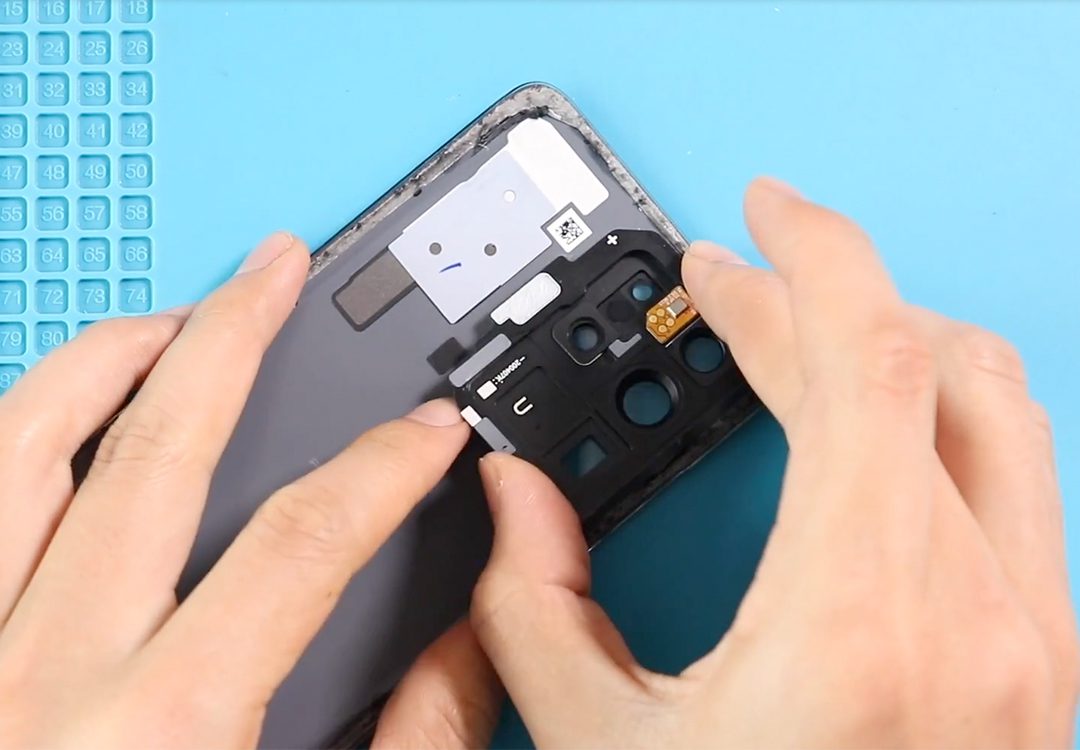
Step 3: Remove the Back Cover
- Use a suction cup to create a gap
- Insert a plastic pry tool or card
- Slide it carefully around the edges to cut the adhesive
Step 4: Remove Midframe Screws
- Remove the SIM tray
- Unscrew 13 screws from the top and bottom sections
Step 5: Remove the Midframe
- Use a plastic pry tool to separate the frame
- Work gently around the edges to release clips
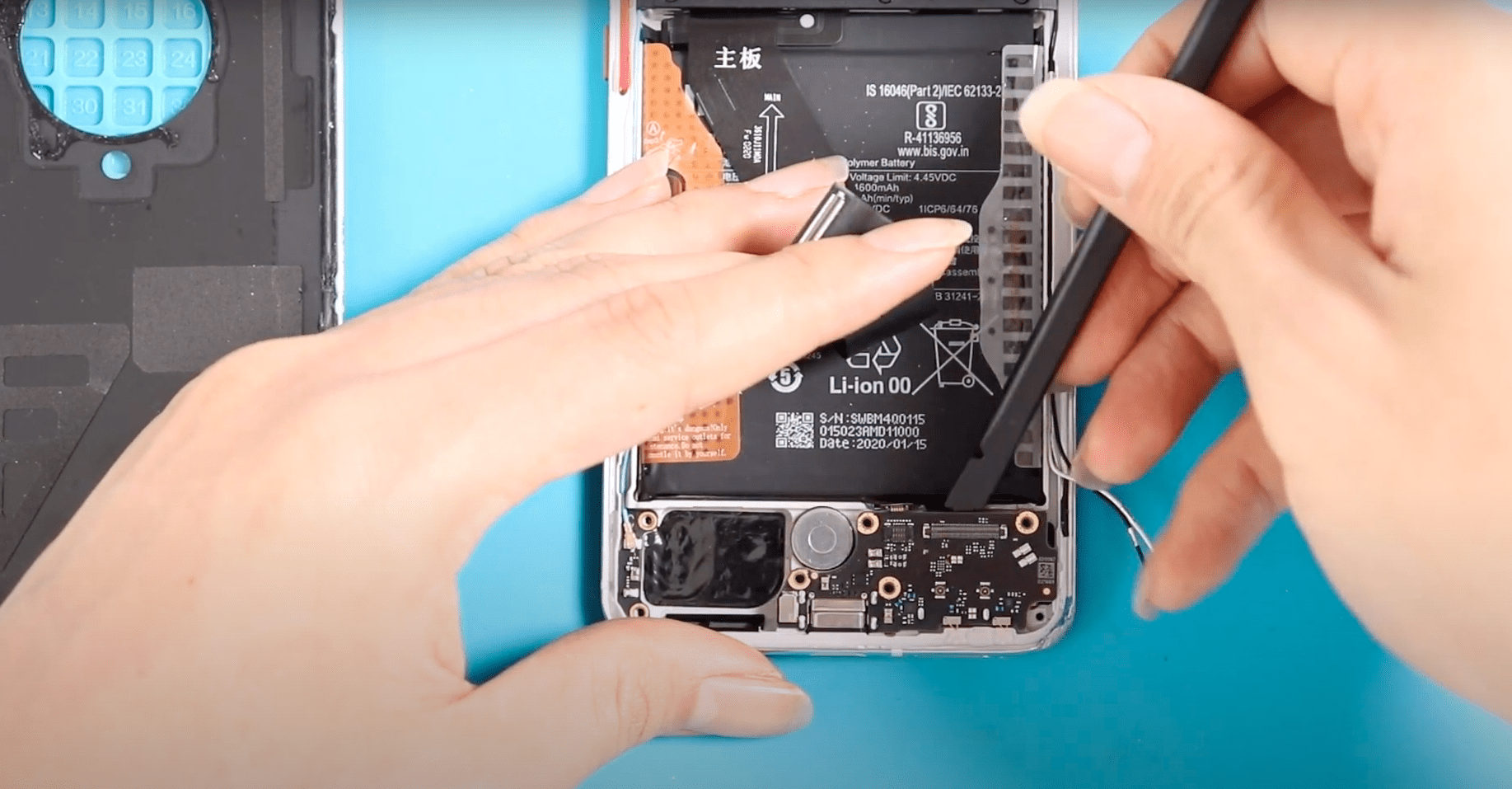
Step 6: Disconnect the Battery
Carefully disconnect the battery connector.
Step 7: Remove Flex Cables
Disconnect and remove:
- Main flex cable
- LCD ribbon flex
Step 8: Remove the Old Battery
- Apply slight heat to soften adhesive under the battery
- Use a pry tool carefully to lift and remove it
⚠️ Be careful not to puncture or bend the battery.
Step 9: Install the New Battery
- Place the new battery with adhesive
- Align it properly inside the frame
Step 10: Reconnect Components
- Reconnect main flex and LCD flex
- Reconnect the battery connector
Step 11: Reassemble the Midframe
- Place the midframe back into position
- Ensure clips are properly secured
- Tighten all 13 screws
- Insert the SIM tray
Step 12: Seal the Back Cover
- Apply adhesive if needed (B7000 or double-sided adhesive)
- Carefully press the back cover into place
Step 13: Secure the Back Cover
- Use clips or rubber bands to hold it firmly
- Leave it for some time to ensure proper bonding
FAQs (Frequently Asked Questions)
Q1: Is this guide really the same for Galaxy A50 and A50s?
Yes, both models have nearly identical internal layouts, so the same steps apply.
Q2: How do I know if my battery needs replacement?
If your phone drains fast, overheats, or shuts down randomly, the battery is likely degraded.
Q3: Can I do this repair without professional tools?
Yes, basic tools like pry tools, screwdrivers, and a heat source are enough.
Q4: Will a new battery improve performance?
Yes, it can significantly improve battery life and overall device stability.
Q5: What adhesive should I use to reseal the phone?
B7000 glue or pre-cut double-sided adhesive works best.
Troubleshooting (After Repair)
Q1: Phone not turning on
- Check battery connection
- Ensure battery has charge
- Reconnect all flex cables properly
Q2: Phone not charging
- Verify battery connector
- Check charging cable and port
Q3: Back cover not sticking
- Apply new adhesive
- Use rubber bands or clips to secure
Q4: Screen not working
- Reconnect LCD flex cable
- Ensure no damage during repair
Q5: Device overheating
- Ensure battery is properly installed
- Avoid using low-quality replacement batteries
Final Thoughts
Replacing the battery on your Samsung Galaxy A50 or A50s is a practical way to extend the life of your device and restore its performance. Just take your time, follow each step carefully, and you’ll be able to complete the repair successfully.
I hope you found this guide helpful! If you have any questions, feel free to ask.
Related Guides