Now Reading: Google Pixel 6 Power Button Replacement Guide | Volume Button Flex Repair Guide- DIY Repair
-
01
Google Pixel 6 Power Button Replacement Guide | Volume Button Flex Repair Guide- DIY Repair

Google Pixel 6 Power Button Replacement Guide | Volume Button Flex Repair Guide- DIY Repair
Repair Difficulty: ★★★★☆ (Medium–Advanced)
Estimated Time: 60–80 minutes
If your Google Pixel 6 power button or volume buttons are unresponsive, stuck, or only work intermittently, the power and volume button flex cable may be damaged. This flex cable controls the physical buttons on the side of the phone and can fail due to drops, wear over time, or moisture exposure.
In this DIY repair guide, we’ll show you how to replace the Google Pixel 6 power and volume button flex safely. This is a more advanced repair that requires removing major internal components, including the battery, cameras, and logic board. No soldering is required, but careful handling is essential.
Reasons to Replace the Google Pixel 6 Power & Volume Button Flex
- Power button not responding
- Volume up or down buttons not working
- Buttons feel loose or stuck
- Device powers on randomly
- Button failure after water damage or drops
Before You Begin
Compatibility and Model Numbers
This repair guide based on Google Pixel 6 Mobile Phone.
Model Numbers | GB7N6, G9S9B16, G9S9B, GR1YH
Tools Required
- Heating pad / heat gun / hairdryer
- Suction cup
- Plastic card pry tools / opening picks / Tweezers
- Phillips PH000/PH00 screwdriver
- Torx T3 Screwdriver
- Adhesive (B7000 or double-sided back cover adhesive)
- Bonding clips or rubber bands (optional but recommended)
Make sure the device is turned off and the SIM tray is removed before starting.
How to Find Tools and Parts
- Heating pad – https://amzn.to/3H0tHzJ
- Portable Heat Gun – https://amzn.to/4mszih1
- Clamps https://amzn.to/3GYJT4w
- STREBITO 142 Piece Repair Tool Kit https://amzn.to/3UO1jUx
- Glue | Adhesive https://amzn.to/46exVxe
- Compatible Parts –
- Battery – https://amzn.to/4oCudEY
- Screen – https://amzn.to/4orJkRn
- Other Parts – https://amzn.to/45eHHPC
- Silicone Work Repair Mat https://amzn.to/45Emz5l
Protect Your Google Pixel 6
- Protector For The Screen https://amzn.to/4oxn48E
- Best Cases For Your Pixel 6 https://amzn.to/4fwwSMl
Step-by-Step Google Pixel 6 Power & Volume Button Flex Replacement
Step 1: Open the Google Pixel 6
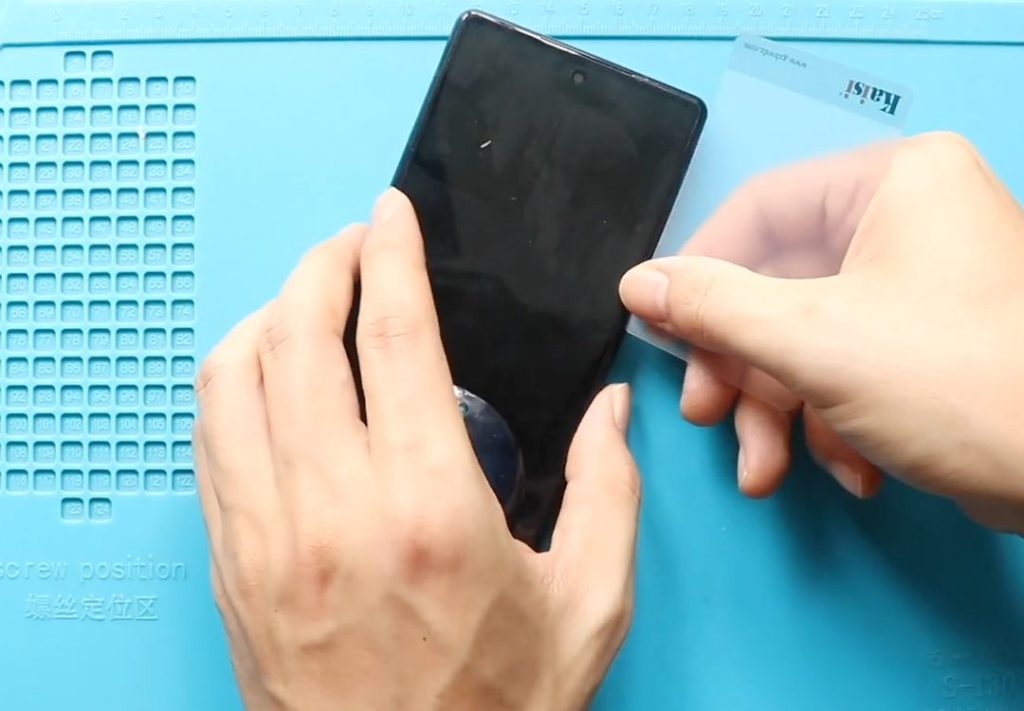
- Apply gentle heat to the front screen edges using a heating pad, heat gun, or hairdryer.
- Use a suction cup to lift the screen slightly from the right-hand side.
- Insert a plastic pry tool to cut through the adhesive.
- Open the display from right to left like a book, being careful of the flex cable on the left side.
Step 2: Remove the LCD Screen
- Remove the LCD connector bracket using tweezers.
- Disconnect the LCD connector from the logic board.
- Fully remove the display and place it aside safely.
Step 3: Remove Logic Board Bracket
- Unscrew and remove the logic board bracket.
- Gently lift the bracket while loosening any graphite tape.
Step 4: Disconnect and Remove the Battery
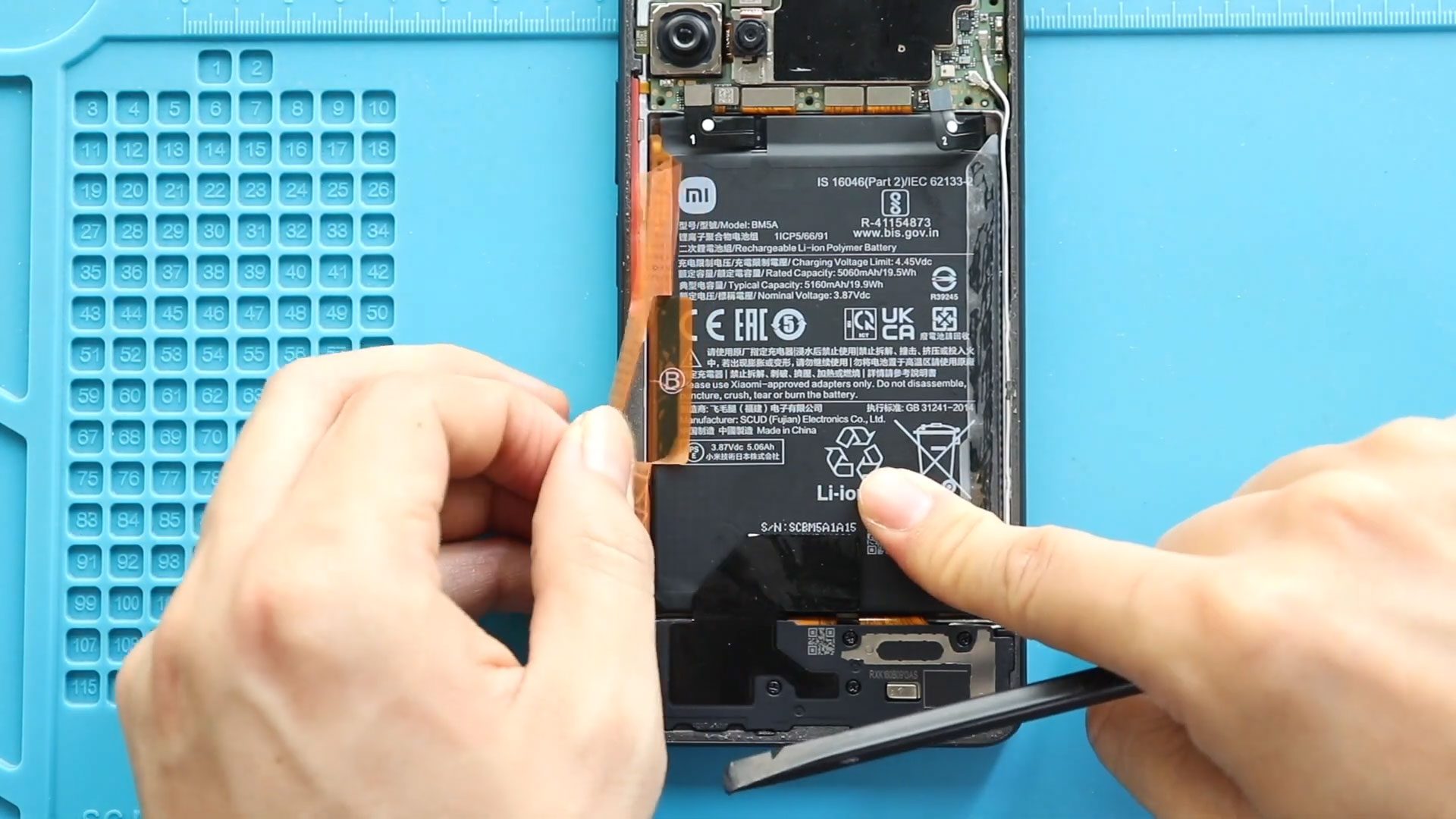
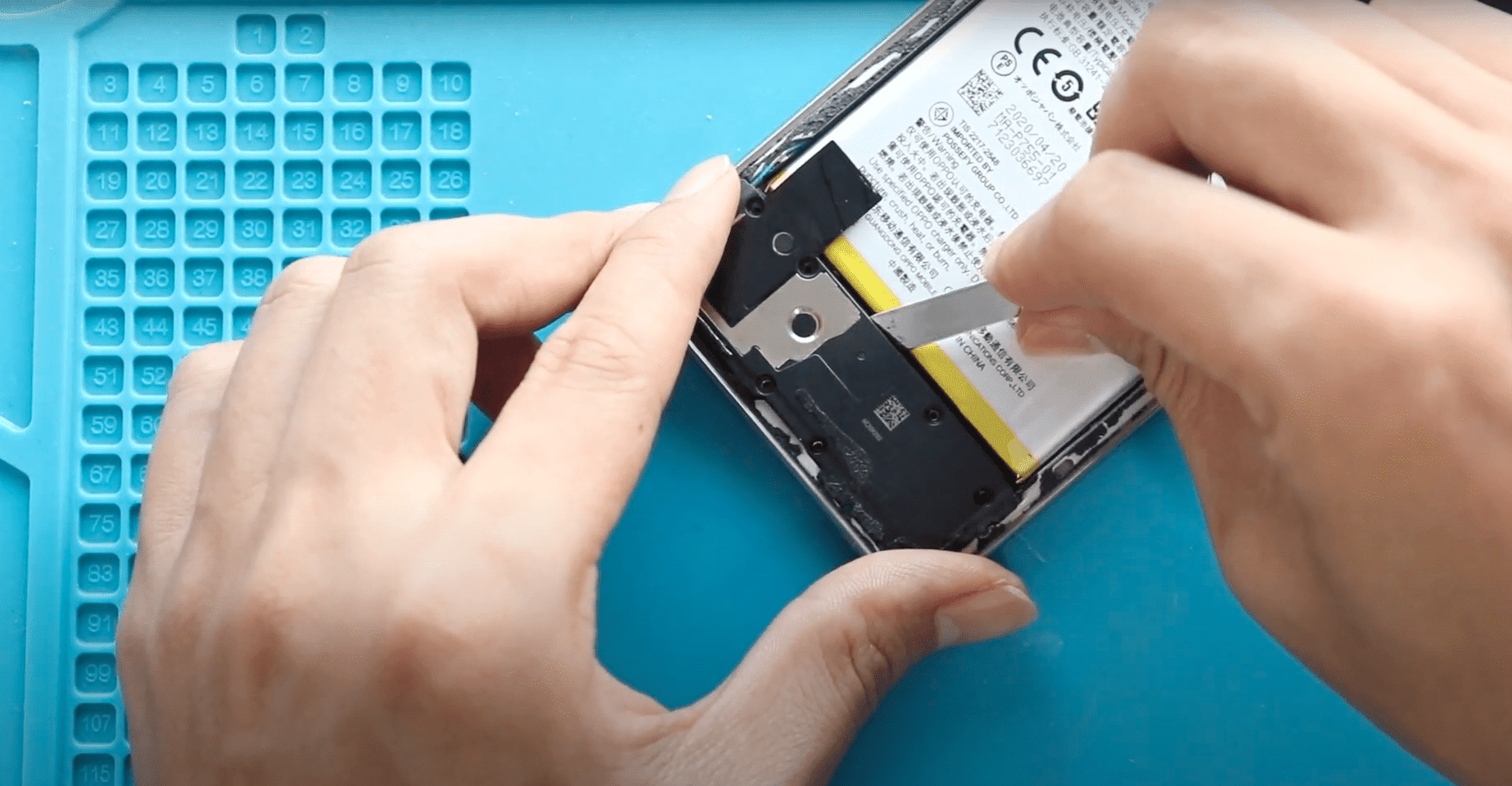
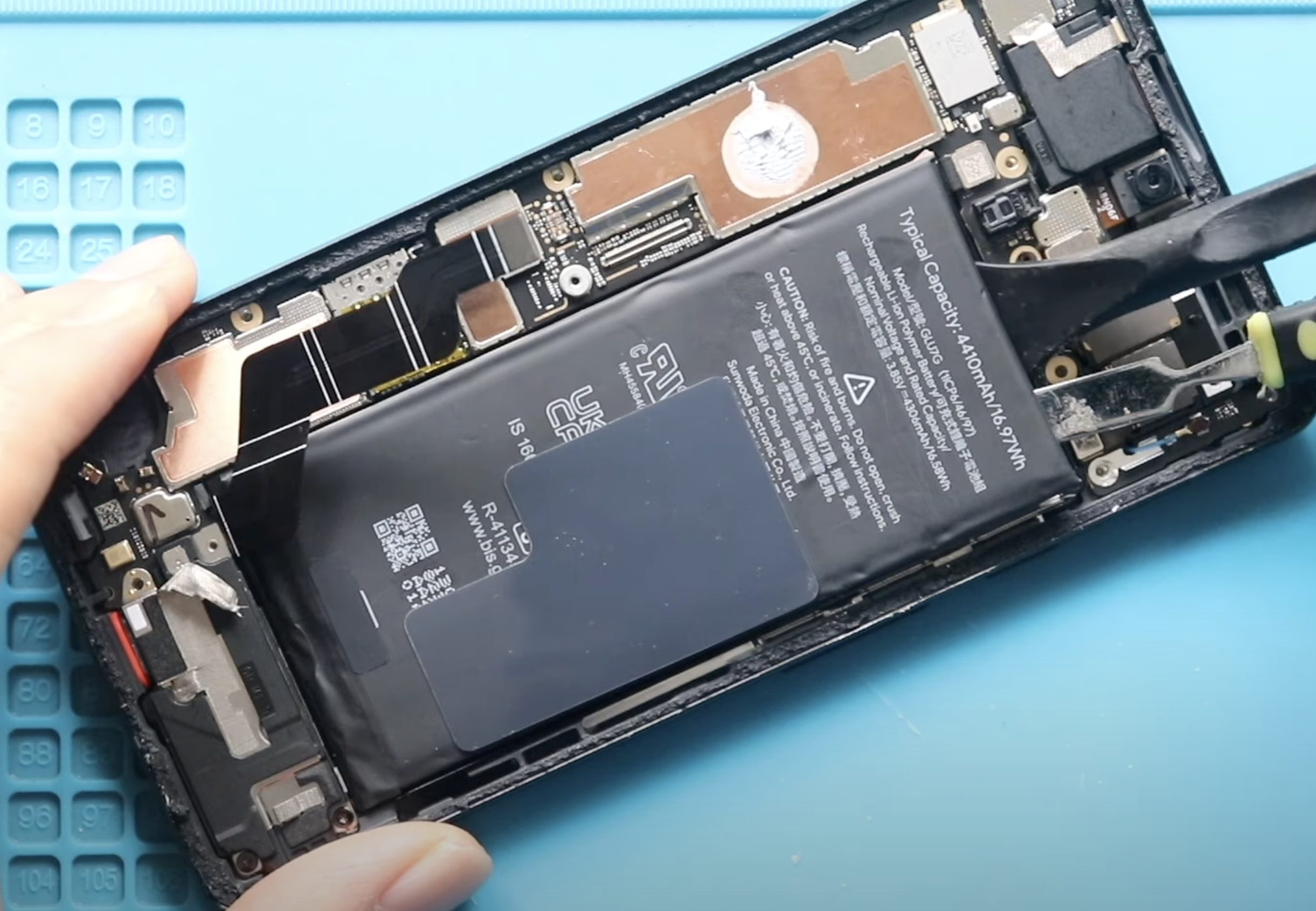
- Disconnect the battery connector to prevent short circuits.
- Carefully lift and remove the battery from the device.
Step 5: Remove Front and Rear Cameras
- Disconnect and remove the front camera module.
- Disconnect and remove the rear camera modules carefully and set them aside.
Step 6: Remove the Ringer Speaker
- Locate and remove the ringer speaker module from the bottom section.
Step 7: Remove the Logic Board
- Carefully disconnect all remaining connectors attached to the logic board.
- Lift and remove the logic board from the frame.
Step 8: Remove the Faulty Power & Volume Button Flex
- Locate the power and volume button flex cable along the side frame.
- Carefully disconnect and remove the damaged Pixel 6 button flex.
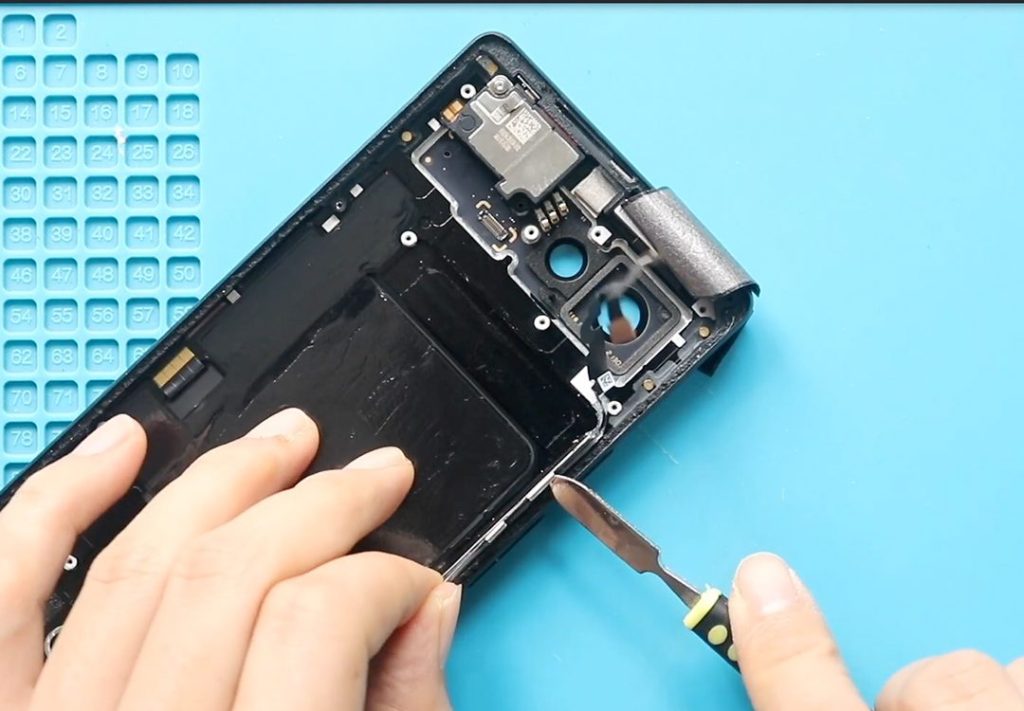
Step 9: Install the New Power & Volume Button Flex
- Place the new flex cable into position.
- Ensure it aligns properly with the side buttons and frame cutouts.
- Secure the flex and connect it to the board.
Step 10: Reinstall Logic Board and Components
- Reinstall the logic board and reconnect all connectors.
- Place the ringer speaker back into position.
- Reinstall the rear camera modules and reconnect them.
- Reinstall the front camera module.
Step 11: Reinstall Battery and Brackets
- Place the battery back into the device and reconnect it.
- Reinstall the logic board bracket and secure it with screws.
Step 12: Reconnect Display and Test
- Reconnect the LCD connector and secure the connector bracket.
- Power on the device and test the power and volume buttons.
Step 13: Close the Device
- Apply new adhesive or B7000 glue if required.
- Slide the display into place from bottom to top.
- Apply gentle pressure around the edges.
- Use bonding clips or rubber bands until the adhesive fully sets.
Frequently Asked Questions (FAQ)
Q: Is Google Pixel 6 power button repair difficult?
A: Yes, this is a medium-to-advanced repair requiring full internal disassembly.
Q: Do I need soldering skills?
A: No, the power and volume buttons are connected via a plug-in flex cable.
Q: Can water damage cause button failure?
A: Yes, moisture exposure is a common cause of button flex failure.
Q: Should I replace both power and volume flex together?
A: Yes, they are usually part of the same flex cable assembly.
Troubleshooting (After The Repair)
Q: Power button still not working after replacement
A: Ensure the flex cable is fully seated and aligned with the side buttons.
Q: Volume buttons feel loose
A: Check the flex alignment and ensure the logic board is properly seated.
Q: Phone does not power on after reassembly
A: Recheck the battery connection and all logic board connectors.
Q: Buttons trigger randomly
A: The flex cable may be pinched or misaligned—reopen and adjust placement.
Related