
Now Reading: POCO F3 Power Button Flex Replacement Guide | Fingerprint Repair – Xiaomi Mi 11X/11i | Redmi K40
-
01
POCO F3 Power Button Flex Replacement Guide | Fingerprint Repair – Xiaomi Mi 11X/11i | Redmi K40
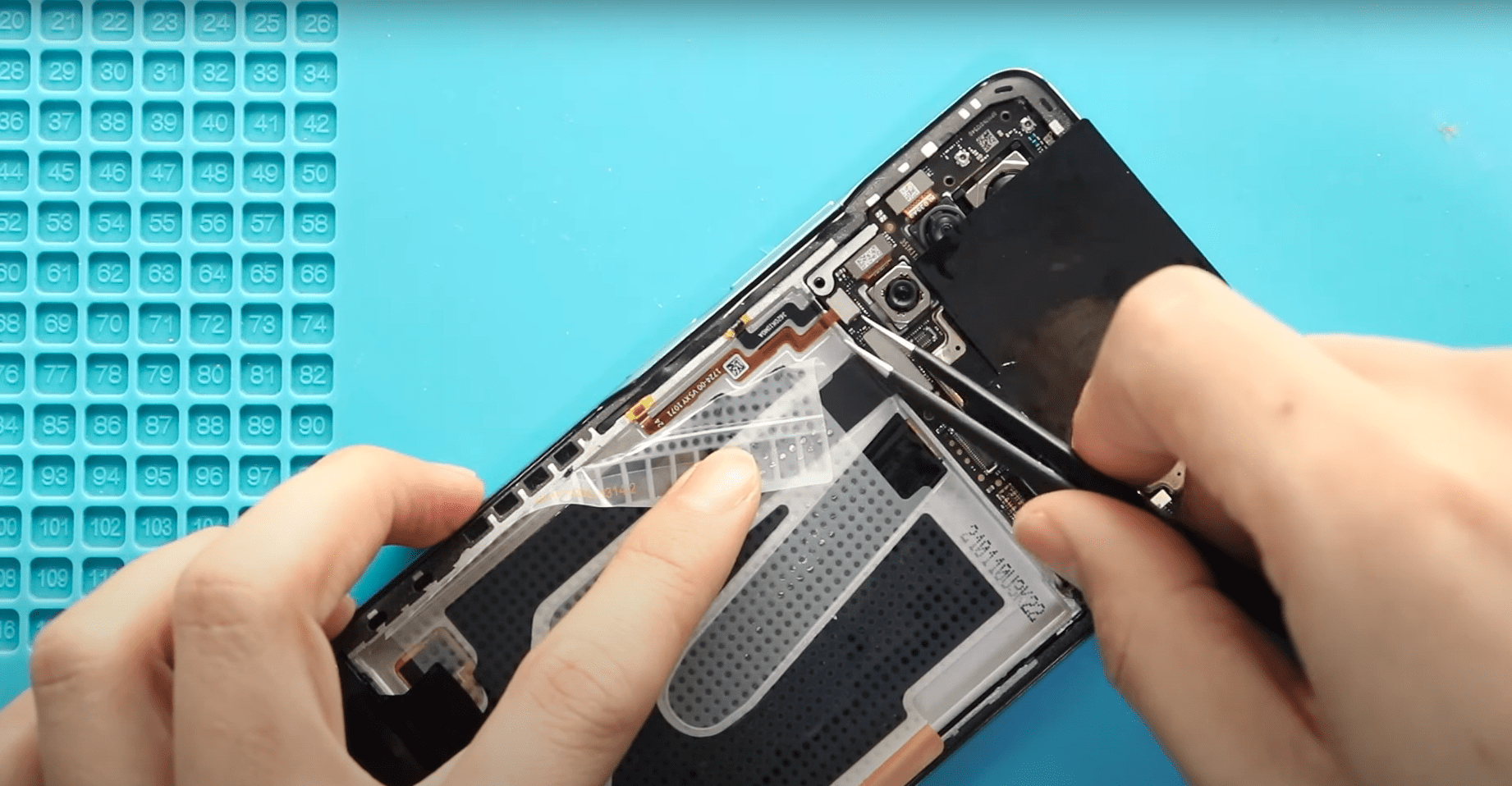
POCO F3 Power Button Flex Replacement Guide | Fingerprint Repair – Xiaomi Mi 11X/11i | Redmi K40
Hi everyone, welcome back to Geardo.
Today, we will show you how to replace the power button and fingerprint sensor flex cable on the Poco F3, also known as the Xiaomi Mi 11X and Redmi K40.
If your power button is not responding or the fingerprint sensor is not detecting properly, replacing this flex cable will usually fix both issues. This guide is beginner-friendly—just follow the steps carefully.
Repair Overview
- Device Type: Smartphone
- Repair Type: Power Button & Fingerprint Flex Replacement
Repair Difficulty: ★★★☆☆ (Moderate)
- Estimated Time: 40–60 minutes
Reasons for Repair
- Power button not working or stuck
- Fingerprint sensor not detecting
- Intermittent power button response
- Physical damage to button flex
Before You Begin
Compatibility and Model Numbers
- Redmi K40 Series ( Redmi K40 / K40 Pro / K40 Pro Plus)
- Xiaomi 11x / 11i Series
- Poco F3 Series
Model Numbers : M2012K11AG, M2012K11AC, M2012K11C, M2012K11AI, M2012K11I
This guide is based on the Redmi K40, which shares identical design with the Poco F3 and Xiaomi Mi 11X / Xiaomi Mi 11i. These are rebranded regional models, but always watch for minor internal differences during the repair.
Tools Required
- Mobile phone heating pad or hairdryer/heat gun
- Plastic pry tool / card pry
- Suction cups
- Phillips #00/#000 screwdrivers
- Torx (T2/T3/T4) screwdrivers
- Flathead screwdriver
- Tweezers (for connectors)
- B7000 glue or double-sided adhesive (for back cover)
- Rubber bands or bonding clips to secure the back cover
How to Find Tools and Parts
- Heating pad – https://amzn.to/3H0tHzJ
- Portable Heat Gun – https://amzn.to/4mszih1
- Clamps https://amzn.to/3GYJT4w
- STREBITO 142 Piece Repair Tool Kit https://amzn.to/3UO1jUx
- Glue | Adhesive https://amzn.to/46exVxe
- Compatible Parts –
- Battery – https://amzn.to/4t0Aw6W
- Screen – https://amzn.to/48hkKfR
- Other Parts – https://amzn.to/4cF5E69
- Silicone Work Repair Mat https://amzn.to/45Emz5l
Protect Your Phone
- Best Premium Case https://amzn.to/4cF5E69
- Screen Protector https://amzn.to/423YP86
Important Note (Compatibility)
This guide is based on the Redmi K40, which shares the same internal design as the Poco F3 and Xiaomi Mi 11X. These are rebranded regional models, so the process is the same.
Step-by-Step Power Button & Fingerprint Repair
Step 1: Power Off & Remove SIM Tray
Turn off the device and remove the SIM tray.
Step 2: Open the Device & Remove Back Cover
- Apply gentle heat around the edges
- Use a suction cup to create a gap
- Insert a plastic pry tool/card
- Carefully cut the adhesive and remove the back cover
Step 3: Remove the Board Frame
- Undo 11 screws
- Disconnect the flash connector
- Lift and remove the board frame
Step 4: Remove the Battery
- Disconnect the battery connector
- Pull adhesive strips from the sides
- Gently lift and remove the battery
Step 5: Remove the Faulty Power Button & Fingerprint Flex
- Apply gentle heat along the side frame where the flex is attached
- Carefully peel the flex cable from the frame
- Remove the fingerprint/power button through the side opening
- Take out any brackets or rubber supports if present
Step 6: Install the New Power Button & Fingerprint Flex
- Insert the new power/fingerprint button through the side opening
- Align the flex cable along the frame
- Press and secure it into place
- Reinstall any brackets or rubber holders
- Ensure proper alignment with external buttons
Step 7: Reinstall the Battery
- Place the battery back into position
- Secure adhesive
- Reconnect the battery connector
Step 8: Reinstall the Board Frame
- Place the frame back
- Secure with 11 screws
- Reconnect the flash connector
Step 9: Test Before Closing
Power on the device and check:
- Power button functionality
- Fingerprint sensor response
Step 10: Close the Device
- Apply adhesive if needed
- Reinstall the back cover
- Press firmly around edges
- Use clips or rubber bands for proper bonding
FAQs
Q1: Why is my fingerprint sensor not working?
It may be due to a damaged flex cable or worn-out button assembly.
Q2: Can I replace only the power button?
In most cases, the power button and fingerprint sensor come as one combined flex cable.
Q3: Is this repair beginner-friendly?
Yes, but requires careful handling and heating.
Q4: Do I need to remove the logic board?
No, this repair can be done without removing the logic board.
Q5: Will this fix power button issues completely?
Yes, if the issue is hardware-related.
Troubleshooting (After The Repair)
Q1: Power button still not working
- Check flex cable alignment
- Ensure connector is properly seated
Q2: Fingerprint not detecting
- Recheck placement of fingerprint sensor
- Clean sensor surface
Q3: Phone not turning on
- Verify battery connection
- Charge device and try again
Q4: Buttons feel loose
- Ensure brackets and rubber supports are installed correctly
Q5: Back cover not sealing properly
- Use new adhesive or B7000 glue
- Apply pressure with clips
Related Guide


-
 01Samsung Galaxy A16 5G Battery Replacement | Full DIY Repair Guide
 -
02Samsung Galaxy A16 5G Screen Replacement | Step-by-Step Guide
-
03Google Pixel 6 Power Button Replacement Guide | Volume Button Flex Repair Guide- DIY Repair
-
04Samsung Galaxy A16 5G Back Cover & Camera Lens Frame Replacement Guide | DIY Repair
-
05Why a Heating Pad Is Essential for Mobile Phone Repairs (And How to Use it)
-
06How to Use a Heat Gun or Hair Dryer for Phone/Tablet Repairs
-
07Essential Repair Tools for Phone, Tablet & Laptop Repairs


