Now Reading: iPad Mini 6 Rear Camera Replacement Guide (2021)
-
01
iPad Mini 6 Rear Camera Replacement Guide (2021)
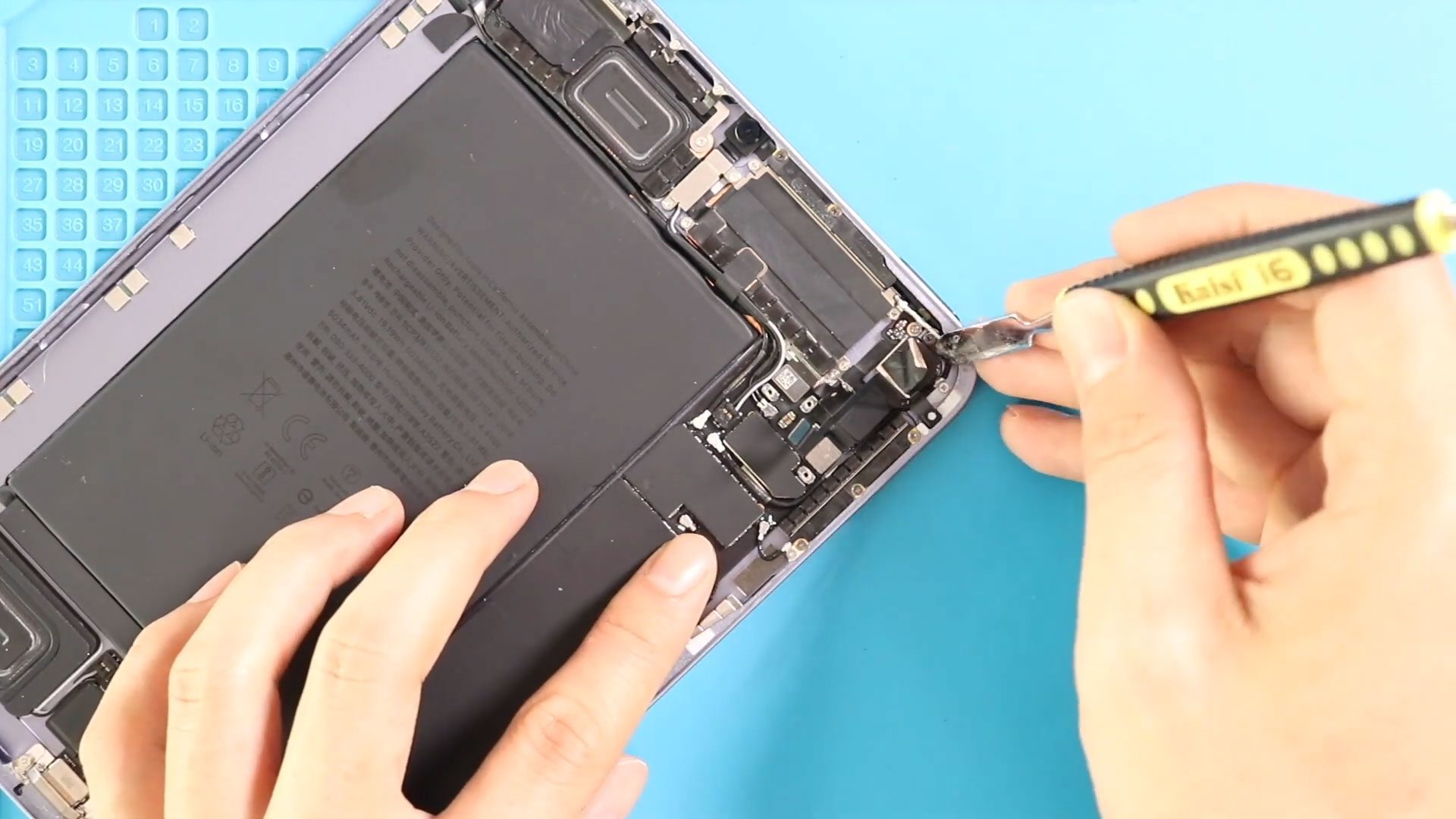
iPad Mini 6 Rear Camera Replacement Guide (2021)
Hi everyone, welcome back to Geardo 👋
Today, we’re going to show you how to replace the rear camera on the iPad Mini 6 (2021), iPad mini 6 (2024). If your iPad’s rear camera is blurry, not focusing, showing a black screen, or completely not working, replacing the camera module is the most effective solution.
This guide explains the safe display removal process, how to access the rear camera module, disconnect related sensors, and reinstall everything correctly.
Repair Difficulty
Difficulty Level: 🔧🔧🔧🔧☆ (Moderate to Hard)
Estimated Repair Time: 60–90 minutes
Repair Type: Rear Camera Replacement
⚠️ The display is fragile and secured with strong adhesive. Work slowly and apply heat evenly.
Before You Begin
Compatibility and Model Numbers
This repair guide based on iPad Mini 6th Generation 2021 Model
Also Compatible with iPad mini 7th Generation Model, Both Wifi and Cellular Edition models.
Model Numbers | iPad mini 6th Generation, iPad mini 7th Generation, A2568, A2993, A2995, A2996
Required Tools
- Heating pad / heat gun / hairdryer
- Suction cup
- Plastic card pry tools / opening picks/ Tweezers
- Phillips screwdriver #00 / #000
- Torx T3 Screwdriver
- Adhesive (B7000 or double-sided back cover adhesive)
- Bonding clips or rubber bands (optional but recommended)
Make sure the device is turned off and the SIM tray is removed (For Cellular Version) before starting.
How to Find Tools and Parts
- Heating pad – https://amzn.to/3H0tHzJ
- Portable Heat Gun – https://amzn.to/4mszih1
- Clamps https://amzn.to/3GYJT4w
- STREBITO 142 Piece Repair Tool Kit https://amzn.to/3UO1jUx
- Glue | Adhesive https://amzn.to/46exVxe
- Compatible Parts –
- Battery – https://amzn.to/3HFBIKE
- LCD Screen – https://amzn.to/420pGST
- Other Parts – https://amzn.to/4fOsf04
- Silicone Work Repair Mat https://amzn.to/45Emz5l
Important: Back up your data before starting. Work slowly and keep screws organized.
Reasons for Rear Camera Replacement
You may need to replace the rear camera if:
- Camera shows a black screen
- Images are blurry or out of focus
- Camera app crashes when opened
- Flash is not working properly
- Rear camera is physically damaged
- Camera does not respond after software reset
Protect Your iPad Mini
- Tempered Glass For The Screen https://amzn.to/41mdEmI
- Best Cases For Your iPad https://amzn.to/45U2VRW
- Keypad for the iPad – https://amzn.to/3HNyJjg
Step-by-Step iPad Mini 6 Rear Camera Replacement
Step 1: Heat the Display
To loosen the adhesive securing the display:
- Place the front side of the iPad on a heating pad.
- Select the tablet heating option and let it complete.
- Alternatively, apply even heat using a heat gun or hair dryer.
Step 2: Lift the Display
- Attach a suction cup to the edge of the display.
- Carefully lift to create a small gap.
- Insert plastic pickers or card pry tools and cut the adhesive around the edges.
⚠️ Be gentle—flex cables are connected to the logic board.
Step 3: Open the Display
- Slowly lift the LCD screen from the bottom.
- Tilt it to about 45 degrees without pulling it completely away.
Step 4: Disconnect Battery & Display Cables
- Remove the metal shield by undoing five screws.
- Disconnect:
- Battery connector
- LCD connector
- Touchscreen connector
Step 5: Access the Rear Camera
- Move to the top-right section of the iPad.
- Remove the camera bracket by undoing three screws.
Step 6: Disconnect Camera & Sensors
- Disconnect the power flex connector.
- Disconnect the flash sensor connector.
- Disconnect the L-shaped rear camera connector carefully.
Step 7: Remove the Faulty Rear Camera
- Gently lift the rear camera module using a tweezer or plastic pry tool.
- Remove it completely from the housing.
Step 8: Install the New Rear Camera
- Place the new rear camera into position.
- Ensure it sits properly in the housing.
Step 9: Reconnect Camera & Sensors
- Reconnect the rear camera connector.
- Secure the flash sensor and power flex connectors to the board.
- Apply adhesive if required and reinstall the camera bracket using three screws.
Step 10: Reconnect Display & Battery
- Reconnect the LCD and touch connectors.
- Secure the battery connector.
- Reinstall the metal shield using five screws.
Step 11: Test Before Sealing
Before sealing the display:
- Power on the iPad
- Test rear camera functionality
- Check flash operation
- Verify display and touch response
Step 12: Seal the Display
- Apply B7000 glue or double-sided adhesive around the frame.
- Slide the top edge first, then gently press the sides and bottom into place.
- Apply pressure only on the frame edges.
Step 13: Clamp the Display
- Use screen bonding clips to secure the display.
- If unavailable, use rubber bands.
- Leave clamped for sufficient time to ensure proper bonding.
Frequently Asked Questions (FAQ)
Q: Can rear camera issues be fixed with software updates?
A: Sometimes, but if the camera shows a black screen or physical damage, replacement is required.
Q: Is the rear camera soldered to the board?
A: No. The rear camera is connected via a flex connector and can be replaced easily.
Q: Do I need to remove the battery completely?
A: No. Disconnecting the battery connector is enough for safety.
Q: Is testing before sealing necessary?
A: Yes. Always test the camera before final assembly.
Troubleshooting (After The Repair)
Q: Rear camera still not working after replacement.
A: Recheck the L-shaped camera connector and ensure it is seated properly.
Q: Flash does not work after repair.
A: The flash sensor connector may not be connected correctly.
Q: Camera app crashes when opened.
A: The camera flex may be damaged or incompatible.
Q: Screen lifts after reassembly.
A: Insufficient adhesive or clamping time. Reapply adhesive and clamp longer.
Conclusion
We hope you’ve enjoyed this iPad Mini 6 (2021) rear camera replacement guide. By following these steps carefully, you can restore your iPad’s camera performance safely and effectively.
If you have any questions, feel free to ask.
Please like, share, and comment on our videos, and don’t forget to subscribe to Geardo for more repair guides
Relate Repair Guides