
Now Reading: iPhone 12 Speaker Replacement Guide
-
01
iPhone 12 Speaker Replacement Guide

iPhone 12 Speaker Replacement Guide
Hi everyone, welcome back to GEARDO.
Today, we will show you how to replace the Ringer Speaker Buzzer on the iPhone 12/12 Pro mobile phone. If your device has no sound during calls, alarms, or notifications, this guide will help you fix it safely at home.
Before starting, ensure you have the right tools to perform the repair. All tools, including screwdrivers, pry tools, and suction cups, are listed in the description below. Using the correct tools reduces the risk of damaging your device and makes the process faster and safer.
Compatibility and Model Numbers
This repair guide based on iPhone 12 mobile phone. But this guide also compatible with iPhone12 Pro mobile phone.
Compatible Mode Numbers l A2403, A2172, A2402, A2404, A2407, A2341, A2406, A2408
Tools You Need
- Heating pad / heat gun / hairdryer
- Suction cup
- Plastic card pry tools / opening picks
- Phillips PH000 screwdriver
- Pentalobe P2 Screwdriver (for bottom screws)
- Tri-Point Y000 Screwdriver
- Adhesive (B7000 or double-sided frame adhesive)
- Bonding clips or rubber bands (optional but recommended)
How to Find Tools and Parts
- Heating pad – https://amzn.to/3H0tHzJ
- Portable Heat Gun – https://amzn.to/4mszih1
- Clamps https://amzn.to/3GYJT4w
- STREBITO 142 Piece Repair Tool Kit https://amzn.to/3UO1jUx
- Glue | Adhesive https://amzn.to/46exVxe
- Compatible Parts https://amzn.to/3Hx6sxo
- Silicone Work Repair Mat https://amzn.to/45Emz5l
Step 1 — Power Off & Remove SIM Tray
First, turn off your iPhone 12 to prevent any electrical issues.
Next, remove the SIM tray from the side.
Then, using a Pentalobe screwdriver, undo the two bottom screws near the charging port.

Step 2 — Heat & Lift the Display
The iPhone 12 screen is sealed with adhesive.
Apply gentle heat to soften the glue. You can use a heating pad, heat gun, or hairdryer—just be careful not to overheat.
Attach a double-sided suction cup at the bottom of the screen to lift it.
If you don’t have one, a regular suction cup works with a plastic card pry tool or triangle picker to separate the rubber gasket around the frame.
Lift the screen carefully, like opening a book from the left side.
Step 3 — Remove Shields & Disconnect Cables
Inside, you’ll find two protective shields:
- Bottom shield: Remove 2 screws
- Top shield: Remove 4 screws
Next, disconnect the following connectors carefully:
- Battery plug
- Earpiece assembly connector
- Two screen connectors
Disconnecting the battery first ensures safety during repair.
Step 4 — Remove the Old Ringer Buzzer
The ringer buzzer is secured with four screws.
Carefully remove these screws and lift out the faulty ringer buzzer speaker.
Pay attention to the placement of connectors and edges while removing it.
Step 5 — Install the New Ringer Buzzer
Place the new ringer buzzer into the correct position in the frame.
Secure it using the four screws you previously removed.
Make sure the connector is properly aligned and seated.
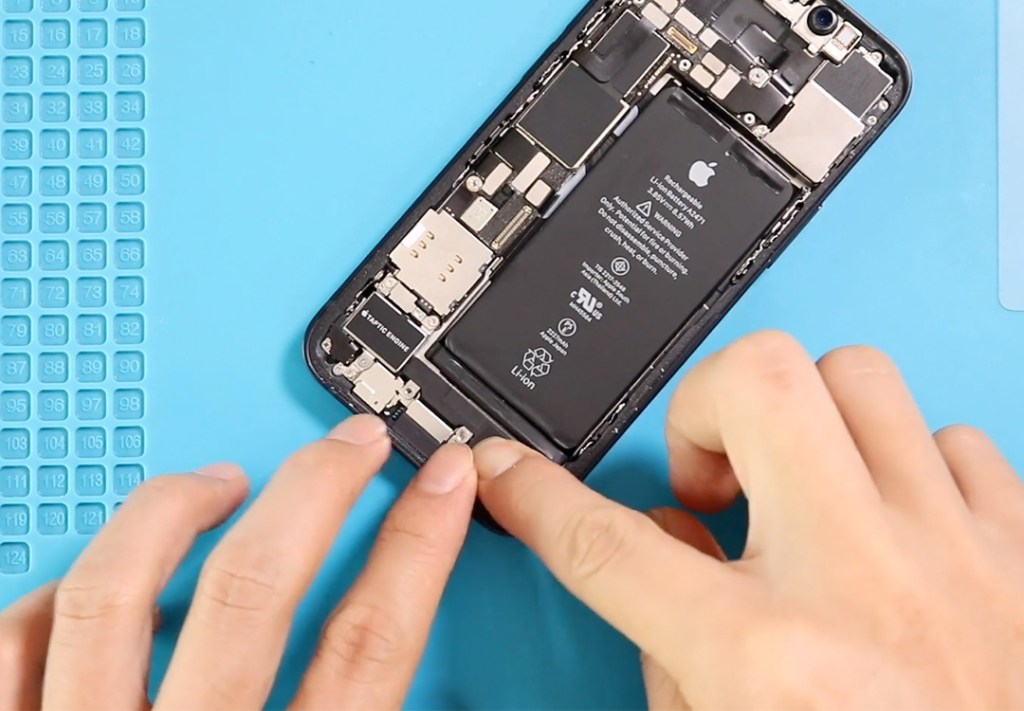
Step 6 — Install Water Seal Adhesive
Install pre-cut water seal tape around the frame. This helps maintain splash and dust resistance.
Note: This will not fully restore waterproofing, but it significantly improves protection.
Step 7 — Reconnect Display & Components
Reinstall everything in reverse order:
- Reconnect earpiece assembly, LCD connectors, and battery plug
- Reattach top and bottom shields with screws
Carefully place the display back on the frame. Press top first, then sides, and finally the bottom to snap it in place.
Step 8 — Secure the Phone
Finish the assembly by adding the two bottom Pentalobe screws.
Reinsert the SIM tray, ensuring it fits snugly.
Your iPhone 12 ringer speaker buzzer replacement is now complete!
Step 9 — Test the Device
Turn on the phone and test:
- Incoming calls
- Alarms
- Notifications
Ensure the sound is working perfectly.
Frequently Asked Questions
1: Will replacing the ringer buzzer fix microphone issues?
A: No. The ringer buzzer only affects sound output. Microphone issues are usually related to the charging port flex or microphone components.
2: Do I need to replace water-seal adhesive?
A: Yes, it improves dust and splash resistance, though full waterproofing isn’t restored.
3: Can I use any replacement buzzer?
A: Use a high-quality or original replacement to ensure proper sound and fit.
More Repair Guides


-
 01Samsung Galaxy A16 5G Battery Replacement | Full DIY Repair Guide
 -
02Samsung Galaxy A16 5G Screen Replacement | Step-by-Step Guide
-
03Google Pixel 6 Power Button Replacement Guide | Volume Button Flex Repair Guide- DIY Repair
-
04Samsung Galaxy A16 5G Back Cover & Camera Lens Frame Replacement Guide | DIY Repair
-
05Why a Heating Pad Is Essential for Mobile Phone Repairs (And How to Use it)
-
06How to Use a Heat Gun or Hair Dryer for Phone/Tablet Repairs
-
07Essential Repair Tools for Phone, Tablet & Laptop Repairs


