
Now Reading: Motorola Moto Edge XT2063 LCD Touch Screen Replacement Guide
-
01
Motorola Moto Edge XT2063 LCD Touch Screen Replacement Guide
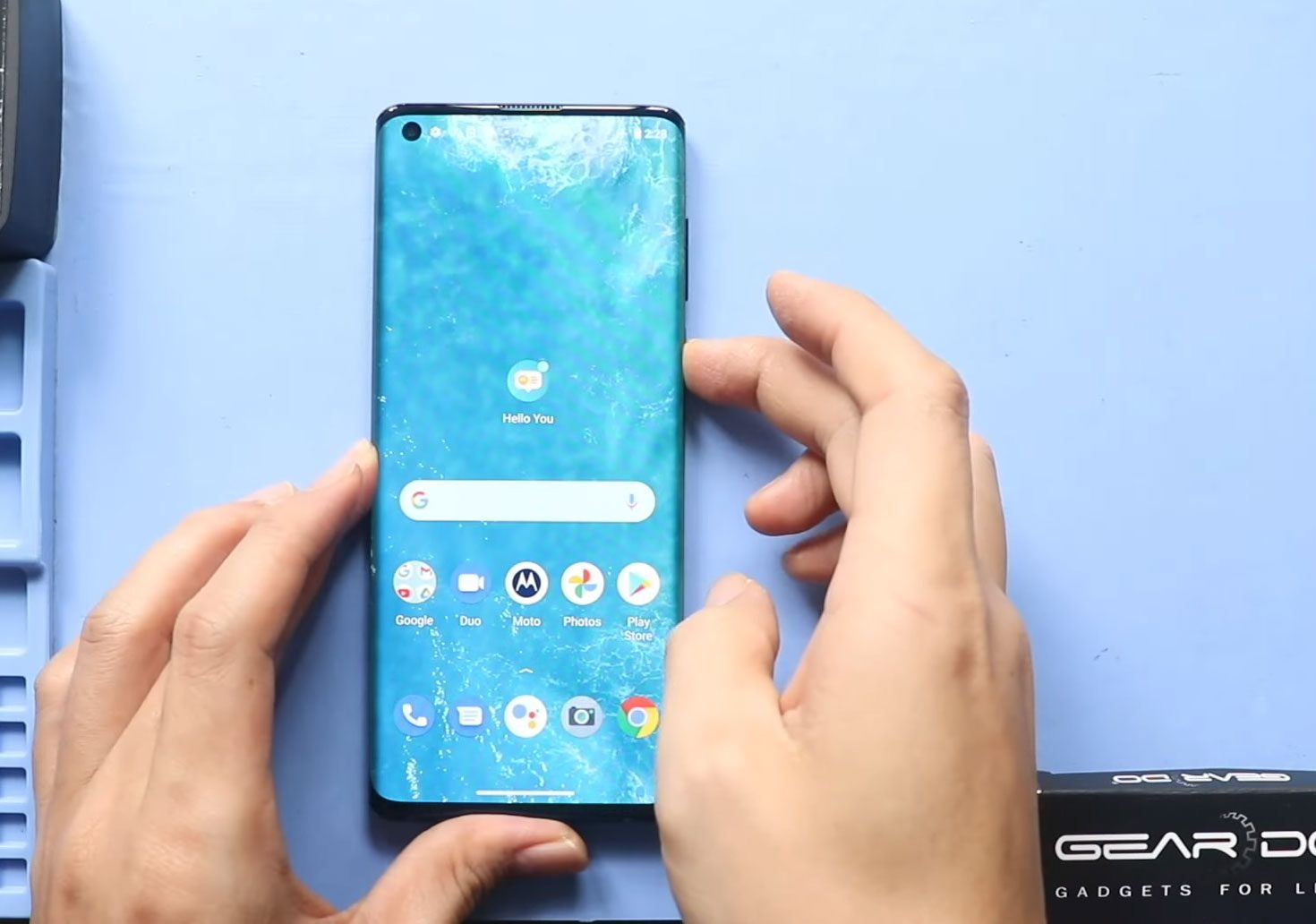
Motorola Moto Edge XT2063 LCD Touch Screen Replacement Guide
Hi everyone, welcome back to Geardo.
If your Motorola Moto Edge screen is cracked, unresponsive, showing display issues, or completely broken, replacing the LCD touchscreen assembly is the best solution to restore your phone’s functionality and appearance.
This is one of the more advanced smartphone repairs, but don’t worry—this guide is written in a beginner-friendly step-by-step format to help you complete the process safely and correctly. With patience and the right tools, you can successfully replace your phone’s display at home.
Repair Difficulty
Repair Difficulty: ⭐⭐⭐⭐⭐ (5/5)
Time Required: 90–120 minutes
Device Type: Smartphone
Repair Type: LCD Touchscreen Assembly Replacement
Reasons for LCD Replacement
- Cracked or shattered screen
- Touch not responding properly
- Display flickering or showing lines
- Black screen or no display
- Dead pixels or discoloration
Check The Latest Motorola Phones are in Clearance “up to 60% off” – https://amzn.to/480ho0w
Before You Begin
Compatibility and Model Numbers
- Motorola Edge (2020)
Model Numbers | XT2063, XT2063-2, XT2063-3
Tools Required
- Mobile phone heating pad or hairdryer/heat gun
- Plastic pry tool / card pry
- Suction cups
- Phillips #00/#000 screwdrivers
- Torx T3 / T4 / T5 Screwdriver (Depends on the version)
- Flathead Screwdriver
- Tweezers (for connectors)
- B7000 glue or double-sided adhesive (for back cover)
- Rubber bands or bonding clips to secure the back cover
Using proper tools reduces the risk of damaging the phone.
How to Find Tools and Parts
- Heating pad – https://amzn.to/3H0tHzJ
- Portable Heat Gun – https://amzn.to/4mszih1
- Clamps https://amzn.to/3GYJT4w
- STREBITO 142 Piece Repair Tool Kit https://amzn.to/3UO1jUx
- Glue | Adhesive https://amzn.to/46exVxe
- Compatible Parts –
- Battery – https://amzn.to/4nDL6h8
- Screen – https://amzn.to/46e9obP
- Other Parts – https://amzn.to/3VWWyIN
- Silicone Work Repair Mat https://amzn.to/45Emz5l
Step-by-Step LCD Touchscreen Replacement Guide
Step 1: Heat and Remove the Back Cover
Gently heat the edges of the back cover to soften the adhesive.
Use a suction cup and plastic pry tool to carefully remove the back cover.
Step 2: Remove the Logic Board Frame
Undo the twelve screws and remove the logic board frame with the camera housing.
Step 3: Disconnect Battery and Main Flex
Disconnect the battery connector first, then disconnect the main flex cable.
Step 4: Remove the Battery
Apply heat to soften the adhesive under the battery.
Use a plastic card or pry tool to carefully lift and remove it.
Take your time and avoid bending the battery.
Step 5: Remove the Logic Board
Disconnect the antenna cables, LCD connector, and remove the SIM tray.
Undo the screw and gently remove the logic board.
Step 6: Remove Internal Components
- Apply heat and remove the earpiece module
- Remove the speaker cover (9 screws)
- Disconnect and remove the main flex cable
- Remove the charging port board with antenna cables
- Remove the vibrator motor
- Remove the antenna module
Step 7: Prepare the New Screen Assembly
At this stage, only the damaged screen frame remains.
You have two replacement options:
- With frame (recommended) – easier and faster installation
- Without frame – requires transferring parts manually
💡 Tip: A screen with frame is highly recommended for beginners as it simplifies the repair.
Step 8: Reinstall Components on New Frame
Start transferring all components to the new screen frame:
- Install and secure the earpiece module
- Install the logic board and secure it with screws
- Insert the SIM tray
- Connect the LCD flex cable
- Install the vibrator motor
- Install the charging port board and secure it
- Reinstall antenna cables and connect them properly
- Install the antenna module
- Connect the main flex cable
- Install the speaker cover and secure with nine screws
Step 9: Reinstall Battery and Connections
Secure the battery using adhesive.
Reconnect the main flex cable.
Reconnect the battery connector.
Step 10: Final Assembly
Reinstall the logic board frame and secure it with twelve screws.
Step 11: Reattach the Back Cover
Ensure proper adhesive is applied.
Use B7000 glue or adhesive strips if needed.
Secure the back cover using clips or rubber bands until fully sealed.
FAQ
Q1: Should I choose a screen with frame or without frame?
A screen with frame is recommended for beginners as it reduces complexity and risk.
Q2: Will replacing the LCD fix touch issues?
Yes, since the touchscreen and display are part of the same assembly.
Q3: Is this repair difficult?
Yes, it is an advanced repair requiring careful handling of multiple components.
Q4: Can I reuse the old adhesive?
It’s not recommended—always use new adhesive for better durability.
Q5: Will my data be affected?
No, your data will remain safe, but backing up is always a good idea.
Troubleshooting
Q1: Screen not turning on after replacement
Check the LCD connector and battery connection.
Q2: Touch not responding
Ensure the display flex cable is properly connected.
Q3: No signal after repair
Verify antenna cables are correctly attached.
Q4: Phone overheating
Check for improperly connected components or pinched cables.
Q5: Back cover not sealing properly
Apply fresh adhesive and use clips for better bonding.
Step-by-Step LCD Touchscreen Replacement Guide
Step 1: Heat and Remove the Back Cover
Gently heat the edges of the back cover to soften the adhesive.
Use a suction cup and plastic pry tool to carefully remove the back cover.
Step 2: Remove the Logic Board Frame
Undo the twelve screws and remove the logic board frame with the camera housing.
Step 3: Disconnect Battery and Main Flex
Disconnect the battery connector first, then disconnect the main flex cable.
Step 4: Remove the Battery
Apply heat to soften the adhesive under the battery.
Use a plastic card or pry tool to carefully lift and remove it.
Take your time and avoid bending the battery.
Step 5: Remove the Logic Board
Disconnect the antenna cables, LCD connector, and remove the SIM tray.
Undo the screw and gently remove the logic board.
Step 6: Remove Internal Components
- Apply heat and remove the earpiece module
- Remove the speaker cover (9 screws)
- Disconnect and remove the main flex cable
- Remove the charging port board with antenna cables
- Remove the vibrator motor
- Remove the antenna module
Step 7: Prepare the New Screen Assembly
At this stage, only the damaged screen frame remains.
You have two replacement options:
- With frame (recommended) – easier and faster installation
- Without frame – requires transferring parts manually
💡 Tip: A screen with frame is highly recommended for beginners as it simplifies the repair.
Step 8: Reinstall Components on New Frame
Start transferring all components to the new screen frame:
- Install and secure the earpiece module
- Install the logic board and secure it with screws
- Insert the SIM tray
- Connect the LCD flex cable
- Install the vibrator motor
- Install the charging port board and secure it
- Reinstall antenna cables and connect them properly
- Install the antenna module
- Connect the main flex cable
- Install the speaker cover and secure with nine screws
Step 9: Reinstall Battery and Connections
Secure the battery using adhesive.
Reconnect the main flex cable.
Reconnect the battery connector.
Step 10: Final Assembly
Reinstall the logic board frame and secure it with twelve screws.
Step 11: Reattach the Back Cover
Ensure proper adhesive is applied.
Use B7000 glue or adhesive strips if needed.
Secure the back cover using clips or rubber bands until fully sealed.
FAQ
Q1: Should I choose a screen with frame or without frame?
A screen with frame is recommended for beginners as it reduces complexity and risk.
Q2: Will replacing the LCD fix touch issues?
Yes, since the touchscreen and display are part of the same assembly.
Q3: Is this repair difficult?
Yes, it is an advanced repair requiring careful handling of multiple components.
Q4: Can I reuse the old adhesive?
It’s not recommended—always use new adhesive for better durability.
Q5: Will my data be affected?
No, your data will remain safe, but backing up is always a good idea.
Troubleshooting
Q1: Screen not turning on after replacement
Check the LCD connector and battery connection.
Q2: Touch not responding
Ensure the display flex cable is properly connected.
Q3: No signal after repair
Verify antenna cables are correctly attached.
Q4: Phone overheating
Check for improperly connected components or pinched cables.
Q5: Back cover not sealing properly
Apply fresh adhesive and use clips for better bonding.
Related Guides


-
 01Samsung Galaxy A16 5G Battery Replacement | Full DIY Repair Guide
 -
02Samsung Galaxy A16 5G Screen Replacement | Step-by-Step Guide
-
03Google Pixel 6 Power Button Replacement Guide | Volume Button Flex Repair Guide- DIY Repair
-
04Samsung Galaxy A16 5G Back Cover & Camera Lens Frame Replacement Guide | DIY Repair
-
05Why a Heating Pad Is Essential for Mobile Phone Repairs (And How to Use it)
-
06How to Use a Heat Gun or Hair Dryer for Phone/Tablet Repairs
-
07Essential Repair Tools for Phone, Tablet & Laptop Repairs


