
Now Reading: OnePlus Nord N200 5G LCD Screen Display Replacement Guide – DIY Repair
-
01
OnePlus Nord N200 5G LCD Screen Display Replacement Guide – DIY Repair
OnePlus Nord N200 5G LCD Screen Display Replacement Guide – DIY Repair
If your OnePlus Nord N200 5G has a cracked screen, unresponsive display, or any internal component issues, this guide will show you how to safely replace the front screen assembly along with internal parts like the battery, logic board, and charging port board.
Repair Overview
- Device Type: Android Smartphone
- Model: OnePlus Nord N200 5G
- Type of Repair: LCD Screen Display Replacement
Repair Difficulty ★★★★★☆☆☆☆☆ (5/10 – Moderate)
Estimated Time Required : 60–90 Minute
Reasons for Replacement
- Cracked or shattered screen
- Touch functionality not working
- Display showing black screen or flickering
- Dead pixels or discoloration
- Water damage affecting display
Before You Begin
Compatibility and Model Numbers
- Oneplus Nord N200 5G
- Oppo A93 5G – Simliar Design (Can use Reference to repair)
This repair guide based on OnePlus N200 5G.
Model Numbers | DE2118, DE2117
Tools Required
- Mobile phone heating pad or hairdryer/heat gun
- Plastic pry tool / card pry
- Suction cups
- Phillips #00/#000 screwdrivers
- Torx T3 / T4 Screwdriver
- Flathead Screwdriver
- Tweezers (for connectors)
- B7000 glue or double-sided adhesive (for back cover)
- Rubber bands or bonding clips to secure the back cover
Using proper tools reduces the risk of damaging the phone.
How to Find Tools and Parts
- Heating pad – https://amzn.to/3H0tHzJ
- Portable Heat Gun – https://amzn.to/4mszih1
- Clamps https://amzn.to/3GYJT4w
- STREBITO 142 Piece Repair Tool Kit https://amzn.to/3UO1jUx
- Glue | Adhesive https://amzn.to/46exVxe
- Compatible Parts –
- Battery – https://amzn.to/3IgZ75c
- Screen – https://amzn.to/46iYhNy
- Other Parts – https://amzn.to/47Hh2N3
- Silicone Work Repair Mat https://amzn.to/45Emz5l
✅ Protect Your Oneplus Nord N200 5G
- Protector For The Screen https://amzn.to/4mcsLq9
- Best Rated Case https://amzn.to/46acCf2
Step-by-Step Screen Replacement
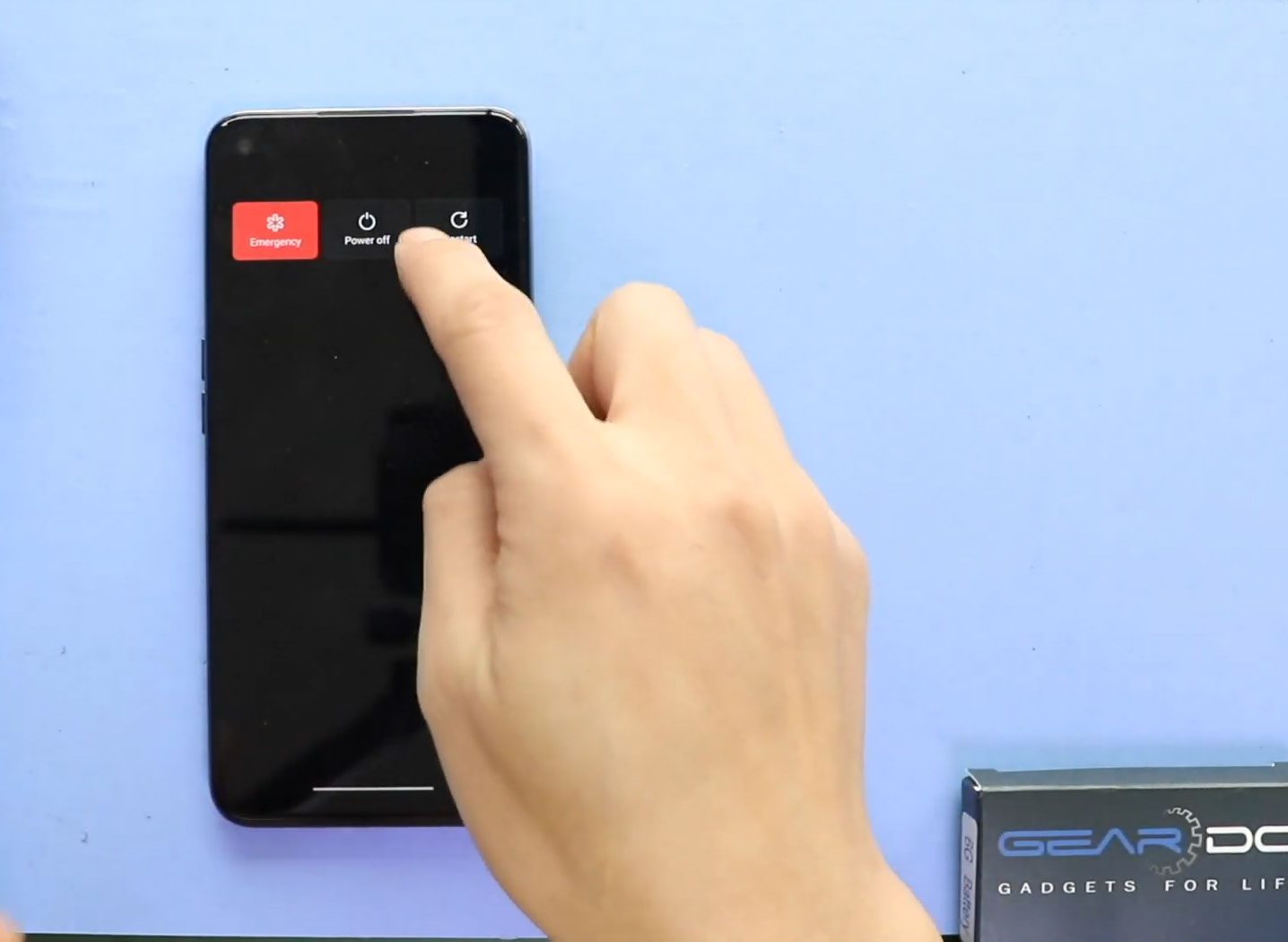
Step 1. Power Off the Device
Prepare your workspace and tools. Ensure the phone is powered off before starting the repair.
Step 2. Opening
- Remove the SIM tray.
- Ensure all screws and connectors are accessible.
Step 3. Removing Back Cover
- Heat the edges of the back cover to soften adhesive.
- Use a suction cup to lift and a plastic card or pry tool to separate the back cover from the frame.
Step 4. Removing Mid Frame
- Unscrew all screws securing the midframe.
- Carefully pry the midframe away from the device body to disengage clips.
Step 5. Removing Battery
- Disconnect the battery connector carefully to avoid short circuits.
- Lift and remove the battery from the device.
Step 6. Removing Logic Board
- Disconnect all flex cables attached to the logic board, including display, fingerprint, and antenna cables.
- Unscrew and carefully remove the logic board from the device.
Step 7. Removing Broken Nord N200 5G Screen
- Apply heat to the front screen edges to soften the adhesive.
- Use a suction cup and plastic card to gently lift the broken screen from the frame.
- Take care not to damage the LCD or surrounding frame.
Step 8. Placing New Nord N200 5G Screen
- Align the new screen correctly with the frame.
- Apply adhesive if necessary to secure the screen.
- Ensure connectors are accessible for reconnection.
Step 9. Placing Logic Board
- Reinstall the logic board carefully.
- Reconnect all flex cables: display, fingerprint sensor, antenna, and any others.
- Secure screws to hold the board in place.
Step 10. Placing Battery
- Reinsert the battery and reconnect the connector.
- Ensure proper alignment and seating.
Step 11. Placing Mid Frame
- Reposition the midframe and secure all screws.
- Verify that all clips are engaged and nothing is pinched.
Step 12. Closing & Back Cover Installation, Binding
- Check adhesive on the back cover; add B7000 glue or double-sided tape if needed.
- Align the back cover and press firmly onto the frame.
- Use binding clips or rubber bands to secure the cover while adhesive cures.
Frequently Asked Questions (FAQ)
Q1: Can I replace the OnePlus Nord N200 5G screen myself?
Yes, with proper tools and careful handling, this is a moderate-level repair.
Q2: How do I know if my screen needs replacement?
Symptoms include cracks, unresponsive touch, black screen, or flickering display.
Q3: Is heating necessary for removal?
Yes, heating softens the adhesive and prevents cracking the frame or LCD.
Q4: What glue should I use for reassembly?
B7000 glue or double-sided adhesive designed for smartphone screens is recommended.
Troubleshooting
Q1: Screen not responding after replacement?
- Ensure the display flex cable is securely connected.
- Power cycle the device.
Q2: Touch sensitivity issues?
- Check that the digitizer connector is properly seated.
Q3: Back cover not sticking properly?
- Apply additional adhesive and use binding clips or rubber bands for longer curing.
Q4: Device not powering on?
- Verify battery connector is fully attached and no flex cables are loose.
If you have any questions about your OnePlus Nord N200 5G LCD touch screen display repair, feel free to ask in the comments. Happy repairing!
Related Guides


-
 01Samsung Galaxy A16 5G Battery Replacement | Full DIY Repair Guide
 -
02Samsung Galaxy A16 5G Screen Replacement | Step-by-Step Guide
-
03Google Pixel 6 Power Button Replacement Guide | Volume Button Flex Repair Guide- DIY Repair
-
04Samsung Galaxy A16 5G Back Cover & Camera Lens Frame Replacement Guide | DIY Repair
-
05Why a Heating Pad Is Essential for Mobile Phone Repairs (And How to Use it)
-
06How to Use a Heat Gun or Hair Dryer for Phone/Tablet Repairs
-
07Essential Repair Tools for Phone, Tablet & Laptop Repairs


