
Now Reading: Samsung Galaxy A21s Charging Port Replacement Guide | Fix Microphone & Headphone Issues
-
01
Samsung Galaxy A21s Charging Port Replacement Guide | Fix Microphone & Headphone Issues
Samsung Galaxy A21s Charging Port Replacement Guide | Fix Microphone & Headphone Issues
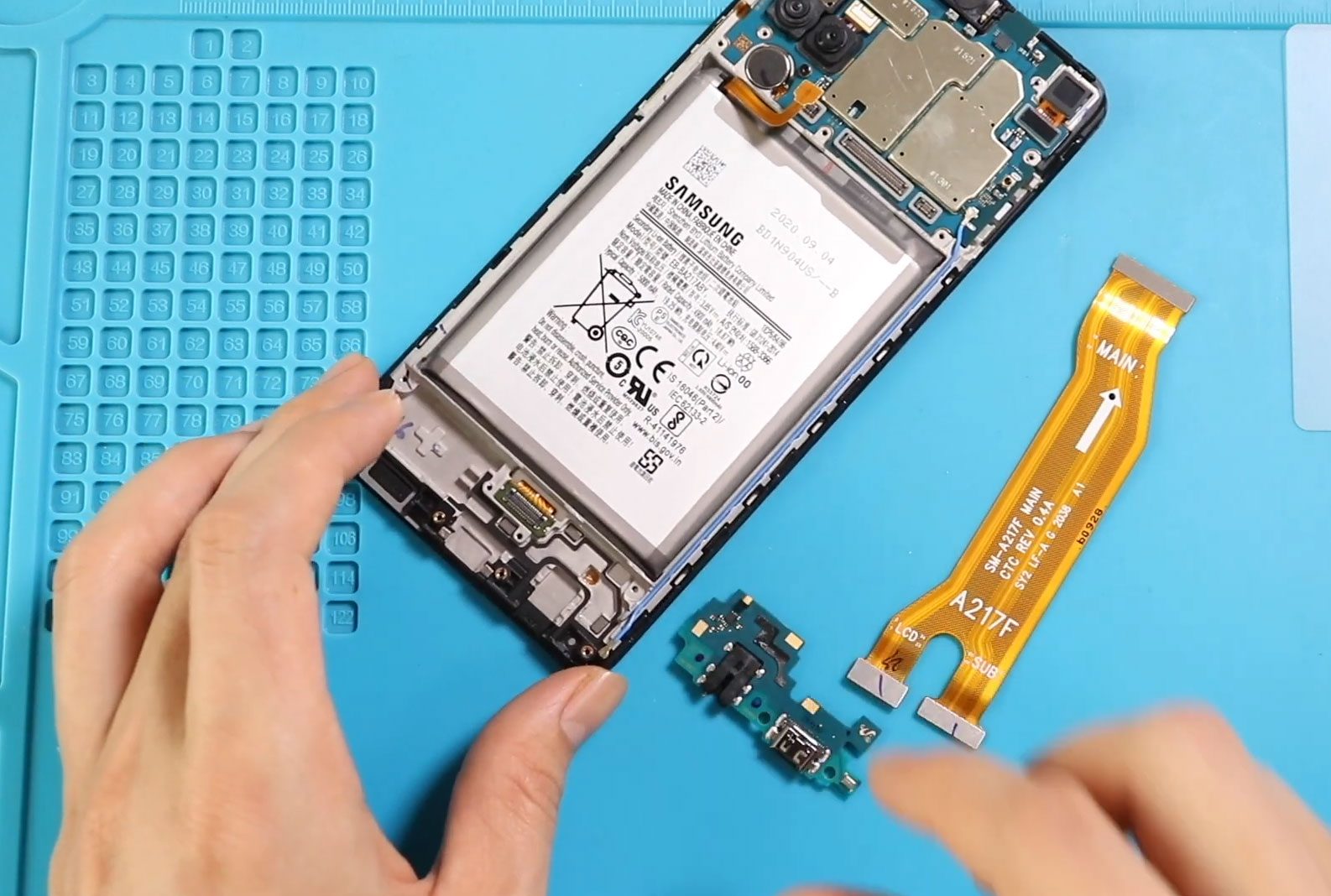
If your phone is no longer charging properly, accessories disconnect frequently, or your microphone and headphone jack stop working, the charging port board may be faulty. The Samsung Galaxy A21s uses a sub-board at the bottom of the device that contains the USB charging port, microphone, antenna connections, and headphone jack.
This complete DIY repair guide explains how to safely replace the charging port board step-by-step using professional repair techniques. Following these instructions carefully helps prevent damage to flex cables, connectors, and fingerprint sensor components.
Repair Difficulty ⭐⭐⭐☆☆ (Moderate)
Estimated Repair Time: 45 — 60 Minutes
Device Type: Smartphone
Repair Type: Charging Port Board / Sub-Board Replacement
Reasons for Charging Port Board Replacement
You may need this repair if you notice:
- Phone not charging or charging intermittently
- Loose charging cable connection
- Microphone not working during calls or recordings
- Headphones not detected
- Slow charging problems
- USB cable disconnecting easily
- Network signal instability caused by antenna connection damage
Since the charging board includes the microphone and headphone jack assembly, replacing it can solve multiple hardware problems at once.
Before You Begin
Compatibility and Model Numbers
- Samsung Galaxy A21s 5G
This repair guide based on Samsung Galaxy A21s Model.
Model Numbers | SM-A217F, SM-A217F/DS, SM-A217F/DSN, SM-A217M, SM-A217M/DS, SM-A217N
Tools Required
- Mobile phone heating pad or hairdryer/heat gun
- Plastic pry tool / card pry
- Suction cups
- Phillips #00/#000 screwdrivers
- Tweezers (for connectors)
- B7000 glue or double-sided adhesive (for back cover)
- Rubber bands or bonding clips to secure the back cover
Using proper tools reduces the risk of damaging the phone.
How to Find Tools and Parts
- Heating pad – https://amzn.to/3H0tHzJ
- Portable Heat Gun – https://amzn.to/4mszih1
- Clamps https://amzn.to/3GYJT4w
- STREBITO 142 Piece Repair Tool Kit https://amzn.to/3UO1jUx
- Glue | Adhesive https://amzn.to/46exVxe
- Compatible Parts –
- Battery – https://amzn.to/4njjTjG
- Screen – https://amzn.to/4m8qk8n
- Other Parts – https://amzn.to/46bNQeC
- Silicone Work Repair Mat https://amzn.to/45Emz5l
Step-by-Step Samsung Galaxy A21s Charging Port Board Replacement
Step 1 — Remove SIM Tray
Power off the phone completely.
Remove the SIM tray using a SIM ejector tool to prevent internal damage during opening.
Step 2 — Heat the Back Cover
The back cover is sealed using adhesive.
Place the rear side on a heating pad and select the mobile heating option.
Alternatively, gently heat around the edges using:
- Hair dryer, or
- Heat gun.
Apply only moderate heat until adhesive softens.
Step 3 — Remove the Back Cover
Use a suction cup to create a small gap between the frame and back cover.
Insert a plastic pry card and slowly slide around the edges to cut adhesive.
⚠️ Be careful — the fingerprint sensor flex cable is connected to the back cover.
Disconnect the fingerprint connector before removing the cover completely.
Step 4 — Remove Mid Frame Screws
Remove all 15 Phillips screws securing the plastic mid frame.
Insert a plastic pry tool and carefully work around the edges to release clips.
Lift the mid frame away from the device.
Step 5 — Disconnect Battery and Flex Cables
Disconnect:
- Battery connector
- Both ends of the main flex cable.
This prevents accidental electrical damage during repair.
Step 6 — Remove Charging Port Board
Move to the bottom section of the device.
Disconnect the antenna cable carefully.
Using a plastic pry tool, gently lift and remove the charging port board assembly that includes:
- USB charging port
- Microphone
- Headphone jack
- Network antenna connection.
Step 7 — Install New Charging Port Board
Place the new charging port board correctly into position.
Reconnect the antenna cable securely.
Make sure it clicks firmly into place.
Step 8 — Reconnect Main Flex Cable
Reconnect the main flex cable at both ends between the main logic board and the charging board.
Check alignment carefully before pressing connectors.
Step 9 — Reassemble Mid Frame
Reconnect the battery connector.
Position the mid frame onto the body.
Ensure all plastic clips snap into place.
Reinstall all 15 screws securely.
Step 10 — Reinstall Fingerprint Sensor
If needed, gently heat the fingerprint sensor area on the back cover to soften adhesive.
Push the flex cable carefully out.
Reconnect the fingerprint plug to the logic board.
Step 11 — Reattach Back Cover
Check adhesive condition on the rear cover.
If adhesive is weak:
- Apply B7000 glue, or
- Install new double-sided adhesive.
Align carefully and press firmly around edges.
Step 12 — Secure Back Cover
Use binding clips or rubber bands to hold pressure while adhesive cures.
Leave secured for some time before using the phone.
Frequently Asked Questions (FAQ)
Q1. Does charging port replacement fix microphone problems?
Yes. The microphone is integrated into the charging board, so replacing it can solve microphone failures.
Q2. Can this repair fix headphone jack issues?
Yes. The headphone jack is part of the same sub-board assembly.
Q3. Do I need to remove the battery?
You do not remove the battery completely, but disconnecting it is necessary for safety.
Q4. Will this repair fix slow charging?
If the charging port is worn or damaged, replacement usually restores normal charging speed.
Q5. Is heating necessary to open the phone?
Yes. Heating softens adhesive and prevents cracking the back cover.
Troubleshooting (Q&A)
Q1. Phone not charging after replacement?
Check antenna and flex cable connections and ensure the charging board connector is fully seated.
Q2. No network signal after repair?
The antenna cable may not be properly connected to the charging board.
Q3. Microphone still not working?
Confirm the charging port board connector is aligned correctly and test with another board if possible.
Q4. Back cover not sealing properly?
Use fresh adhesive or B7000 glue and apply pressure using clips or rubber bands.
Q5. Fingerprint sensor not responding?
Reopen the phone and reconnect the fingerprint flex cable securely.
More Repair Guides
Check Other Samsung Galaxy A21s Repair Guides


-
 01Samsung Galaxy A16 5G Battery Replacement | Full DIY Repair Guide
 -
02Samsung Galaxy A16 5G Screen Replacement | Step-by-Step Guide
-
03Google Pixel 6 Power Button Replacement Guide | Volume Button Flex Repair Guide- DIY Repair
-
04Samsung Galaxy A16 5G Back Cover & Camera Lens Frame Replacement Guide | DIY Repair
-
05Why a Heating Pad Is Essential for Mobile Phone Repairs (And How to Use it)
-
06How to Use a Heat Gun or Hair Dryer for Phone/Tablet Repairs
-
07Essential Repair Tools for Phone, Tablet & Laptop Repairs


