
Now Reading: Samsung Galaxy A71 Power Volume Button Flex Replacement Guide | DIY Repair
-
01
Samsung Galaxy A71 Power Volume Button Flex Replacement Guide | DIY Repair
Samsung Galaxy A71 Power Volume Button Flex Replacement Guide | DIY Repair
Hi everyone, welcome back to Geardo.
In this guide, we’ll show you how to replace the power button and volume button flex cable on the Samsung Galaxy A71 4G mobile phone.
If your power button is not responding, volume keys are stuck, or button presses are inconsistent, the flex cable is likely damaged. This repair is relatively simple and perfect for beginners if you follow along carefully.
🔧 Repair Overview
- Device Type: Smartphone
- Repair Type: Power Button & Volume Flex Replacement
- Repair Difficulty: ⭐⭐☆☆☆ (Easy–Moderate)
- Estimated Time: 25–35 minutes
🔍 Reasons for This Repair
- Power button not working
- Volume buttons unresponsive
- Buttons stuck or hard to press
- Random button presses
- Physical damage or wear
Before You Begin
Compatibility and Model Numbers
- Samsung Galaxy A71 4G
This repair guide based on Samsung Galaxy A71 4G Model.
Model Numbers | SM-A715F, SM-A715F/DS, SM-A715F/DSN, SM-A715F/DSM, SM-A715W, SM-A715X
Tools Required
- Mobile phone heating pad or hairdryer/heat gun
- Plastic pry tool / card pry
- Suction cups
- Phillips #00/#000 screwdrivers
- Tweezers (for connectors)
- B7000 glue or double-sided adhesive (for back cover)
- Rubber bands or bonding clips to secure the back cover
Using proper tools reduces the risk of damaging the phone.
How to Find Tools and Parts
- Heating pad – https://amzn.to/3H0tHzJ
- Portable Heat Gun – https://amzn.to/4mszih1
- Clamps https://amzn.to/3GYJT4w
- STREBITO 142 Piece Repair Tool Kit https://amzn.to/3UO1jUx
- Glue | Adhesive https://amzn.to/46exVxe
- Compatible Parts –
- Battery – https://amzn.to/4ogQEhS
- Screen – https://amzn.to/43nafEZ
- Other Parts – https://amzn.to/4oqla9h
- Silicone Work Repair Mat https://amzn.to/45Emz5l
Protect Your Galaxy A71
- Best Rated Case https://amzn.to/3WDBTd9
- Screen Protector https://amzn.to/42IPsvz
🔘 Step-by-Step Power & Volume Flex Replacement Guide
Step 1: Warm the Back Cover
Start by gently heating the edges of the back cover to soften the adhesive.
Step 2: Create a Gap
Use a suction cup to lift slightly and create an opening between the back cover and frame.
Step 3: Remove the Back Cover
Insert a plastic card or pry tool and carefully slide it around the edges to release the adhesive. Remove the back cover slowly.
Step 4: Remove SIM Tray
Eject the SIM tray before continuing.
Step 5: Unscrew the Mid-Frame
Remove all screws securing the mid-frame.
Step 6: Detach the Mid-Frame
Use a pry tool to gently separate the mid-frame by releasing the plastic clips.
Step 7: Disconnect Battery
Disconnect the battery connector to ensure safety during the repair.
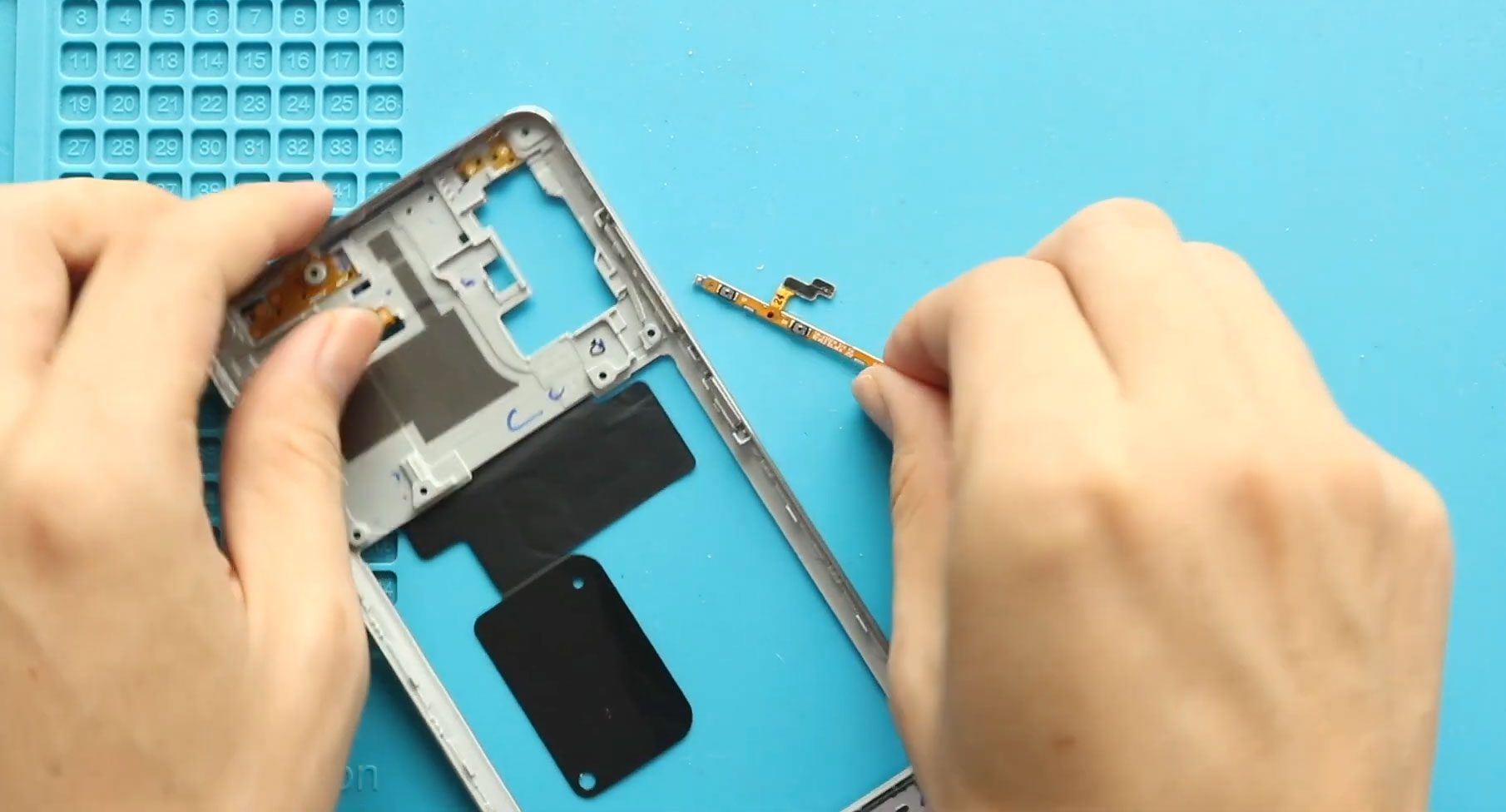
Step 8: Remove Faulty Power & Volume Flex
Locate the power and volume button flex cable along the side of the frame.
Gently peel it off and disconnect it from the board.
Step 9: Install New Flex Cable
Place the new power and volume flex cable into position and secure it properly.
Step 10: Reconnect Battery & Components
Reconnect the battery connector and ensure all connections are secure.
Step 11: Reassemble Mid-Frame
Attach the mid-frame, secure all clips, and tighten the screws.
Step 12: Prepare Back Cover
Check the adhesive on the back cover. Apply new glue or double-sided tape if needed.
Step 13: Final Assembly
Place the back cover back onto the device and apply pressure using clips or rubber bands. Leave it for some time to ensure proper bonding.
❓ FAQ (Frequently Asked Questions)
Q1: Why are my power or volume buttons not working?
This is usually caused by a damaged or worn-out flex cable.
Q2: Is this repair beginner-friendly?
Yes, it’s a relatively easy repair compared to other internal fixes.
Q3: Do I need to solder anything?
No, the flex cable is plug-and-play.
Q4: Can I fix buttons without replacing the flex?
Sometimes cleaning helps, but replacement is the most reliable solution.
Q5: Will this fix stuck buttons?
Yes, if the issue is caused by a faulty flex cable.
🔧 Troubleshooting (After The Repair)
Q1: Buttons still not working after replacement?
Check the flex connection and ensure it is properly seated.
Q2: Buttons feel loose?
Make sure the flex is aligned correctly and secured in place.
Q3: Phone not turning on?
Check the battery connection and charge the device.
Q4: Back cover not sticking properly?
Apply fresh adhesive and use pressure for longer.
Q5: Buttons responding intermittently?
This may indicate a faulty replacement flex — try another unit.
✅ Final Thoughts
Replacing the power and volume flex cable on the Samsung Galaxy A71 4G is a quick and effective way to restore button functionality. With basic tools and careful handling, even beginners can complete this repair successfully.
If you have any questions, feel free to ask.
Related Guides


-
 01Samsung Galaxy A16 5G Battery Replacement | Full DIY Repair Guide
 -
02Samsung Galaxy A16 5G Screen Replacement | Step-by-Step Guide
-
03Google Pixel 6 Power Button Replacement Guide | Volume Button Flex Repair Guide- DIY Repair
-
04Samsung Galaxy A16 5G Back Cover & Camera Lens Frame Replacement Guide | DIY Repair
-
05Why a Heating Pad Is Essential for Mobile Phone Repairs (And How to Use it)
-
06How to Use a Heat Gun or Hair Dryer for Phone/Tablet Repairs
-
07Essential Repair Tools for Phone, Tablet & Laptop Repairs


