
Now Reading: Samsung Galaxy Tab A 10.1 (2019) Battery Replacement Guide – T510 T515
-
01
Samsung Galaxy Tab A 10.1 (2019) Battery Replacement Guide – T510 T515
Samsung Galaxy Tab A 10.1 (2019) Battery Replacement Guide – T510 T515
In today’s repair guide, we will show you how to replace the battery on the Samsung Galaxy Tab A 2019 10.1 models, specifically the T510 and T515.
If your tablet no longer holds a charge, shuts down unexpectedly, drains too quickly, or becomes warm during usage, it may be time to replace the battery. This is a moderately advanced repair, as it involves removing the LCD before accessing the internal components.
Follow this detailed guide step-by-step to safely complete the repair.
Repair Difficulty
Difficulty Rating: ⭐⭐⭐⭐☆ (4 out of 5)
Estimated Time: 45–60 minutes
Repair Type: Rear Camera Replacement
Skill Level: Intermediate
Reasons for Battery Replacement You may need a new battery if:
- Battery drains unusually fast
- Tablet shuts off even with remaining charge
- Device only powers on while plugged in
- Tablet becomes warm during normal use
- Battery is swollen (dangerous — replace immediately)
- Charging takes too long or stops suddenly
- Device shows inconsistent battery percentages
Replacing the battery significantly improves performance and extends device life.
Before You Begin
Compatibility and Model Numbers
This repair guide based on Samsung Galaxy Tab A 10.1 2019 T510 T515 Model.
Model Numbers | SM-T515, SM-T510
Required Tools
- Heating pad / heat gun / hairdryer
- Suction cup
- Plastic card pry tools / opening picks/ Tweezers
- Phillips screwdriver #00 / #000
- Adhesive (B7000 or double-sided back cover adhesive)
- Bonding clips or rubber bands (optional but recommended)
Make sure the tablet is turned off and the SIM tray is removed (For Cellular Version)before starting.
How to Find Tools and Parts
- Heat Mat / Heating Pad – https://amzn.to/3H0tHzJ
- Portable Heat Gun – https://amzn.to/4mszih1
- Clamps https://amzn.to/3GYJT4w
- STREBITO 142 Piece Repair Tool Kit https://amzn.to/3UO1jUx
- Suction Cup https://amzn.to/3UVb6YR
- Silicone Work Repair Mat https://amzn.to/45Emz5l
- Glue | Adhesive https://amzn.to/47UTKmE
- Compatible Repair Parts
- Battery https://amzn.to/4oD7ZT3
- Screen https://amzn.to/3JhPl39
- Other Parts https://amzn.to/45ikSuj
Protect Your Galaxy Tab A 10.1 2019 T510 T515
- Screen Protector Glass For The Screen https://amzn.to/45RG3Ub
- Best Cases For Your Galaxy Tab https://amzn.to/4mOfnto
Step-by-Step Battery Replacement Guide
Step 1. Power Off and Prepare the Tablet
Turn off the Samsung Galaxy Tab A completely before starting.
Step 2. Remove the LCD Screen
Heat the front screen gently to soften the adhesive.
A heating pad is the safest method, but a heat gun or hairdryer works too.
Use a suction cup to lift the screen slightly, then slide a plastic card pry tool around the edges to release the adhesive.
Step 3. Disconnect the LCD Connector
Once lifted, flip the LCD carefully and disconnect the display connector.
Remove the screen completely and set it aside.
Step 4. Remove the SIM Tray
Eject and remove the SIM tray.
Step 5. Remove the Mid-Frame Screws
Undo all 23 screws securing the mid-frame to the housing.
Step 6. Detach the Mid-Frame
Insert a plastic card into the gap and work around the edges to release the plastic clips.
Lift the mid-frame away from the back housing.
Step 7. Disconnect the Battery
Unplug the battery connector to cut power to the device.
Step 8. Disconnect the Main Flex Cable
Detach the flex cable from both ends to access the battery.
Step 9. Loosen the Battery Adhesive
Apply heat to the back of the tablet where the battery sits.
This softens the adhesive holding the battery in place.
Step 10. Remove the Old Battery
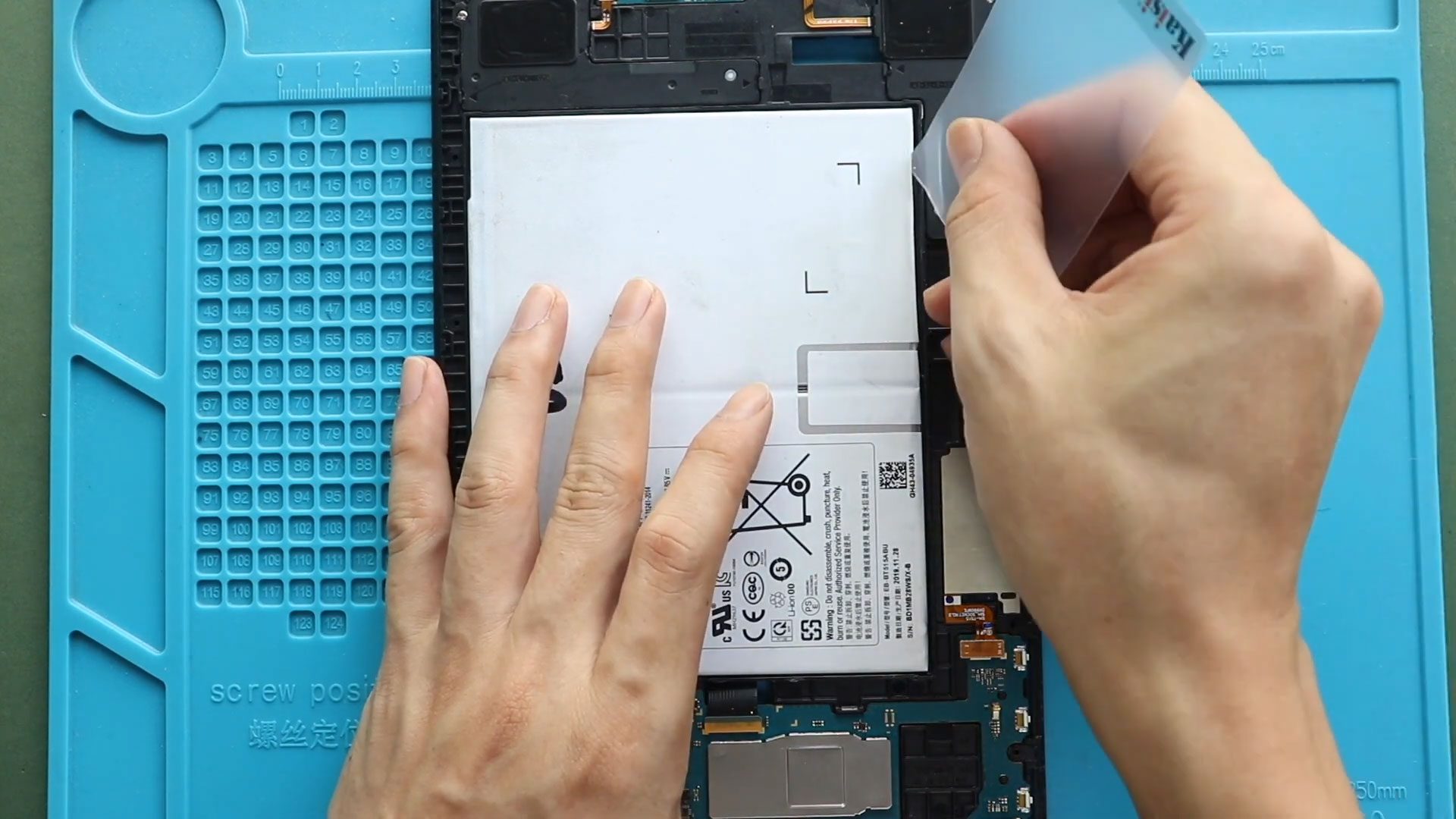
Slide a plastic card under the battery to cut through the adhesive.
Take your time—do not bend or puncture the battery.
Add isopropyl alcohol or more heat if needed.
Lift and remove the old battery.
Step 11. Clean the Battery Area
Remove all remaining adhesive from the frame.
Step 12. Install the New Battery
Place the new battery in the correct orientation with adhesive applied.
Step 13. Reconnect the Flex Cable
Attach both ends of the main flex cable.
Step 14. Reconnect the Battery
Plug the battery connector back in.
Step 15. Reassemble the Tablet
Clamp the back housing and mid-frame together, ensuring all clips lock.
Insert all 23 screws.
Step 16. Reconnect and Test the LCD
Plug in the LCD connector and power on the device to confirm everything works.
Step 17. Secure the LCD Screen
Apply new adhesive around the edges using pre-cut adhesive or B7000 glue.
Slide the screen from bottom to top into place.
Press around the edges to secure it.
Step 18. Bind and Seal
Use bonding clips or rubber bands to fasten the screen until the adhesive cures.
Your Samsung Galaxy Tab A battery replacement is now complete!
Frequently Asked Questions (FAQ)
Q1: My tablet doesn’t turn on after installing the new battery. What should I do?
Check that the battery connector and LCD connector are properly seated.
Q2: Do I need to replace the screen adhesive every time?
Yes. Once opened, the original adhesive loses its strength.
Q3: Is a heat pad necessary for this repair?
Not required, but strongly recommended to avoid screen damage.
Q4: Can this repair fix charging issues?
If the charging issue is due to battery failure, yes. Otherwise, the charging port may be faulty.
Q5: Does replacing the battery remove my data?
No, your data stays intact.
Troubleshooting
Q1: Screen is not responding after reassembly.
Check the LCD connector—re-seat it firmly and ensure no debris is inside.
Q2: Tablet vibrates but shows no display.
The LCD cable may not be fully inserted.
Q3: Battery drains fast even after replacement.
Try recalibrating:
Charge to 100% → Use until 5% → Charge back to 100%.
Q4: Back housing doesn’t close properly.
Ensure the mid-frame clips and screws are fully secured.
Q5: Screen lifting from corners.
Add more adhesive and clamp again for a longer period.
Final Thoughts
Replacing the Battery on the Galaxy Tab A 10.1 2019 (T510 / T515) is an effective way to restore proper power performance and extend the device’s lifespan. With patience and careful handling, this repair can be completed successfully at home.
For more tablet and smartphone repair tutorials, visit DIYGeardo.
More Repair Guides


-
 01Samsung Galaxy A16 5G Battery Replacement | Full DIY Repair Guide
 -
02Samsung Galaxy A16 5G Screen Replacement | Step-by-Step Guide
-
03Google Pixel 6 Power Button Replacement Guide | Volume Button Flex Repair Guide- DIY Repair
-
04Samsung Galaxy A16 5G Back Cover & Camera Lens Frame Replacement Guide | DIY Repair
-
05Why a Heating Pad Is Essential for Mobile Phone Repairs (And How to Use it)
-
06How to Use a Heat Gun or Hair Dryer for Phone/Tablet Repairs
-
07Essential Repair Tools for Phone, Tablet & Laptop Repairs


