
Now Reading: Samsung Galaxy Tab A8 10.5″Charging Port Replacement Guide | (2021) X200 X205
-
01
Samsung Galaxy Tab A8 10.5″Charging Port Replacement Guide | (2021) X200 X205
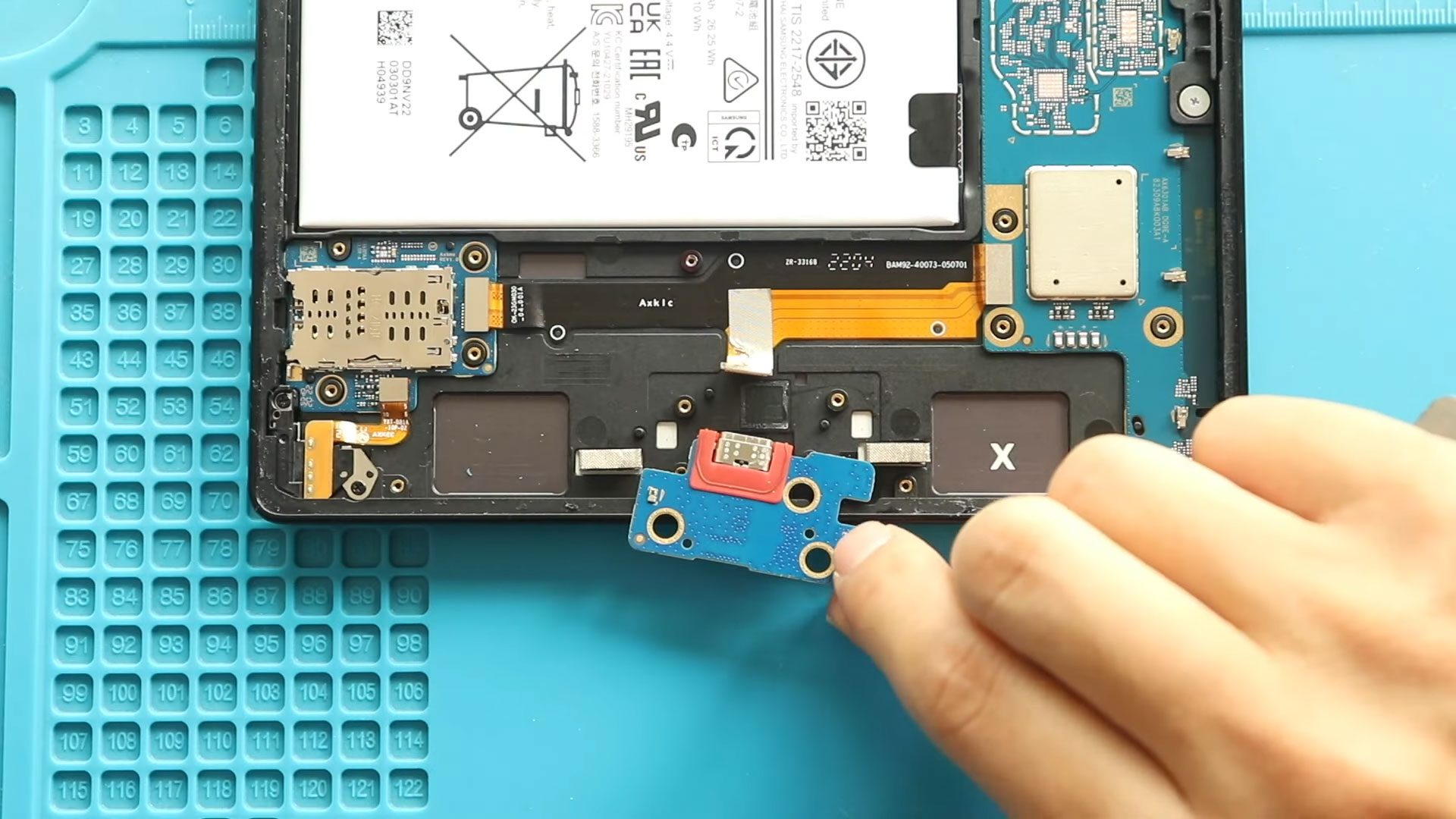
Samsung Galaxy Tab A8 10.5″Charging Port Replacement Guide | (2021) X200 X205
The Samsung Galaxy Tab A8 10.5 (2021) is widely used for entertainment, education, and everyday tasks. Over time, the charging port can wear out due to frequent cable insertions, dust buildup, moisture exposure, or accidental cable strain. Common symptoms include the tablet not charging, charging intermittently, or only charging at a certain angle.
Replacing the charging port is a practical and cost-effective repair that can restore proper charging functionality and extend the lifespan of your tablet. In this step-by-step guide, Geardo walks you through the complete charging port replacement process using safe DIY repair techniques.
This guide is suitable for users with basic to intermediate repair experience. The most sensitive part of this repair is removing and reinstalling the LCD screen, which requires careful heating and handling.
Repair Difficulty
Difficulty Rating: ⭐⭐⭐⭐☆ (4 out of 5)
Estimated Time: 60–75 minutes
Repair Type: Charging Port Replacement
Recommended Skill Level: Intermediate
⚠️ Charging port repairs involve multiple connectors and small components. Work slowly and stay organized.
Signs You Need a Charging Port Replacement
- Tablet does not charge at all
- Charging works only at a specific cable angle
- Loose or wobbly charging cable
- Slow or interrupted charging
- Tablet only charges wirelessly (if supported)
Before You Begin
Compatibility and Model Numbers
This repair guide based on Samsung Galaxy Tab A8 10.5-inch 2021 X205 Model.
Also Compatible with Both Wifi and Cellular Edition models.
Model Numbers | SM-X200, SM-X205, SM-X207
Required Tools
- Heating pad / heat gun / hairdryer
- Suction cup
- Plastic card pry tools / opening picks/ Tweezers
- Phillips screwdriver #00 / #000
- Adhesive (B7000 or double-sided back cover adhesive)
- Bonding clips or rubber bands (optional but recommended)
Make sure the tablet is turned off and the SIM tray is removed (For Cellular Version)before starting.
(Recommended tools are listed in the description.)
How to Find Tools and Parts
- Heating pad – https://amzn.to/3H0tHzJ
- Portable Heat Gun – https://amzn.to/4mszih1
- Clamps https://amzn.to/3GYJT4w
- STREBITO 142 Piece Repair Tool Kit https://amzn.to/3UO1jUx
- Glue | Adhesive https://amzn.to/46exVxe
- Compatible Parts –
- Battery – https://amzn.to/4fC8rNj
- Touch Screen – https://amzn.to/416eZxY
- Other Parts – https://amzn.to/45jcN8G
- Silicone Work Repair Mat https://amzn.to/45Emz5l
Step-by-Step Charging Port Replacement Guide
Step 1: Power Off the Tablet
Turn off the Samsung Galaxy Tab A8 completely before starting the repair.
Step 2: Open the Tablet
Apply gentle heat around the edges of the front LCD screen to soften the adhesive.
- Place the tablet screen-side down on a heating pad
- Select the tablet heating option and wait for completion
- Alternatively, use a heat gun or hairdryer evenly around the edges
Step 3: Remove the LCD Screen
- Use a suction cup to create a gap between the screen and frame
- Insert a plastic pry tool and carefully cut the adhesive
- Work slowly around all edges
- Gently lift the screen and slide it downward to rest on the body
Step 4: Disconnect Battery and LCD Connectors
- Remove the metal bracket by undoing the screw
- Disconnect the battery connector first
- Disconnect the LCD connector
- Remove the LCD screen assembly safely
Step 5: Remove the Speaker Cover
- Locate the speaker cover near the bottom of the tablet
- Remove the screws securing the speaker cover
- Lift and remove the speaker cover carefully
Step 6: Remove the Faulty Charging Port
- Identify the charging port flex cable
- Disconnect the charging port connector
- Carefully lift and remove the faulty charging port from the body
Step 7: Install the New Charging Port
- Place the new charging port into position
- Ensure it sits correctly in the frame
- Connect the charging port flex cable securely
Step 8: Reinstall the Speaker Cover
- Place the speaker cover back into position
- Secure it with the screws
Step 9: Reconnect LCD and Battery Connectors
- Reconnect the LCD connector
- Reconnect the battery connector
- Ensure all connectors are properly seated
Step 10: Test the Tablet
Before sealing the device:
- Connect a charging cable and confirm charging starts
- Power on the tablet
- Check touch and display functionality
Step 11: Reinstall the LCD Screen
- Apply B7000 glue or double-sided LCD adhesive if needed
- Slide the screen in from the bottom first, then align the top
- Press gently around the edges
Step 12: Secure and Close the Tablet
- Use bonding clips and leave them for 30–60 minutes
- If clips are unavailable, use rubber bands until the adhesive cures
Frequently Asked Questions
Can I clean the charging port instead of replacing it?
If dirt or dust is the issue, cleaning may help. However, if the port is loose or damaged, replacement is the best solution.
Will replacing the charging port erase my data?
No, this repair does not affect stored data.
Is soldering required for this repair?
No. The charging port is connected via a flex cable and does not require soldering.
What adhesive should I use for closing the screen?
B7000 glue or pre-cut double-sided LCD adhesive is recommended.
How long should I wait before using the tablet?
Wait at least 1 hour for the adhesive to cure properly.
Troubleshooting – After The Repair
Q: The tablet still does not charge after replacing the port. What should I check?
A: Recheck the charging port connector and ensure it is fully seated. Also test with a known good cable and charger.
Q: Charging works but is unstable.
A: Make sure the charging port is aligned correctly in the frame and not loose.
Q: The tablet does not power on after reassembly.
A: Verify that the battery connector is properly connected and that no flex cables were damaged.
Q: The screen does not respond to touch.
A: This usually means the LCD connector is not fully connected. Reseat the connector carefully.
Q: The tablet heats up while charging.
A: Stop charging immediately and inspect the charging port and connectors for misalignment or damage.
Final Thoughts
Replacing the charging port on the Samsung Galaxy Tab A8 10.5 (X200 / X205 / X207) can fully restore charging reliability and save you from costly professional repairs. With patience and the right tools, this repair can be completed successfully at home.
For more tablet and smartphone repair guides, visit DIYGeardo.
More Repair Guides


-
 01Samsung Galaxy A16 5G Battery Replacement | Full DIY Repair Guide
 -
02Samsung Galaxy A16 5G Screen Replacement | Step-by-Step Guide
-
03Google Pixel 6 Power Button Replacement Guide | Volume Button Flex Repair Guide- DIY Repair
-
04Samsung Galaxy A16 5G Back Cover & Camera Lens Frame Replacement Guide | DIY Repair
-
05Why a Heating Pad Is Essential for Mobile Phone Repairs (And How to Use it)
-
06How to Use a Heat Gun or Hair Dryer for Phone/Tablet Repairs
-
07Essential Repair Tools for Phone, Tablet & Laptop Repairs


