
Now Reading: POCO F3 Volume Button Flex Replacement Guide | Redmi K40/ Xiaomi Mi 11X/11i
-
01
POCO F3 Volume Button Flex Replacement Guide | Redmi K40/ Xiaomi Mi 11X/11i
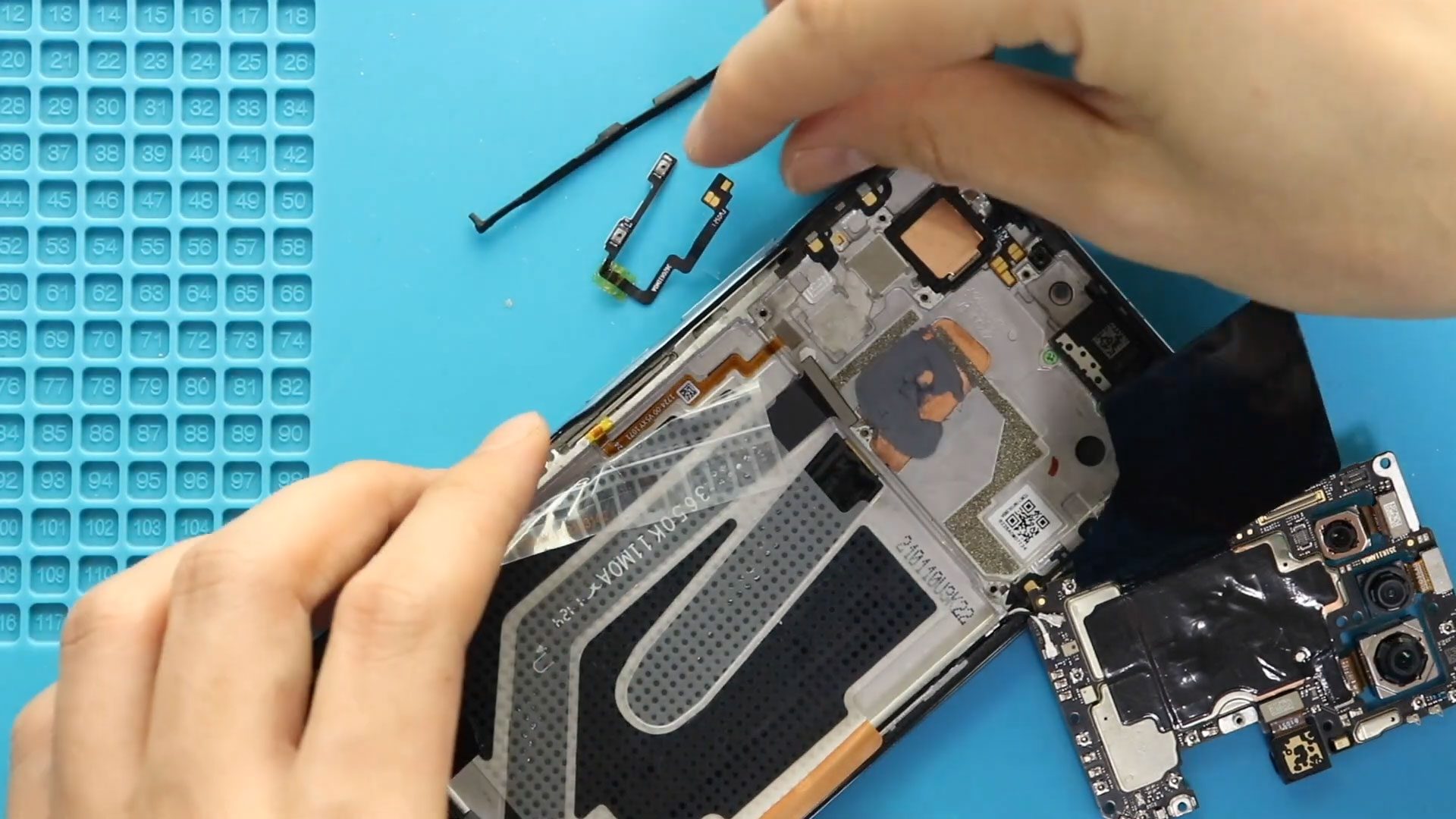
POCO F3 Volume Button Flex Replacement Guide | Redmi K40/ Xiaomi Mi 11X/11i
Hi everyone, welcome back to Geardo.
Today, we will show you how to replace the volume button flex cable on the Poco F3, also known as the Xiaomi Mi 11X and Redmi K40.
If your volume buttons are not responding, stuck, or working intermittently, replacing the volume flex cable will fix the issue. This guide is written in a beginner-friendly way—just follow each step carefully.
Repair Overview
- Device Type: Smartphone
- Repair Type: Volume Button Flex Replacement
Repair Difficulty: ★★★☆☆ (Moderate)
- Estimated Time: 45–60 minutes
Reasons for Repair
- Volume buttons not working
- Buttons stuck or hard to press
- Random volume changes
- Physical damage to button flex cable
Before You Begin
Compatibility and Model Numbers
- Redmi K40 Series ( Redmi K40 / K40 Pro / K40 Pro Plus)
- Xiaomi 11x / 11i Series
- Poco F3 Series
Model Numbers : M2012K11AG, M2012K11AC, M2012K11C, M2012K11AI, M2012K11I
This guide is based on the Redmi K40, which shares identical design with the Poco F3 and Xiaomi Mi 11X / Xiaomi Mi 11i. These are rebranded regional models, but always watch for minor internal differences during the repair.
Tools Required
- Mobile phone heating pad or hairdryer/heat gun
- Plastic pry tool / card pry
- Suction cups
- Phillips #00/#000 screwdrivers
- Torx (T2/T3/T4) screwdrivers
- Flathead screwdriver
- Tweezers (for connectors)
- B7000 glue or double-sided adhesive (for back cover)
- Rubber bands or bonding clips to secure the back cover
How to Find Tools and Parts
- Heating pad – https://amzn.to/3H0tHzJ
- Portable Heat Gun – https://amzn.to/4mszih1
- Clamps https://amzn.to/3GYJT4w
- STREBITO 142 Piece Repair Tool Kit https://amzn.to/3UO1jUx
- Glue | Adhesive https://amzn.to/46exVxe
- Compatible Parts –
- Battery – https://amzn.to/4t0Aw6W
- Screen – https://amzn.to/48hkKfR
- Other Parts – https://amzn.to/4cF5E69
- Silicone Work Repair Mat https://amzn.to/45Emz5l
Protect Your Phone
- Best Premium Case https://amzn.to/4cF5E69
- Screen Protector https://amzn.to/423YP86
Important Note (Compatibility)
This guide is based on the Redmi K40, which shares the same internal design as the Poco F3 and Xiaomi Mi 11X. These are rebranded regional models, so the process is identical.
Step-by-Step Volume Flex Replacement
Step 1: Power Off & Remove SIM Tray
Turn off the device completely and remove the SIM tray.
Step 2: Open the Device & Remove Back Cover
- Apply gentle heat around the edges to soften adhesive
- Use a suction cup to create a small gap
- Insert a plastic card/pry tool and carefully slice through the adhesive
- Lift and remove the back cover
Step 3: Remove the Board Frame
- Undo 11 screws securing the frame
- Disconnect the flash connector
- Lift and remove the board frame
Step 4: Disconnect & Remove the Battery
- Unplug the battery connector
- Pull adhesive strips from the sides
- Gently lift and remove the battery
Step 5: Remove the Logic Board
Follow this sequence carefully:
- Disconnect:
- Two antenna cables
- Main flex cable
- SIM reader flex
- Power/fingerprint flex
- Slightly move the front camera if needed
- Carefully lift and remove the logic board
Step 6: Remove the Faulty Volume Flex
- Apply gentle heat along the frame where the flex cable is attached
- Carefully peel the volume flex cable from the frame
- Remove any brackets or rubber holders if present
- Gently lift and remove the damaged flex cable
Step 7: Install the New Volume Flex
- Align the new flex cable along the frame
- Press it into position
- Secure any brackets or rubber supports
- Ensure proper alignment with external buttons
Step 8: Reinstall the Logic Board
- Place the logic board back into position
- Ensure proper alignment with camera and connectors
- Reconnect:
- Main flex cable
- SIM reader flex
- Antenna cables
- Power/fingerprint connector
Step 9: Reinstall the Battery
- Place the battery back into position
- Secure adhesive
- Reconnect the battery connector
Step 10: Reinstall the Board Frame
- Place the frame
- Secure it with 11 screws
- Reconnect the flash connector
Step 11: Test Before Closing
Power on the device and check:
- Volume up/down buttons
- Button responsiveness
Step 12: Close the Device
- Apply adhesive if needed
- Place the back cover
- Press firmly around edges
- Use clips or rubber bands and leave for proper bonding
FAQs
Q1: How do I know if the volume flex is faulty?
If buttons don’t respond, feel stuck, or work intermittently, the flex cable may be damaged.
Q2: Is this repair difficult?
It’s a moderate repair since it requires removing the logic board.
Q3: Do I need to replace the buttons too?
No, usually only the flex cable needs replacement.
Q4: Can I reuse old adhesive?
It’s better to use new adhesive for proper sealing.
Q5: Will this fix unresponsive buttons completely?
Yes, if the issue is hardware-related.
Troubleshooting (After The Repair)
Q1: Volume buttons still not working
- Check flex cable connection
- Ensure proper alignment with buttons
Q2: Buttons feel loose
- Verify rubber bracket placement
- Ensure flex is properly seated
Q3: Phone not turning on after repair
- Check battery connection
- Reconnect all cables properly
Q4: Back cover not sealing properly
- Use new adhesive or B7000 glue
- Apply pressure with clips
Q5: No signal after reassembly
- Recheck antenna cable connections
Related Guide


-
 01Samsung Galaxy A16 5G Battery Replacement | Full DIY Repair Guide
 -
02Samsung Galaxy A16 5G Screen Replacement | Step-by-Step Guide
-
03Google Pixel 6 Power Button Replacement Guide | Volume Button Flex Repair Guide- DIY Repair
-
04Samsung Galaxy A16 5G Back Cover & Camera Lens Frame Replacement Guide | DIY Repair
-
05Why a Heating Pad Is Essential for Mobile Phone Repairs (And How to Use it)
-
06How to Use a Heat Gun or Hair Dryer for Phone/Tablet Repairs
-
07Essential Repair Tools for Phone, Tablet & Laptop Repairs


