
Now Reading: Microsoft Surface GO 2 Screen Replacement Guide | DIY Repair
-
01
Microsoft Surface GO 2 Screen Replacement Guide | DIY Repair
Microsoft Surface GO 2 Screen Replacement Guide | DIY Repair
A cracked screen, unresponsive touch, or display issues can make using your tablet frustrating or even impossible. Fortunately, replacing the LCD and touch screen digitizer assembly can restore your device to full functionality. In this detailed repair guide, we will walk you through how to safely replace the LCD and touch screen assembly on the Microsoft Surface Go 2 tablet using professional repair techniques.
Tablet screen replacements require careful heating and patience because the display is strongly adhered to the frame and delicate flex cables connect directly to the motherboard. Follow each step carefully to avoid accidental damage during the repair.
Protect Your Surface GO 2 Tablet
- Best Picked Charging Cable https://amzn.to/3J5IY2J
- Top Rated Surface Case https://amzn.to/45RA7cC
- Premium Tempered Glass https://amzn.to/4mqpEvQ
Repair Overview
Device Type: Tablet
Device Model: Microsoft Surface Go 2
Type of Repair: LCD & Touch Screen Digitizer Replacement
Repair Difficulty ⭐⭐⭐⭐☆ (4 / 5 — Advanced Repair)
⏱ Estimated Repair Time 90 — 120 Minutes
Reasons for LCD & Touch Screen Replacement
You may need to replace the screen assembly if you experience:
- Cracked or shattered glass
- Black spots or display bleeding
- Flickering or no display
- Touch screen not responding
- Ghost touch issues
- Screen lifting due to impact damage
Before You Begin
Compatibility and Model Numbers
- Microsoft Surface Go 2
- Microsoft Surface GO 2nd Generation
This repair guide based on Microsoft Surface Go 2 Tablet
Compatible Mode Numbers : 1901, 1926, 1927
Tools You Need
- Heating pad / heat gun / hairdryer
- Suction cup
- Plastic card pry tools / opening picks
- Phillips #000 / #00 screwdriver
- Torx T3, T4, T5 Screwdriver
- Tri-Point Y0 / Y000 Screwdriver – Occasionally for specialized internal screws.
- Adhesive (B7000 or double-sided frame adhesive)
- Bonding clips or rubber bands (optional but recommended)
How to Find Tools and Parts
- Heating pad – https://amzn.to/3H0tHzJ
- Portable Heat Gun – https://amzn.to/4mszih1
- Clamps https://amzn.to/3GYJT4w
- STREBITO 142 Piece Repair Tool Kit https://amzn.to/3UO1jUx
- Glue | Adhesive https://amzn.to/46exVxe
- Compatible Parts –
- Battery – https://amzn.to/41Xg6QE
- Screen – ttps://amzn.to/41m85EM
- Other Parts – https://amzn.to/4oXYoGW
- Silicone Work Repair Mat https://amzn.to/45Emz5l
Using proper tools reduces the risk of damaging the phone.
Step-by-Step Microsoft Surface Go 2 LCD & Touch Screen Replacement
Step 1 — Prepare the Device
Remove the SIM tray if your tablet includes a cellular model variant.
Make sure the device is powered off before starting the repair.
Step 2 — Heat the Front Display
Proper heating is the most important part of this repair.
Place the tablet front side down on a heating pad designed for tablets and smartphones.
Select the tablet heating option and allow the heating cycle to complete.
Alternatively, use a heat gun or hair dryer to soften adhesive around the display edges.
Step 3 — Lift the Screen
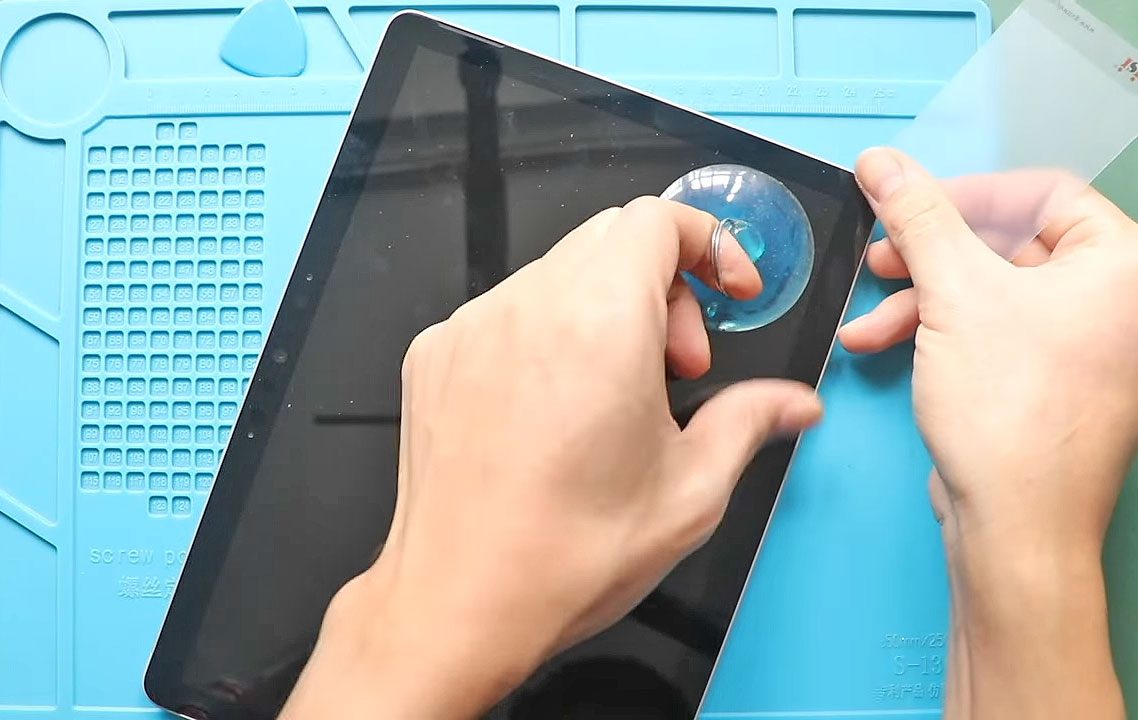
Attach a suction cup near one edge of the display.
Gently lift the screen slightly to create a gap.
Insert plastic pry cards or triangle picks between the frame and display.
Carefully cut through adhesive around the entire frame.
⚠️ Work slowly because flex cables remain connected internally.
Step 4 — Open the Screen Assembly
Once adhesive separation is complete:
- Carefully lift the display.
- Move the screen upward on the table without pulling cables.
Step 5 — Disconnect Battery Connector
Remove the two screws securing the battery connector.
Disconnect the battery from the motherboard to prevent short circuits.
Step 6 — Disconnect LCD Assembly
Flip the LCD assembly carefully.
Remove the connector bracket.
Lift the connector lever and disconnect the LCD cable.
Now the display assembly can be separated from the tablet body.
Step 7 — Clean Frame Edges
Remove broken glass fragments and adhesive residue from the frame.
Ensure the frame edges are completely clean before installing the new screen.
Step 8 — Transfer LCD Flex Cable and Touch Connector Board
From the broken display:
- Remove the bracket using tweezers.
- Disconnect and pull out the LCD cable.
While removing the cable, lift the locking lever to disconnect the other side safely.
Now remove the cable completely from the screen.
Step 9 — Remove Touch Connector Board
Using tweezers:
Remove the bracket.
Lift both connector levers and gently slide out both cables from the connector board.
Use a pry tool to carefully remove the touch connector board from the broken display.
Step 10 — Install Connector Board on New Screen
Place the touch connector board onto the replacement display.
Secure it firmly into position.
Reconnect both cables by sliding them into connectors and closing the locking levers.
Install the securing bracket.
Step 11 — Install LCD Flex Cables
Reconnect both LCD cables.
Secure them using the bracket to ensure proper contact.
Your new LCD assembly is now ready for installation.
Step 12 — Reconnect Screen to Tablet
Reconnect the LCD connector to the motherboard.
Install the connector bracket securely.
Reconnect the battery connector and tighten the two screws.
Step 13 — Test Before Sealing
Power on the tablet before sealing the display.
Check:
- Screen display quality
- Touch functionality
- Brightness response
Testing before sealing avoids reopening the tablet later.
Step 14 — Seal the Display
Apply new adhesive or tablet glue along the frame.
Slide the screen into position from bottom to top.
Press gently along all edges.
Add rubber bands or binding clips around the frame.
Leave the device for some time to allow adhesive bonding.
Remove clips once fully secured.
Frequently Asked Questions (FAQ)
Q1. Is Microsoft Surface Go 2 screen replacement difficult?
Yes. Because the display is strongly glued and requires cable transfer, this repair is considered advanced difficulty.
Q2. Can I replace only the glass without replacing LCD?
No. The LCD and digitizer are laminated together and must be replaced as a complete assembly.
Q3. Why must the battery be disconnected first?
Disconnecting the battery prevents electrical short circuits during repair.
Q4. Do I need special adhesive?
Yes. Tablet adhesive strips or professional device glue provide proper sealing and durability.
Q5. Should I test before sealing the screen?
Always test display and touch response before final assembly.
Troubleshooting After Screen Replacement
Q1. Touch screen not responding after installation?
Reconnect the touch connector cables and confirm locking levers are properly closed.
Q2. No display after repair?
Check LCD cable alignment and ensure connector brackets are secured.
Q3. Screen lifting after installation?
Adhesive may not have cured properly. Reapply adhesive and clamp again.
Q4. Flickering display after replacement?
This usually indicates a loose LCD flex cable. Disconnect and reconnect carefully.
Related Guides


-
 01Samsung Galaxy A16 5G Battery Replacement | Full DIY Repair Guide
 -
02Samsung Galaxy A16 5G Screen Replacement | Step-by-Step Guide
-
03Google Pixel 6 Power Button Replacement Guide | Volume Button Flex Repair Guide- DIY Repair
-
04Samsung Galaxy A16 5G Back Cover & Camera Lens Frame Replacement Guide | DIY Repair
-
05Why a Heating Pad Is Essential for Mobile Phone Repairs (And How to Use it)
-
06How to Use a Heat Gun or Hair Dryer for Phone/Tablet Repairs
-
07Essential Repair Tools for Phone, Tablet & Laptop Repairs


