
Now Reading: Samsung Galaxy A20 Battery Replacement Guide | DIY Repair
-
01
Samsung Galaxy A20 Battery Replacement Guide | DIY Repair
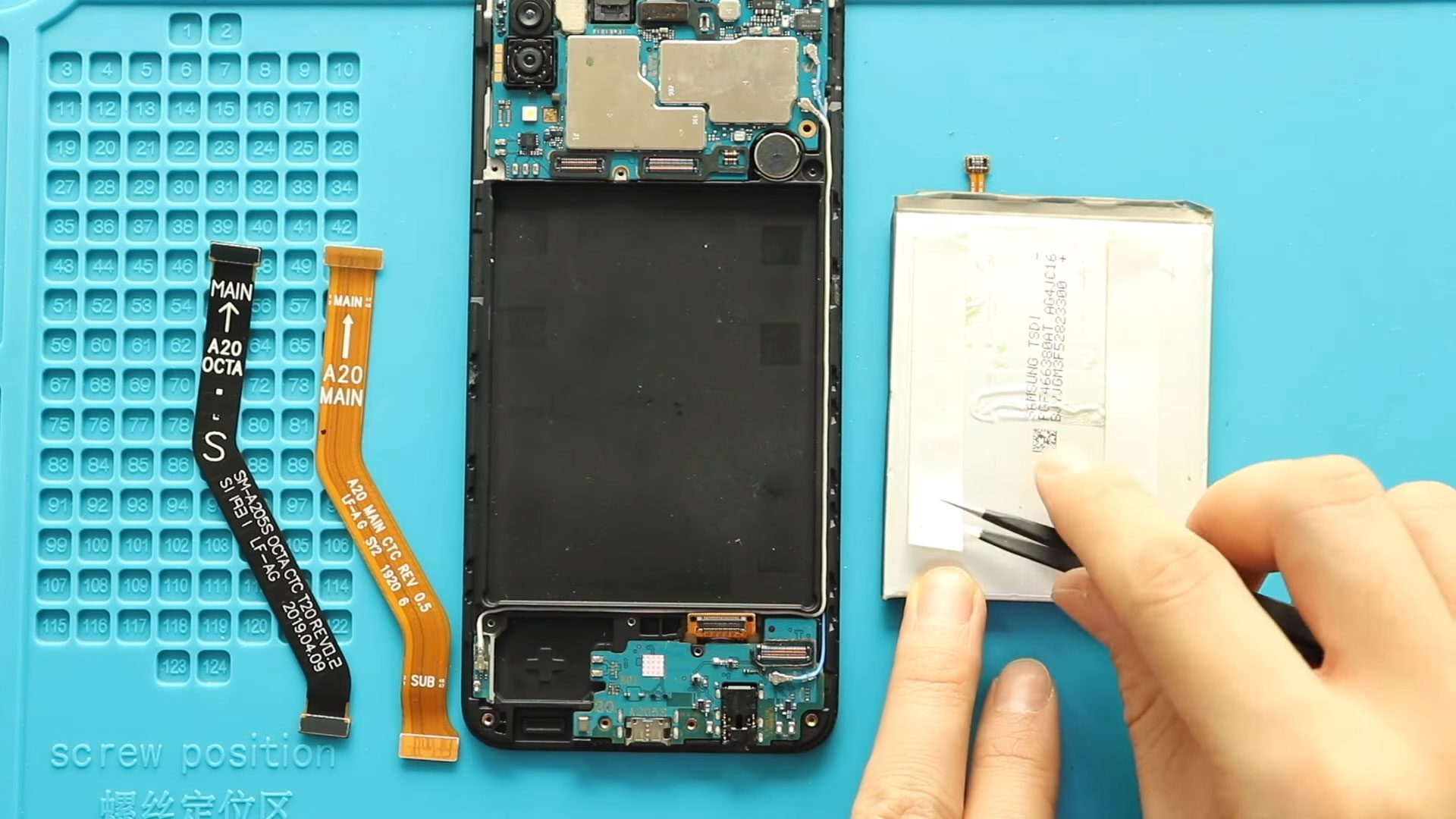
Samsung Galaxy A20 Battery Replacement Guide | DIY Repair
Replacing a worn-out battery is one of the most effective ways to restore performance and battery life on the Samsung Galaxy A20. Over time, lithium-ion batteries lose their ability to hold charge properly, leading to fast battery drain, overheating, unexpected shutdowns, or slow performance.
If your phone struggles to last through the day or shuts off even when the battery percentage looks normal, replacing the battery can significantly improve usability without needing to upgrade your device.
This step-by-step DIY repair guide explains how to safely remove the old battery and install a new one using common mobile repair tools.
✅ Protect Your Galaxy A20
Protector For The Screen https://amzn.to/46pNwKl
Best Rated Case https://amzn.to/41Czn
Repair Information
Repair Difficulty:
★★★☆☆ Moderate
Estimated Repair Time: 30 — 45 Minutes
Device Type: Smartphone
Repair Type: Internal Battery Replacement
Reasons to Replace the Battery
You may need a battery replacement if you notice:
- Battery draining very quickly
- Phone overheating during charging or usage
- Random shutdowns
- Device swelling or back cover lifting
- Slow charging or charging interruption
- Phone only working while plugged into a charger
Before You Begin
Compatibility and Model Numbers
- Samsung Galaxy A20
This repair guide based on Samsung Galaxy A20 Model.
Model Numbers | SM-A205F, SM-A205FN, SM-A205GN, SM-A205YN, SM-A205G, SM-A205W, SM-A205U, SM-A205S, SM-S205DL, SM-A205U1
Tools Required
- Mobile phone heating pad or hairdryer/heat gun
- Plastic pry tool / card pry
- Suction cups
- Phillips #00/#000 screwdrivers
- Tweezers (for connectors)
- B7000 glue or double-sided adhesive (for back cover)
- Rubber bands or bonding clips to secure the back cover
Using proper tools reduces the risk of damaging the phone.
How to Find Tools and Parts
- Heating pad – https://amzn.to/3H0tHzJ
- Portable Heat Gun – https://amzn.to/4mszih1
- Clamps https://amzn.to/3GYJT4w
- STREBITO 142 Piece Repair Tool Kit https://amzn.to/3UO1jUx
- Glue | Adhesive https://amzn.to/46exVxe
- Compatible Parts –
- Battery – https://amzn.to/4g9ncaI
- Screen – https://amzn.to/47tyHYp
- Other Parts – https://amzn.to/4pjvdyb
- Silicone Work Repair Mat https://amzn.to/45Emz5l
Samsung Galaxy A20 Battery Replacement — Step-by-Step Repair
Step 1 — Power Off the Device
Turn off the phone completely before beginning the repair. This prevents short circuits or accidental component damage.
Step 2 — Heat and Remove the Back Cover
The rear cover is secured using adhesive.
Gently heat around the edges of the back cover using a heating pad or heat gun until the adhesive softens. Avoid overheating one area for too long.
Place a suction cup near the edge to create a small opening between the frame and back cover.
Insert a plastic card or pry tool carefully and slide it along the edges to cut through the adhesive.
⚠️ Be careful while lifting the back cover because the fingerprint sensor cable is attached.
Lift slowly and support the fingerprint sensor area.
Step 3 — Disconnect Fingerprint Sensor
Disconnect the fingerprint flex cable connector carefully.
Remove the back cover completely and keep it aside safely.
Step 4 — Remove SIM Tray
Remove the SIM tray before separating internal components.
This prevents damage during midframe removal.
Step 5 — Remove Midframe Screws
Using a Phillips screwdriver:
Remove the 13 screws located across the top and bottom sections of the midframe.
Keep screws organized for reassembly.
Step 6 — Remove the Midframe
Insert a plastic pry tool along the edges.
Work slowly around the frame to release plastic clips holding it in place.
Lift the midframe carefully once clips disengage.
Step 7 — Disconnect Battery and Flex Cables
Disconnect:
- Battery connector
- Main ribbon flex cable
- LCD ribbon cable
Always disconnect the battery first to prevent electrical damage.
Step 8 — Remove the Old Battery
The battery is strongly glued to the frame.
Apply gentle heat underneath the battery area to soften adhesive.
Once warm:
Insert a plastic pry tool underneath and slowly separate the battery.
⚠️ Avoid bending or puncturing the battery.
Remove the battery completely.
Step 9 — Install New Battery
Apply new adhesive or double-sided tape.
Place the replacement battery properly into position.
Reconnect:
- Main flex cable
- LCD flex cable
Then reconnect the battery connector.
Step 10 — Reinstall Midframe
Place the midframe back into position.
Press along edges to secure plastic clips.
Reinstall all 13 screws.
Make sure clips are properly seated before tightening screws.
Step 11 — Reconnect Fingerprint Sensor
Reconnect the fingerprint sensor flex cable carefully.
Position it properly before closing the phone.
Step 12 — Reattach Back Cover
Check adhesive condition on the rear cover.
If necessary:
- Apply B7000 glue, or
- Install new double-sided adhesive.
Align the back cover carefully.
Apply pressure evenly.
Use bonding clips or rubber bands to secure the cover while adhesive cures.
Leave secured for some time for best results.
Frequently Asked Questions (FAQ)
Q1. Does replacing the battery delete data?
No. Battery replacement does not erase files or apps. However, backing up important data is always recommended.
Q2. Can I use a hair dryer instead of a heating pad?
Yes. A hair dryer works well for softening adhesive. Heat evenly and avoid overheating components.
Q3. Why must the battery be disconnected first?
Disconnecting power prevents short circuits and protects sensitive motherboard components.
Q4. Can I reuse old adhesive?
It is not recommended. New adhesive ensures proper sealing and prevents dust or moisture entry.
Troubleshooting After A20 Battery Replacement
Q1. Phone does not power on after repair?
Check battery connector seating and ensure flex cables are properly connected.
Q2. Fingerprint sensor not working?
Open the device again and verify the fingerprint flex cable is securely attached.
Q3. Back cover lifting after repair?
Apply additional adhesive and secure the phone using clips or rubber bands for longer curing time.
Q4. Battery drains quickly after replacement?
Allow 2–3 full charging cycles for battery calibration.
Related Guides


-
 01Samsung Galaxy A16 5G Battery Replacement | Full DIY Repair Guide
 -
02Samsung Galaxy A16 5G Screen Replacement | Step-by-Step Guide
-
03Google Pixel 6 Power Button Replacement Guide | Volume Button Flex Repair Guide- DIY Repair
-
04Samsung Galaxy A16 5G Back Cover & Camera Lens Frame Replacement Guide | DIY Repair
-
05Why a Heating Pad Is Essential for Mobile Phone Repairs (And How to Use it)
-
06How to Use a Heat Gun or Hair Dryer for Phone/Tablet Repairs
-
07Essential Repair Tools for Phone, Tablet & Laptop Repairs


