Now Reading: Samsung Galaxy A32 5G Screen Replacement Guide (M32 5g)
-
01
Samsung Galaxy A32 5G Screen Replacement Guide (M32 5g)
Samsung Galaxy A32 5G Screen Replacement Guide (M32 5g)
If your Samsung Galaxy A32 5G display is cracked, unresponsive, flickering, or showing dead pixels, replacing the LCD screen assembly is the most effective solution. This repair can fully restore the device’s touch responsiveness and visual quality.
This guide provides a detailed, step-by-step process for safely removing the old screen and installing a new one, including tips on screen types and reassembling internal components.
Repair Difficulty
⭐⭐⭐⭐☆ (4/5 – Moderate to Advanced)
Estimated Time: 60–90 minutes
Type of Device: Android Smartphone
Type of Repair: LCD Screen Assembly Replacement
Reasons for LCD Replacement
- Cracked or shattered screen
- Touch screen unresponsive
- Flickering or blank display
- Dead pixels or discoloration
- Physical damage from drops or impact
Replacing the screen can prevent further damage to internal components and restore full functionality.
Before You Begin
Compatibility and Model Numbers
- Samsung Galaxy A32 5G
- Samsung Galaxy M32 5G
- Samsung Galaxy A32 – The Design is slightly different
This repair guide based on Samsung Galaxy A42 5G Model.
Model Numbers | SM-A326B, SM-A326B/DS, SM-A326BR/DS, SM-A326BR, SM-A326U, SM-A326W, SM-A326U1, SM-A326K, SCG08, SM-S326DL, SM-M326B, SM-M326B/DS
Tools Required
- Mobile phone heating pad or hairdryer/heat gun
- Plastic pry tool / card pry
- Suction cups
- Phillips #00/#000 screwdrivers
- Tweezers (for connectors)
- B7000 glue or double-sided adhesive (for back cover)
- Rubber bands or bonding clips to secure the back cover
Using proper tools reduces the risk of damaging the phone.
How to Find Tools and Parts
- Heating pad – https://amzn.to/3H0tHzJ
- Portable Heat Gun – https://amzn.to/4mszih1
- Clamps https://amzn.to/3GYJT4w
- STREBITO 142 Piece Repair Tool Kit https://amzn.to/3UO1jUx
- Glue | Adhesive https://amzn.to/46exVxe
- Compatible Parts –
- Battery – https://amzn.to/46batzW
- Screen – https://amzn.to/46b3uGY
- Other Parts – https://amzn.to/486qUjo
- Silicone Work Repair Mat https://amzn.to/45Emz5l
Protect Your Galaxy A32 5G
- Best Rated Case https://amzn.to/4glZPek
- Protector For The Screen https://amzn.to/4nEKdFh
Step-by-Step LCD Replacement Guide
Step 1: Power Off the Device
Turn off the phone completely to prevent electrical damage during repair.
Step 2: Heat the Back Cover
The rear cover is secured with adhesive.
Place the phone (back side down) on a heating pad and select the mobile heating option. Alternatively, use a heat gun or hairdryer, applying heat evenly around the edges.
Step 3: Remove the Back Cover
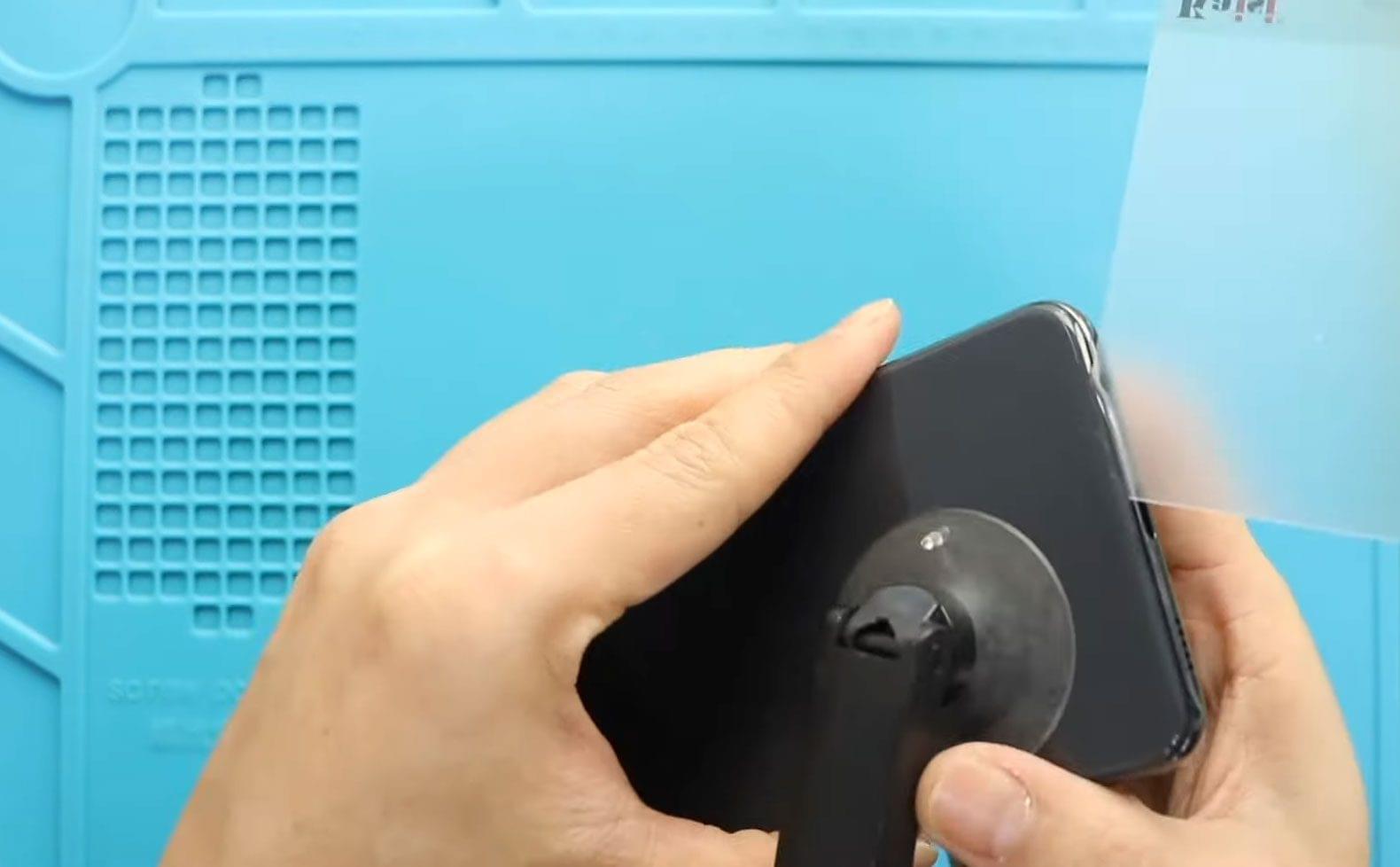
Use a suction cup to create a small gap.
Insert a plastic card or pry tool and carefully slide it around the edges to cut through the adhesive. Lift off the back cover gently.
Step 4: Remove the Midframe
- Remove the SIM tray.
- Unscrew the 15 Phillips screws from the top and bottom sections.
- Disconnect the fingerprint sensor plug.
- Use a plastic pry tool to release the clips and remove the midframe.
Step 5: Disconnect Battery and Main Flex
- Disconnect the battery connector.
- Disconnect the main ribbon (flex) connector.
- Disconnect the LCD connector at the bottom.
Step 6: Remove Internal Components
Carefully remove these parts after applying heat if needed:
- Charging port board
- Logic board (detach antennas)
- Earpiece module
- Vibrator motor
- Button flex cable
- Battery
⚠️ Use caution with connectors and cables to avoid damage.
Step 7: Remove the Broken LCD Screen
The remaining part is the broken LCD assembly with frame and buttons.
Screen Types for Replacement:
- Original service pack screen (with frame & buttons): Easiest to install, widely available.
- Original screen without frame: More difficult, time-consuming, requires precision.
- Refurbished/used/aftermarket screens: Can come with or without frame; price difference is minimal.
Recommendation: Use a screen with frame & buttons installed for easier installation and reliability.
Step 8: Install Components on the New Screen
On the new screen frame, reinstall previously removed parts in this order:
- Vibrator motor
- Earpiece module
- Button flex cable
- Logic board and charging board (secure antennas)
- LCD connector on the charging board
- Battery with adhesive
Reconnect the main flex and battery plugs.
Step 9: Reassemble Midframe
Place the midframe back and secure all 15 screws. Reconnect the fingerprint sensor plug.
Step 10: Test Before Closing
Power on the device to verify:
- Display functionality
- Touch responsiveness
- Buttons, fingerprint sensor, and other components
If everything works, power off before sealing the phone.
Step 11: Seal the Back Cover
- Apply new B7000 glue or double-sided adhesive if necessary.
- Press the back cover firmly into place.
- Use bonding clips or rubber bands for 30–60 minutes to ensure adhesion.
Frequently Asked Questions (FAQ)
Q1: Can I reuse the old frame with a new LCD?
Yes, but it’s recommended only if the old frame is undamaged and straight.
Q2: Should I choose original or aftermarket screens?
Original service pack screens are more reliable. High-quality refurbished or aftermarket screens are acceptable if sourced from trusted suppliers.
Q3: Will this repair erase data?
No, replacing the LCD does not affect stored data.
Q4: Why is the touch unresponsive after replacement?
Check the LCD connector and main flex cable are fully seated and secure.
Troubleshooting
Display Not Turning On
Causes: Loose connector, damaged flex cable, or defective screen.
Solution: Reseat all connectors and test with another screen if needed.
Dead Pixels or Color Issues
Causes: Poor-quality replacement screen or internal damage.
Solution: Verify the screen type; consider replacing with a higher-quality screen.
Back Cover Not Adhering
Causes: Insufficient adhesive or misaligned frame.
Solution: Clean surfaces and apply new B7000 glue or double-sided adhesive.
This guide ensures safe and effective replacement of your Galaxy A32 5G screen while preserving all internal components.
Related