
Now Reading: Samsung Galaxy A53 5G Power Volume Button Flex Replacement
-
01
Samsung Galaxy A53 5G Power Volume Button Flex Replacement
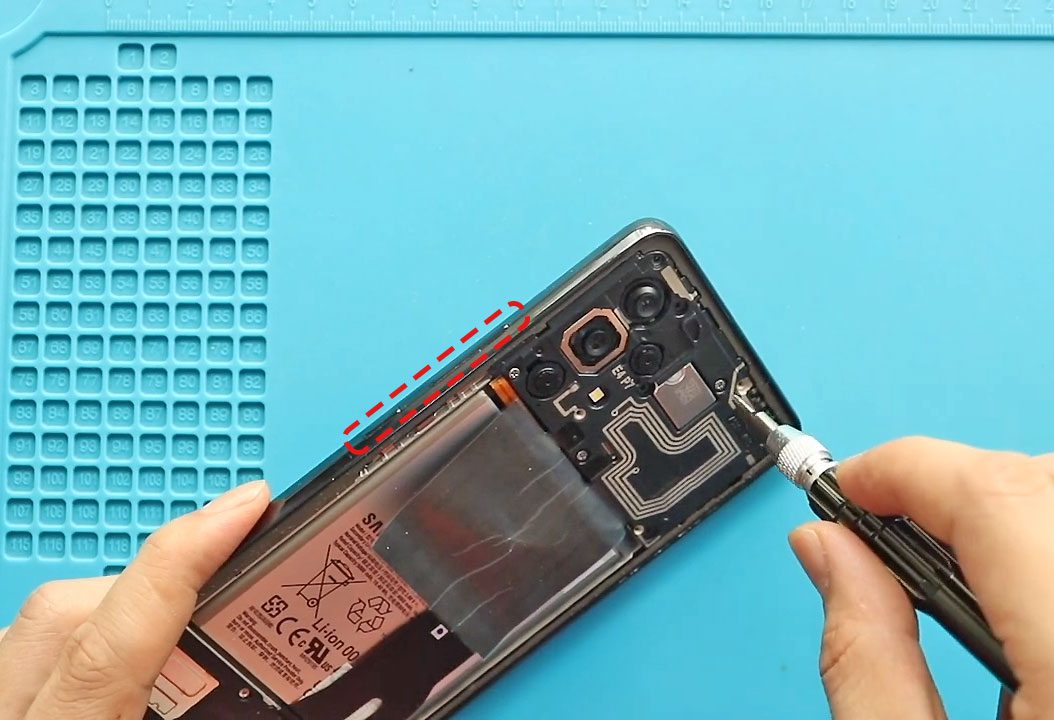
Samsung Galaxy A53 5G Power Volume Button Flex Replacement
Hi everyone, welcome back to DIYGeardo 👋
Today, we will show you how to replace the power and volume button flex on the Samsung Galaxy A53 5G mobile phone. If your power button or volume keys are not responding, working intermittently, or feel stuck, replacing the button flex cable is the best way to restore proper control.
This guide explains the full repair process clearly and safely, making it easier to follow even if you’re attempting this repair for the first time.
🔘 Reasons to Replace the Power & Volume Buttons
Q: Why do the power or volume buttons stop working on the Galaxy A53 5G?
A: Common reasons include:
- Power button not locking or waking the phone
- Volume up/down not responding
- Buttons working only with hard press
- Flex cable damage due to drops
- Wear and tear over time
- Liquid or moisture damage
Replacing the button flex restores smooth and responsive button operation.
🛠️ Repair Difficulty
Difficulty Level: ⭐⭐⭐☆☆ (Moderate)
Estimated Repair Time: 40–60 minutes
This repair requires logic board removal and careful handling of flex cables and adhesive.
Before You Begin
Compatibility and Model Numbers
This repair guide based on Samsung Galaxy A53 5G Model.
Model Numbers | SM-A536B, SM-A536B/DS, SM-A536U, SM-A536U1, SM-A5360, SM-A536E, SM-A536E/DS, SM-A536V, SM-A536W, SM-A536N, SM-S536DL
Tools Required
- Mobile phone heating pad or hairdryer/heat gun
- Plastic pry tool / card pry
- Suction cups
- Phillips #00/#000 screwdrivers
- Tweezers (for connectors)
- B7000 glue or double-sided adhesive (for back cover)
- Rubber bands or bonding clips to secure the back cover
How to Find Tools and Parts
- Heating pad – https://amzn.to/3H0tHzJ
- Portable Heat Gun – https://amzn.to/4mszih1
- Clamps https://amzn.to/3GYJT4w
- STREBITO 142 Piece Repair Tool Kit https://amzn.to/3UO1jUx
- Glue | Adhesive https://amzn.to/46exVxe
- Compatible Parts –
- Battery – https://amzn.to/3HJHH10
- Screen – https://amzn.to/45KbBKn
- Other Parts – https://amzn.to/45AsU1W
- Silicone Work Repair Mat https://amzn.to/45Emz5l
Protect Your Samsung Galaxy A53 5G
- Protector For The Screen https://amzn.to/3VcdiLJ
- Best Rated Case https://amzn.to/4oH4qvc
📱 Samsung Galaxy A53 5G Power & Volume Button Flex Replacement – Step-by-Step Guide
Step 1: Power Off the Phone
Turn off the Samsung Galaxy A53 5G completely before starting the repair.
Step 2: Heat the Back Cover
Gently heat around the rear cover edges until the adhesive becomes soft.
- Place the back cover side on a heating pad
- Select the mobile phone HEATING option and allow it to complete
- Alternatively, use a heat gun or hairdryer evenly around the edges
Step 3: Remove the Back Cover
- Use a suction cup to create an opening
- Insert a plastic card pry tool to cut the adhesive
- Carefully lift and remove the back cover
Step 4: Remove the Main Board Frame
- Undo eight screws securing the main board frame
- Remove the frame and keep it aside safely
Step 5: Disconnect the Battery
- From the left-hand side, disconnect the battery connector using a plastic tool
Step 6: Remove the Logic Board
- Undo the logic board screw
- Disconnect necessary connectors
- Gently lift and remove the logic board from the body
Step 7: Remove the Faulty Power & Volume Button Flex
- Locate the power and volume button flex cable on the frame
- Apply gentle heat to soften the adhesive
- Carefully peel and remove the not working button flex
Step 8: Install the New Power & Volume Button Flex
- Place the new power and volume button flex into position
- Align the buttons correctly with the frame cutouts
- Press gently to secure the adhesive
Step 9: Reinstall the Logic Board
- Place the logic board back into the body
- Secure it properly and reconnect necessary connectors
Step 10: Reinstall the Main Board Frame
- Place the main board frame back
- Secure it using eight screws
Step 11: Reattach the Back Cover
- Ensure the back cover has enough adhesive
- Apply B7000 glue or new double-sided adhesive if needed
Step 12: Secure the Back Cover
- Use bonding clips or rubber bands
- Leave the device for some time to ensure proper bonding
❓ Frequently Asked Questions (FAQ)
Q: Will replacing the power and volume buttons erase my data?
A: No, this repair does not affect stored data.
Q: Can I replace only the power button or only the volume buttons?
A: On the Galaxy A53 5G, both buttons are part of the same flex cable and must be replaced together.
Q: Buttons feel loose after replacement. Why?
A: Ensure the flex is aligned properly and seated flat against the frame.
Q: Do I need soldering for this repair?
A: No, the power and volume buttons are connected via a plug-in flex cable.
🧩 Troubleshooting (After The Repair)
Q: Power button not working after replacement.
A: Recheck the flex cable connection and logic board seating.
Q: Volume buttons work, but power button doesn’t.
A: The flex may be misaligned—reopen and reposition the cable.
Q: Phone doesn’t turn on after reassembly.
A: Ensure the battery connector is fully connected.
Q: Back cover not sticking properly.
A: Use fresh adhesive and apply pressure using bonding clips or rubber bands.
✅ Final Thoughts
I hope you have enjoyed this Samsung Galaxy A53 5G power and volume button replacement guide 🔘
If you have any questions, feel free to share and comment on our videos.
👉 Do not forget to hit the subscribe button for more step-by-step repair guides from Geardo!ase follow the below link for the repair instructions. Please let us know if you have any questions.
Related Repair Guides













