
Now Reading: Xiaomi Redmi Note 10 5G Charging Port Replacement Guide | Redmi Note 10T | Poco M3 Pro 5G
-
01
Xiaomi Redmi Note 10 5G Charging Port Replacement Guide | Redmi Note 10T | Poco M3 Pro 5G
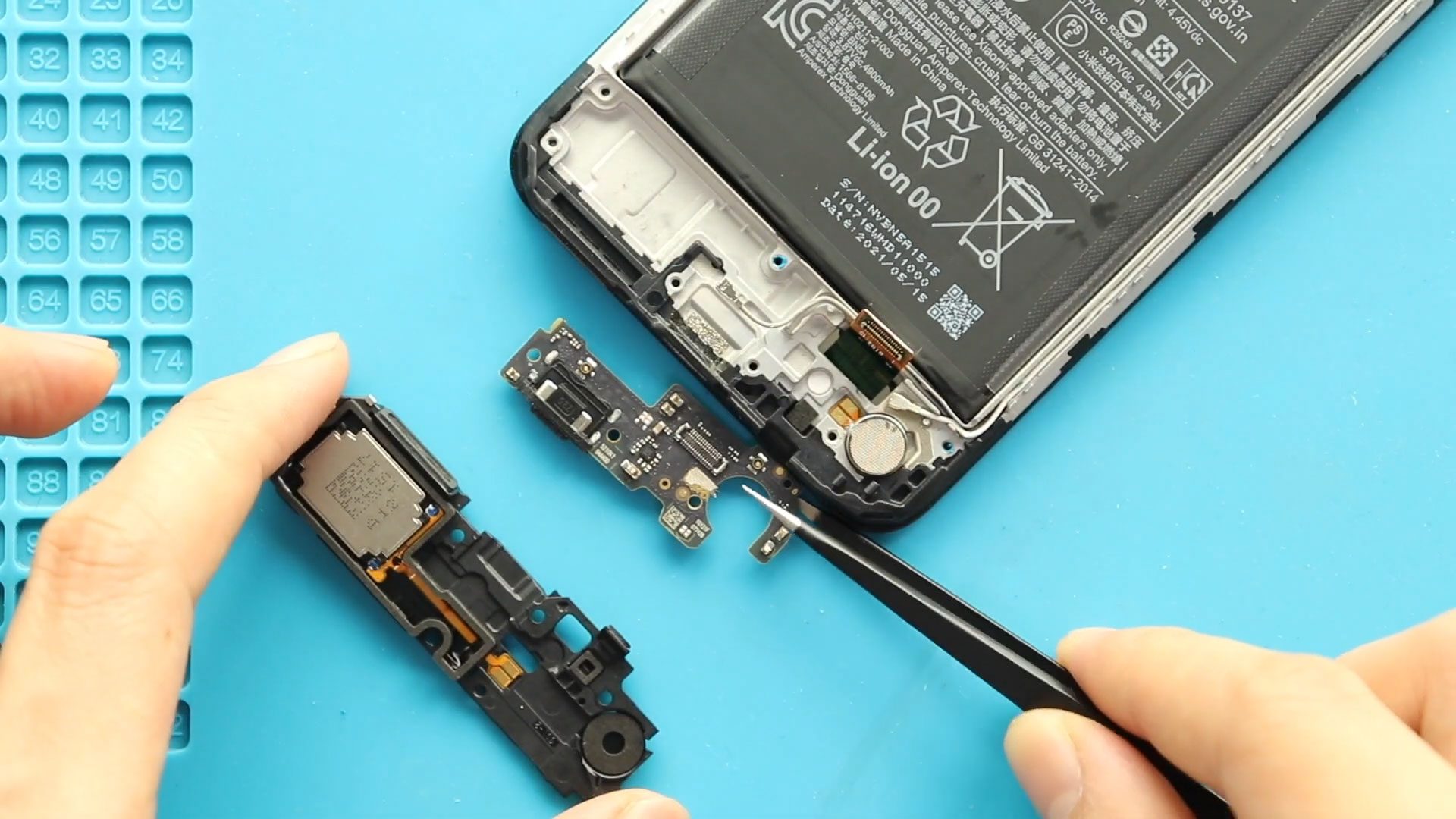
Xiaomi Redmi Note 10 5G Charging Port Replacement Guide | Redmi Note 10T | Poco M3 Pro 5G
If your phone is not charging, charging intermittently, not detected by a computer, or experiencing microphone or headphone jack issues, the charging port board (also called the sub-board) may be faulty.
In this detailed step-by-step repair guide, we will show you how to replace the charging port board safely and correctly.
The charging sub-board is responsible not only for USB charging but also for:
- Primary microphone
- Headphone jack connection (in supported variants)
- USB data transfer
- Bottom antenna connections
If any of these components fail, replacing the charging board is often the most effective solution.
🔧 Repair Overview
Device Type: Smartphone
Repair Type: Charging Port Board (Sub-Board) Replacement
Repair Difficulty: ⭐⭐⭐⭐☆☆☆☆☆☆ (4/10 – Moderate)
⏱ Estimated Repair Time: 40 – 50 Minutes
🔍 Reasons for Charging Port Board Replacement
You may need this repair if you experience:
- Phone not charging
- Loose charging port
- Charging only at certain angles
- Slow charging
- Device not detected by PC
- Microphone not working during calls
- No sound recording in voice notes
- Headphones not detected
- Audio cutting when using wired earphones
Before replacing the board, always inspect and clean the charging port carefully.
Before You Begin
Compatibility and Model Numbers
- Xiaomi Redmi Note 10 5G
- POCO M3 Pro 5G
- Xiaomi Redmi Note 10T 5G
Model Numbers : M2103K19G, M2103K19C, M2103K19I, M2103K19Y, M2103K19PG, M2103K19PI, M2103K19PY
Tools Required
- Mobile phone heating pad or hairdryer/heat gun
- Plastic pry tool / card pry
- Suction cups
- Phillips #00/#000 screwdrivers
- Torx (T2/T3/T4) screwdrivers (Depends on the Region)
- Flathead screwdriver
- Tweezers (for connectors)
- B7000 glue or double-sided adhesive (for back cover)
- Rubber bands or bonding clips to secure the back cover
How to Find Tools and Parts
- Heating pad – https://amzn.to/3H0tHzJ
- Portable Heat Gun – https://amzn.to/4mszih1
- Clamps https://amzn.to/3GYJT4w
- STREBITO 142 Piece Repair Tool Kit https://amzn.to/3UO1jUx
- Glue | Adhesive https://amzn.to/46exVxe
- Compatible Parts –
- Battery – https://amzn.to/3ZIHCQv
- Screen – https://amzn.to/40hCF1g
- Other Parts – https://amzn.to/4rVnyq4
- Silicone Work Repair Mat https://amzn.to/45Emz5l
Protect Your Redmi Note 10 5G Series
- Best Premium Case & Protector https://amzn.to/4kMS9UI
- New Redmi Phone are in Clearance https://amzn.to/4aHSVNX
Step-by-Step Charging Port Board Replacement
Step 1: Power Off the Device
Turn off the phone completely before beginning the repair.
Step 2: Heat the Back Cover
The rear cover is secured with adhesive.
- Place the phone back side down on a heating pad.
- Select mobile heating mode and allow adhesive to soften.
Alternatively, use a heat gun or hairdryer with even heat distribution.
Step 3: Remove the Back Cover
- Use a suction cup to create a small opening.
- Insert a plastic pry tool or card into the gap.
- Slide around edges to cut adhesive.
Carefully lift and remove the back cover.
Step 4: Remove Camera Lens Frame
- Remove 4 screws securing the camera lens frame.
- Lift it gently using a pry tool.
Step 5: Remove SIM Tray & Disconnect Fingerprint
- Remove SIM tray.
- Disconnect the fingerprint flex cable.
Step 6: Remove the Midframe
- Remove 13 screws from top and bottom sections.
- Use a plastic pry tool to release plastic clips.
- Carefully remove the midframe.
Step 7: Disconnect the Battery
Disconnect the battery connector before continuing to prevent short circuits.
Step 8: Remove the Speaker Cover
- Move to the bottom section.
- Remove the loudspeaker cover module.
Step 9: Remove the Faulty Charging Port Board
- Disconnect both antenna cables carefully.
- Disconnect the LCD flex connector attached to the sub-board.
- Gently lift and remove the charging port board.
Step 10: Install the New Charging Port Board
- Place the new board into position.
- Reconnect both antenna cables securely.
- Reconnect the secondary LCD flex cable.
Ensure all connectors snap firmly into place.
Step 11: Reassemble the Device
- Reinstall the speaker cover.
- Reconnect the battery connector.
- Reinstall the midframe (13 screws).
- Reconnect fingerprint flex cable.
- Insert SIM tray.
- Install camera lens frame (4 screws).
Step 12: Reseal the Back Cover
- Apply B7000 glue or new double-sided adhesive if needed.
- Align the back cover carefully.
- Use bonding clips or rubber bands.
- Leave secured for at least 30–60 minutes.
❓ Frequently Asked Questions (FAQ)
Q1: Can replacing the charging board fix microphone problems?
Yes. The primary microphone is integrated into the charging port board. Replacing it can fix microphone issues.
Q2: Will this repair fix headphone detection problems?
Yes, in many cases. Audio routing and bottom board connections can affect headphone functionality.
Q3: Does this repair delete my data?
No. This repair does not affect internal storage.
Q4: Is soldering required?
No soldering is needed. The board connects via flex cables.
Q5: Should I test before sealing the phone?
Yes. Always test charging, microphone, and headphone functionality before resealing.
🛠 Troubleshooting After Replacement
Q1: Phone still not charging?
- Check antenna connections.
- Ensure battery connector is secure.
- Try a different cable and charger.
Q2: Microphone still not working?
- Confirm the board is properly seated.
- Check microphone hole for debris.
- Restart the device.
Q3: Headphones not detected?
- Check headphone jack alignment (if present).
- Ensure sub-board flex cable is connected properly.
Q4: No network signal after repair?
Antenna cables may not be fully snapped in. Re-seat them carefully.
Q5: Back cover not sticking properly?
Use fresh adhesive and apply bonding clips for at least one hour.
Charging port board replacement is a moderate-level repair that can resolve charging failures, microphone issues, and headphone detection problems. Work carefully when reconnecting antenna cables, as they are delicate.
Always fully test charging, audio input, and wired headphone performance before sealing the device.
Related
More Redmi Note 10 5G Repair Guides


-
 01Samsung Galaxy A16 5G Battery Replacement | Full DIY Repair Guide
 -
02Samsung Galaxy A16 5G Screen Replacement | Step-by-Step Guide
-
03Google Pixel 6 Power Button Replacement Guide | Volume Button Flex Repair Guide- DIY Repair
-
04Samsung Galaxy A16 5G Back Cover & Camera Lens Frame Replacement Guide | DIY Repair
-
05Why a Heating Pad Is Essential for Mobile Phone Repairs (And How to Use it)
-
06How to Use a Heat Gun or Hair Dryer for Phone/Tablet Repairs
-
07Essential Repair Tools for Phone, Tablet & Laptop Repairs


