Now Reading: Apple iPad 9 (10.2-inch, 2021) Power & Volume Button Flex Replacement Guide
-
01
Apple iPad 9 (10.2-inch, 2021) Power & Volume Button Flex Replacement Guide

Apple iPad 9 (10.2-inch, 2021) Power & Volume Button Flex Replacement Guide
Hi everyone, welcome back to DIYGeardo.
In this guide, we’ll show you how to replace the power button and volume button flex cable on the Apple iPad 9th Generation (10.2-inch, 2021). If your iPad’s power button is not responding, volume buttons are stuck, or buttons work intermittently, a faulty flex cable is usually the cause.
The power and volume buttons on the iPad 9 are integrated into a single flex cable assembly, mounted along the frame. Replacing this part requires screen removal and careful handling of internal components, but it can fully restore button functionality when done correctly.
Before starting, make sure you have the correct replacement flex and proper repair tools, which you can find in the description. This guide is suitable for DIY repairers and technicians, and we’ll walk you through each step clearly.
Repair Overview
- Device: Apple iPad 9 (10.2-inch, 2021)
- Repair Type: Power & Volume Button Flex Replacement
- Estimated Time: 60–90 minutes
- Repair Difficulty: ★★★★☆ (Moderate to Advanced)
⚠️ Important: This repair requires full display removal. Be careful with flex cables and connectors during disassembly.
Before You Begin
Required Tools
- Heating pad / heat gun / hairdryer
- Suction cup
- Plastic card pry tools / opening picks/ Tweezers
- Phillips screwdriver #00 / #000
- Adhesive (B7000 or double-sided back cover adhesive)
- Bonding clips or rubber bands (optional but recommended)
Make sure the phone is turned off and the SIM tray is removed (For Cellular Version)before starting.
How to Find Tools and Parts
- Heating pad – https://amzn.to/3H0tHzJ
- Portable Heat Gun – https://amzn.to/4mszih1
- Clamps https://amzn.to/3GYJT4w
- STREBITO 142 Piece Repair Tool Kit https://amzn.to/3UO1jUx
- Glue | Adhesive https://amzn.to/46exVxe
- Compatible Parts –
- Battery – https://amzn.to/4m8zrqi
- Touch Screen – https://amzn.to/3IXxiiC
- LCD Screen – https://amzn.to/40WixTg
- Other Parts – https://amzn.to/41lzman
- Silicone Work Repair Mat https://amzn.to/45Emz5l
Step-by-Step Power & Volume Button Flex Replacement Guide
Step 1: Heat the Front Screen
Proper heating is required to separate the screen from the body.
- Use a tablet heating pad and heat the front side of the iPad.
- Select the tablet heating option and allow the heating cycle to complete.
- Alternatively, use a heat gun or hair dryer on low heat.
Step 2: Open the iPad 9
- Attach a suction cup to the edge of the screen and gently lift.
- Insert a plastic card or triangle picker.
- Carefully cut the adhesive around the screen edges.
⚠️ Be gentle—display flex cables are attached to the logic board.
Step 3: Remove the LCD Screen
- Open the screen like opening a book, from left to right.
- Remove any tape covering the LCD screws.
- Undo four screws securing the LCD.
- Lift the LCD to a 90-degree angle from the top.
- Remove the shield by undoing three screws.
- Disconnect the LCD connector and remove the LCD screen.

Step 4: Remove the Touch Screen Digitizer Assembly
- Disconnect both touchscreen connectors.
- Peel back tape and lift the locking tab.
- Disconnect the Touch ID flex cable.
- Remove the digitizer assembly from the body.
Step 5: Remove the Plate
- Locate the metal plate covering the internal flex connections.
- Undo the screws securing the plate.
- Remove the plate carefully and set it aside.
Step 6: Remove the Faulty Power & Volume Button Flex
- Locate the power and volume button flex along the frame.
- Disconnect the flex cable from the logic board.
- Gently peel the flex cable from the frame.
- Carefully remove the button contacts from their cutouts.
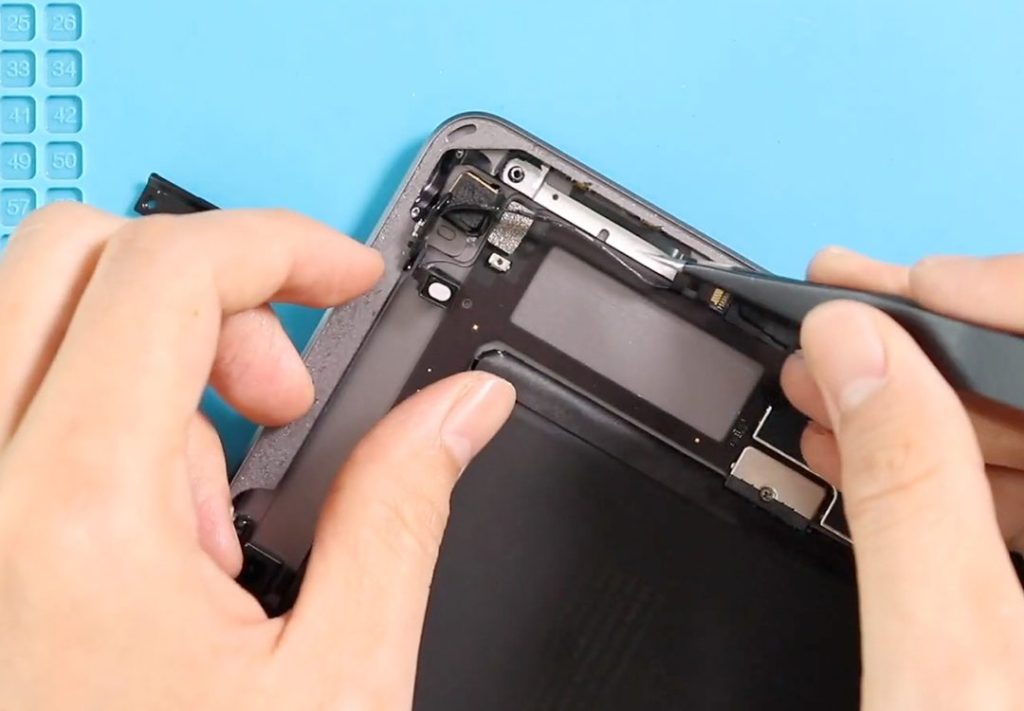
⚠️ The flex is lightly glued—use controlled heat if needed.
Step 7: Install the New Power & Volume Button Flex
- Align the new flex cable along the frame.
- Seat the power and volume buttons correctly in their positions.
- Press the flex gently into place.
- Connect the flex cable to the logic board.
Step 8: Reinstall the Plate
- Place the metal plate back over the connectors.
- Secure it using the original screws.
Step 9: Reinstall LCD & Touch Screen
- Reconnect the Touch ID flex cable.
- Connect both touchscreen connectors.
- Plug in the LCD connector.
- Install the LCD shield and tighten the screws.
- Place the LCD back into position.
- Secure the LCD using four screws.
Step 10: Seal the Display
- Ensure enough adhesive is applied around the frame.
- Use B7000 glue or pre-cut adhesive strips.
- Close the digitizer like closing a book:
- Bottom edge first
- Then top
- Press sides evenly
Verify that power and volume buttons click properly before final bonding.Use screen bonding clips or rubber bands and leave them in place for some time.
Repair Complete
Power on the iPad and test the power button, volume up, and volume down buttons to confirm proper operation.
We hope you enjoyed the iPad 9 power & volume button flex replacement guide.
If you have any questions, leave a comment below. Please like, share, and comment on our videos — and don’t forget to hit the subscribe button.
FAQs
1. Are the power and volume buttons a single flex cable?
Yes, on the iPad 9 (2021), the power and volume buttons are combined into one flex assembly.
2. Can I replace only the power button or volume button?
No. The entire flex cable must be replaced as one unit.
3. Do I need to remove the logic board for this repair?
No, the repair can be done without removing the logic board.
4. Will this repair affect Touch ID?
No, as long as the Touch ID flex cable is not damaged.
5. Is adhesive required for the button flex?
Light adhesive is usually pre-applied, but mild heating helps secure the flex.
Troubleshooting – After The Repair
1. Power or volume buttons not responding after repair
Recheck the flex connector and ensure it is fully seated.
2. Buttons feel loose or don’t click
The flex may not be aligned correctly in the frame cutouts.
3. iPad doesn’t power on
Check battery and display connections before resealing.
4. Screen lifts after reassembly
Insufficient adhesive or uneven pressure during bonding.