
Now Reading: Google Pixel 4a 5G Charging Port Replacement Guide
-
01
Google Pixel 4a 5G Charging Port Replacement Guide
Google Pixel 4a 5G Charging Port Replacement Guide
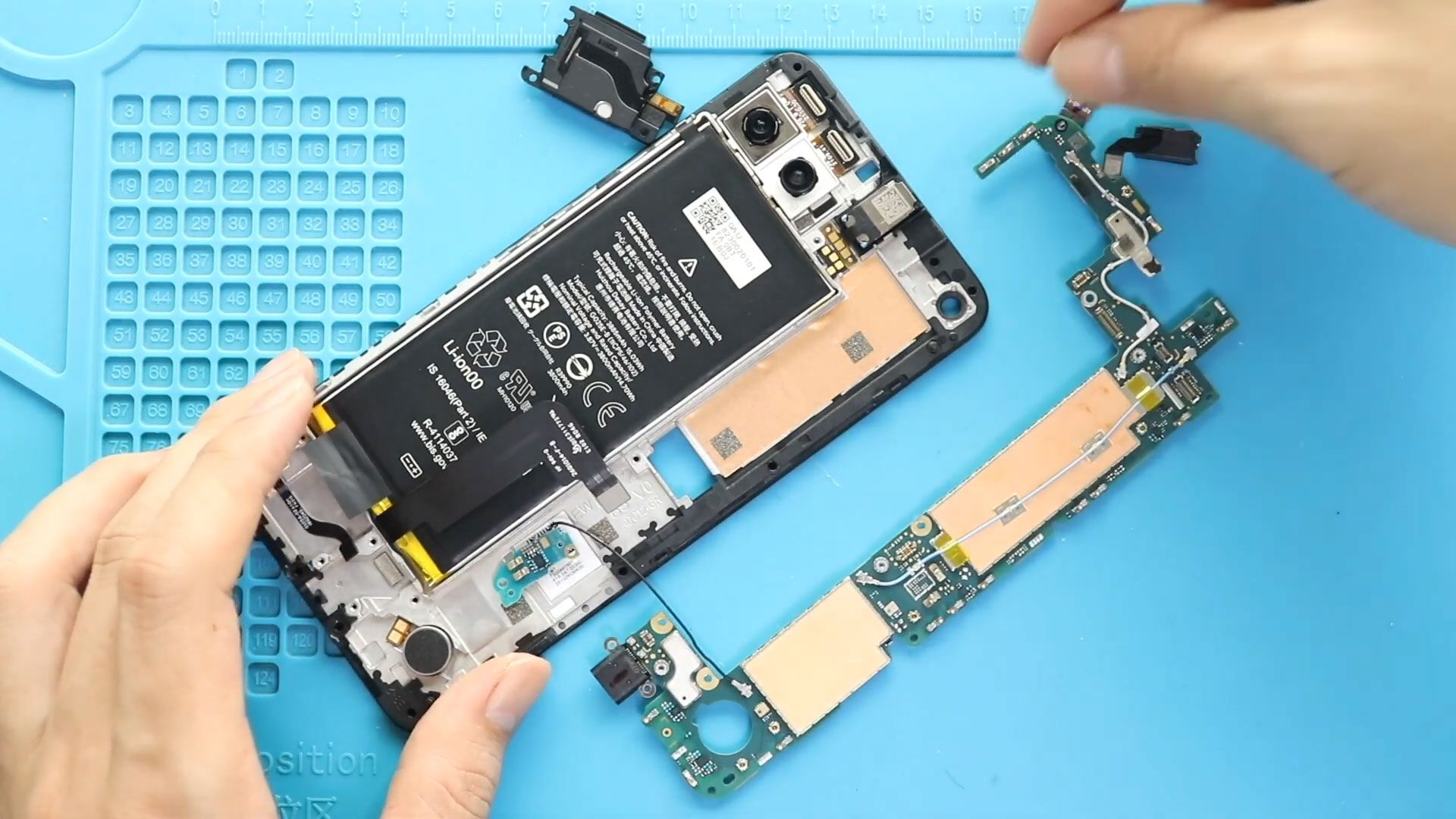
If your Google Pixel 4a 5G is not charging correctly or the charging port has stopped working, replacing the charging port flex may restore normal charging. Since the charging port is located inside the phone, this repair requires removing the LCD screen, mid-frame, logic board, and several connected components before the faulty flex can be reached.
This guide walks you through the complete Google Pixel 4a 5G charging port flex replacement process, from safely opening the phone and removing the damaged part to installing the new flex and reassembling the device.
Repair Difficulty
Repair Difficulty: ⭐⭐⭐⭐☆
Estimated Time: 45–60 minutes
Device Type: Smartphone
Type of Repair: Charging Port Replacement
Reasons for Replacing the Charging Port Flex
A faulty charging port flex can prevent the Google Pixel 4a 5G from charging correctly. Replacing it may be necessary when the existing charging port flex is no longer working.
Because the charging port flex is connected beneath the logic board, reaching it requires substantial disassembly of the phone.
Before You Begin
Compatibility and Model Numbers
This repair guide based on Google Pixel 4A 5G Version
Model Numbers | GD1YQ, G025I
Tools Required
- Mobile phone heating pad or hairdryer/heat gun
- Plastic pry tool / card pry
- Suction cups
- Torx T3 screwdriver
- Torx T4 screwdriver
- Torx T5 screwdriver
- Tweezers (for connectors)
- B7000 glue or double-sided adhesive (for back cover)
- Rubber bands or bonding clips to secure the back cover
How to Find Tools and Parts
- Heat Mat / Heating Pad – https://amzn.to/3H0tHzJ
- Best Portable Heat Gun – https://amzn.to/4cZYnhL
- Clamps – https://amzn.to/3GYJT4w
- STREBITO 142 Piece Repair Tool Kit – https://amzn.to/3UO1jUx
- Stronger Suction Cup – https://amzn.to/3UVb6YR
- Silicone Work Repair Mat – https://amzn.to/4euW6fs
- Must Have Glue | Adhesive – https://amzn.to/4uxhKog
- Compatible Parts –
- Battery – https://amzn.to/3HThE7P
- Screen – https://amzn.to/3HTgCIZ
- Other Parts – https://amzn.to/4meWmzB
Step-by-Step Google Pixel 4a 5G Charging Port Flex Replacement
Step 1: Prepare the Phone and Tools
Before starting, make sure you have the required tools and replacement charging port flex ready.
The tools used for this repair can be found in the repair description. Having everything prepared beforehand makes the disassembly and reassembly process easier to manage.
Step 2: Heat and Remove the LCD Screen
The first major step is removing the LCD screen from the front of the phone.
Important: Heat the screen gently. The goal is to soften the adhesive around the edges rather than apply excessive heat.
Place the phone with the front screen facing down on a heating pad and select the mobile phone heating option. Allow it to complete the heating process. Alternatively, a heat gun or hairdryer can be used.
Once the adhesive has softened, use a suction cup to lift the screen slightly. Insert a plastic card pry tool or similar tool around the screen edge to begin separating the adhesive.
Isopropyl alcohol can also be used around the screen edges to help dissolve the adhesive. Carefully work the pry tool around the display and cut through the softened adhesive.
Gradually lift the screen to approximately a 90-degree angle from the phone. Use tweezers to remove the LCD connector bracket, then disconnect the LCD connector to completely free the screen from the body.
Step 3: Eject the SIM Tray
Before continuing with the internal disassembly, eject the SIM tray from the Google Pixel 4a 5G.
Set the tray aside in a safe location so it can be reinstalled later.
Step 4: Remove the Mid-Frame Screws
The mid-frame plate is secured with nine screws.
Remove all nine screws and keep them organized for reassembly.
Step 5: Separate the Mid-Frame from the Housing
Use a plastic card pry tool or triangle picker between the back housing and the mid-frame plate.
Run the tool around the connection to release the clips holding the mid-frame and housing together.
Important: Be especially careful around the flex cables while separating the back cover housing. Avoid pulling or damaging them.
Once the clips have been released, place the back cover on a suitable surface and carefully position the mid-frame body on the housing.
Do not force the frame or put unnecessary pressure on the phone or its cables.
Step 6: Remove the Logic Board Bracket
Remove the logic board bracket by undoing its seven screws.
Once all seven screws have been removed, take out the bracket and set it aside for reinstallation.
Step 7: Disconnect the Battery and Other Plugs
Disconnect the battery plug from the board.
Next, disconnect the fingerprint button and flash sensor plugs from the board. These connections need to be released so the back cover can be separated from the phone body.
Important: Handle the plugs and flex cables gently during this process.
Step 8: Remove the Front Camera and Headphone Jack
Disconnect and remove the front camera.
Next, disconnect and take out the headphone jack. Keep both components safely aside because they will be installed again during reassembly.
Step 9: Remove the Speaker and Antenna Board
Remove the speaker by undoing its three screws and loosening the adhesive.
Important: Pull the speaker out carefully because the antenna board may still be attached to it.
Separate the antenna board from the speaker and remove the speaker from the phone.
Step 10: Disconnect and Remove the Logic Board
Disconnect the antenna board plug from the logic board.
With the connection released, gently lift the logic board from the phone.
Important: Be careful with the flex cables while lifting the board. Avoid pulling or putting unnecessary pressure on any connected cables.
Step 11: Remove the Faulty Charging Port Flex
Flip the logic board over to access the charging port flex.
Disconnect the faulty charging port flex and remove it from the board.
Once the damaged flex has been removed, the replacement can be installed.
Step 12: Install the New Charging Port Flex
Place the new Google Pixel 4a 5G charging port flex onto the board.
Make sure it is correctly positioned before continuing with the reassembly.
Step 13: Reinstall the Logic Board
Gently place the logic board back onto the phone body.
Make sure the board is correctly positioned and avoid putting unnecessary pressure on the flex cables.
Reconnect the antenna board plug to the logic board.
Step 14: Reinstall the Speaker and Antenna Board
Secure the speaker and antenna board back into position.
Add and tighten the three screws to secure the speaker assembly.
Next, secure the headphone jack and reconnect the front camera.
Step 15: Reconnect the Fingerprint and Sensor Plugs
Maintain the back housing at approximately a 90-degree position while reconnecting the fingerprint button and flash sensor plugs to the board.
Make sure the plugs are properly connected before continuing.
Step 16: Reconnect the Battery
Secure the battery plug back onto the board.
Once the battery connection is restored, continue with the board bracket installation.
Step 17: Reinstall the Logic Board Bracket
Place the logic board bracket back into position.
Secure it using the seven screws removed earlier.
Make sure the bracket is correctly positioned before continuing with the mid-frame installation.
Step 18: Reinstall the Mid-Frame
Starting from the top, gently slide the mid-frame body onto the housing and continue toward the bottom.
Important: Do not force the frame into position. Once it is correctly aligned, gently press the frame to fasten the clips between the body and housing.
Step 19: Reinstall the SIM Tray and Mid-Frame Screws
Insert the SIM tray back into the phone.
Next, secure the mid-frame plate with the nine screws removed during disassembly.
Check that the frame is properly seated before moving on to the LCD installation.
Step 20: Reconnect the LCD Screen
Place and connect the LCD screen plug.
Reinstall the LCD connector bracket to secure the connection.
Before permanently installing the screen, the device can now be turned on for verification and testing.
Step 21: Test the Device Before Sealing the LCD
Turn on the Google Pixel 4a 5G and verify that the device is functioning correctly.
Important: Test the phone before permanently installing the LCD screen. This gives you an opportunity to verify the repair before sealing the display back onto the body.
Step 22: Prepare the LCD Adhesive
Before installing the LCD screen, check whether there is enough adhesive remaining around the screen.
If additional adhesive is needed, use B7000 glue or new double-sided LCD adhesive as described in the repair procedure.
Step 23: Reinstall and Secure the LCD Screen
Gently slide the LCD screen into position, starting from the bottom and then moving toward the top.
Once the screen is correctly positioned, apply slight pressure around the screen edges to help secure it.
Finally, use bonding clips to fasten the LCD screen to the body. Leave the clips in place for some time before removing them.
If bonding clips are not available, rubber bands can be used to provide pressure and hold the screen against the body while the adhesive sets.
End of Repair Guide
The Google Pixel 4a 5G charging port flex replacement is now complete. After the adhesive has been secured and the phone is fully assembled, test the charging function and other basic functions to confirm the repair was successful.
Frequently Asked Questions
1. What symptoms can indicate a faulty charging port flex?
A non-working charging port is a key reason to replace the charging port flex. If the charging port has stopped functioning, the flex may require replacement.
2. Why does the LCD screen need to be removed?
The charging port flex is located deep inside the Google Pixel 4a 5G. Removing the LCD and internal frame provides access to the components that must be removed before reaching the flex.
3. Why should the screen be heated before removal?
Heating softens the adhesive around the LCD edges, making it easier to separate the screen during disassembly.
4. Can I use something other than a heating pad?
The repair procedure uses a heating pad but also identifies a heat gun or hairdryer as an alternative for heating the screen.
5. When should I test the phone?
Test the device after reconnecting the LCD and before permanently installing the screen. This allows the repair to be verified before the display is sealed back onto the phone.
6. What adhesive can be used when reinstalling the LCD?
If the existing adhesive is not sufficient, the procedure specifies using B7000 glue or new double-sided LCD adhesive.
Troubleshooting
1. The screen is difficult to remove. What should I do?
Make sure the screen adhesive has been heated sufficiently to soften it. Work gradually with the suction cup and plastic pry tool rather than forcing the display.
2. The mid-frame will not separate from the housing.
Check that all nine mid-frame screws have been removed. Then carefully work a plastic card pry tool or triangle picker between the housing and mid-frame to release the clips.
3. The LCD does not work during testing.
Check the LCD connector and connector bracket. Make sure the LCD plug is properly connected before continuing with the final screen installation.
4. The screen does not stay attached after installation.
Check that there is sufficient adhesive around the LCD. If needed, use B7000 glue or new double-sided LCD adhesive, then use bonding clips or rubber bands to hold the screen securely while the adhesive sets.
5. The charging port still does not work after the replacement.
Recheck the installation of the new charging port flex and the reassembly of the logic board. The board and its connections should be carefully reviewed before the phone is fully closed.
Related Guides


-
 01Samsung Galaxy A16 5G Battery Replacement | Full DIY Repair Guide
 -
02Samsung Galaxy A16 5G Screen Replacement | Step-by-Step Guide
-
03Google Pixel 6 Power Button Replacement Guide | Volume Button Flex Repair Guide- DIY Repair
-
04Samsung Galaxy A16 5G Back Cover & Camera Lens Frame Replacement Guide | DIY Repair
-
05Why a Heating Pad Is Essential for Mobile Phone Repairs (And How to Use it)
-
06How to Use a Heat Gun or Hair Dryer for Phone/Tablet Repairs
-
07Essential Repair Tools for Phone, Tablet & Laptop Repairs


