
Now Reading: Google Pixel 4a 5G Ringer Speaker Replacement Guide
-
01
Google Pixel 4a 5G Ringer Speaker Replacement Guide
Google Pixel 4a 5G Ringer Speaker Replacement Guide
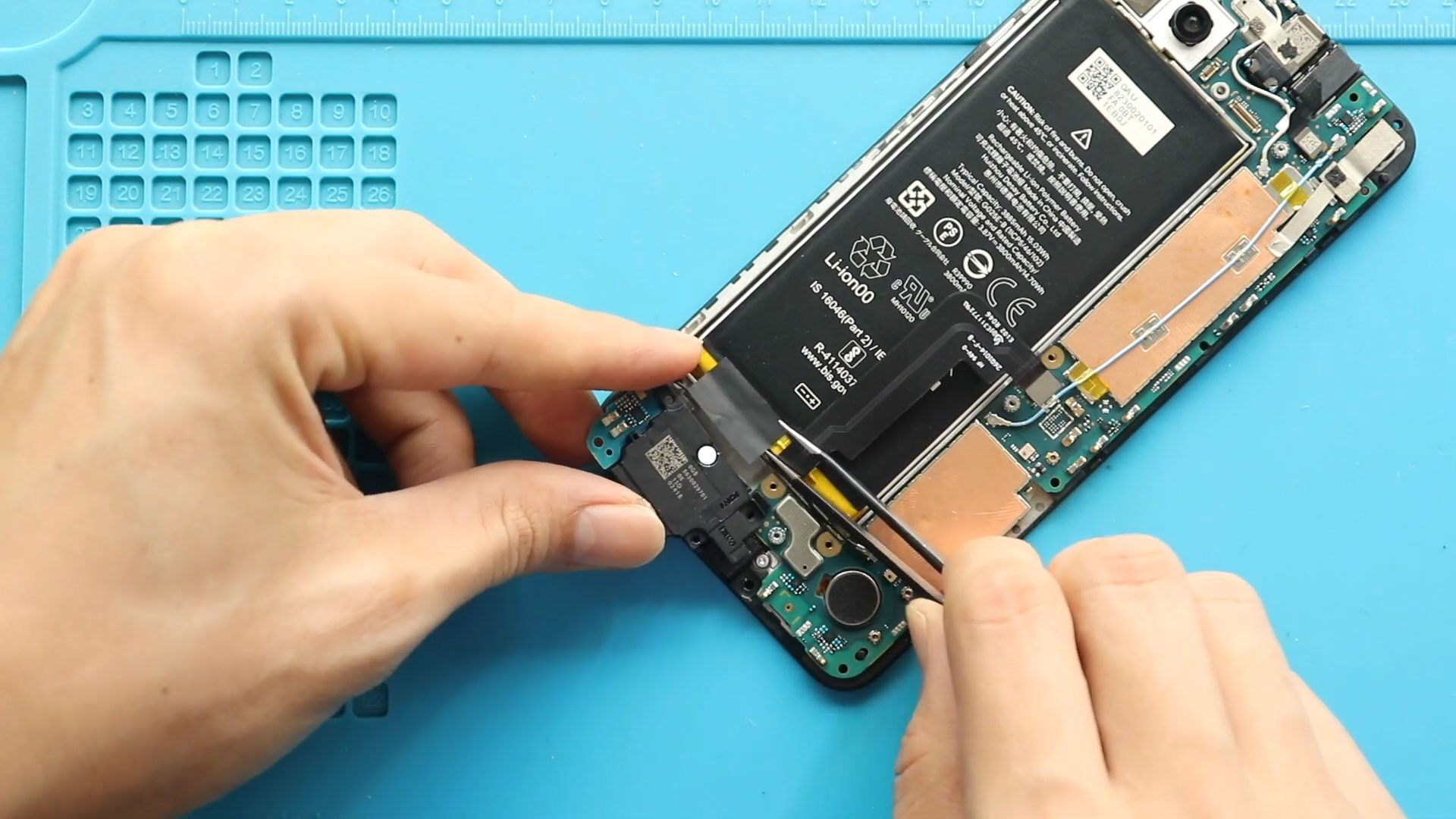
Today we will show you how to replace the ringer (loudspeaker) on the Google Pixel 4a 5G mobile phone.
If your Pixel 4a 5G has no ringtone, low speaker volume, distorted sound, or the loudspeaker has stopped working completely, replacing the ringer can be an effective solution. Because the speaker is located inside the phone, the repair requires removing the LCD screen and several internal components before reaching the faulty ringer.
To start, we need to have the right tools to proceed with the repair, which you can find in the description. Since this repair involves removing the screen, extra care is required to avoid damaging the display or its flex cable.
This guide is written for beginners, so we will explain the process step by step and highlight the important areas to handle carefully.
Repair Difficulty
Repair Difficulty: ⭐⭐⭐⭐☆
Estimated Time: 45–60 minutes
Device Type: Smartphone
Type of Repair: Ringer / Loudspeaker Replacement
Reasons for the Repair
There are several reasons why you may need to replace the ringer on a Google Pixel 4a 5G:
- No ringtone or notification sound
- Very low loudspeaker volume
- Distorted or crackling audio
- Loudspeaker has stopped working
- Speaker was damaged by physical impact
- Internal speaker failure
Before replacing the component, it is worth checking the phone’s volume and sound settings to make sure the problem is not software-related.
Before You Begin
Compatibility and Model Numbers
This repair guide based on Google Pixel 4A 5G Version
Model Numbers | GD1YQ, G025I
Tools Required
- Mobile phone heating pad or hairdryer/heat gun
- Plastic pry tool / card pry
- Suction cups
- Torx T3 screwdriver
- Torx T4 screwdriver
- Torx T5 screwdriver
- Tweezers (for connectors)
- B7000 glue or double-sided adhesive (for back cover)
- Rubber bands or bonding clips to secure the back cover
How to Find Tools and Parts
- Heat Mat / Heating Pad – https://amzn.to/3H0tHzJ
- Best Portable Heat Gun – https://amzn.to/4cZYnhL
- Clamps – https://amzn.to/3GYJT4w
- STREBITO 142 Piece Repair Tool Kit – https://amzn.to/3UO1jUx
- Stronger Suction Cup – https://amzn.to/3UVb6YR
- Silicone Work Repair Mat – https://amzn.to/4euW6fs
- Must Have Glue | Adhesive – https://amzn.to/4uxhKog
- Compatible Parts –
- Battery – https://amzn.to/3HThE7P
- Screen – https://amzn.to/3HTgCIZ
- Other Parts – https://amzn.to/4meWmzB
Step-by-Step Google Pixel 4a 5G Ringer Replacement
Step 1: Power Off the Phone
Before starting the repair, completely power off the Google Pixel 4a 5G. Remove any accessories and make sure the phone is not connected to a charger.
Step 2: Apply Heat and Remove the LCD Screen
Apply controlled heat around the edges of the LCD screen to soften the adhesive.
Carefully create a small gap using a plastic pry tool or pick. Slowly work around the edges to separate the display from the housing.
Take your time during this step because excessive pressure or inserting the pry tool too deeply can damage the display or internal components.
Once the adhesive has been released, carefully lift the LCD screen away from the phone.
Step 3: Remove the Mid Frame Plate
With the LCD screen removed, continue by removing the mid frame plate.
Carefully work around the plate and lift it away from the housing so the internal components can be accessed.
Step 4: Remove the Logic Board Bracket
Locate the logic board bracket and remove the screws securing it.
Once the screws are removed, carefully lift the bracket away from the device.
Keep the screws organized so they can be returned to their original positions during reassembly.
Step 5: Remove the Faulty Ringer
Locate the faulty ringer/loudspeaker inside the phone.
Carefully release the speaker from its position. If adhesive is holding the component in place, use gentle heat if necessary to soften it.
Avoid using excessive force, especially around nearby connectors and cables.
Step 6: Install the New Ringer
Take the replacement ringer and position it correctly in the housing.
Make sure the speaker is properly aligned with its mounting position and any corresponding contact points.
Secure the new ringer firmly so it does not move when the phone is reassembled.
Step 7: Reinstall the Logic Board Bracket
Place the logic board bracket back into its original position.
Align it correctly and reinstall the screws. Do not overtighten the screws, as excessive force can damage the frame or threads.
Step 8: Reinstall the Housing and Mid Frame Plate
Place the housing and mid frame plate back into position.
Make sure all components are sitting correctly and that no cables or connectors are trapped underneath the frame.
Step 9: Reinstall the LCD Screen
Before permanently securing the screen, make sure the display is correctly aligned.
Apply suitable display adhesive and carefully position the LCD screen onto the housing.
Press gently around the edges to ensure the display sits evenly and securely.
Step 10: Close the Phone and Install the Back Cover
Once the screen and internal components are properly positioned, continue with the final assembly.
Install the back cover and press around the edges to secure it properly.
Make sure the back cover is evenly aligned and there are no visible gaps around the edges.
Test the Phone After Repair
Before considering the repair complete, power on the Google Pixel 4a 5G and test the replacement ringer.
Play a ringtone, notification sound, or music through the loudspeaker and check that the audio is clear and at the expected volume.
It is always better to test the phone before applying the final adhesive or completely sealing the device.
Frequently Asked Questions (FAQ)
Why is my Google Pixel 4a 5G ringer not working?
A faulty loudspeaker, damaged component, debris, or an internal connection problem can cause the ringer to stop working. Software and sound settings should also be checked before replacing the speaker.
Is replacing the Pixel 4a 5G ringer beginner-friendly?
This repair is more difficult than simple component replacements because the LCD screen must be removed. Beginners should work slowly and carefully, particularly when separating the display.
Do I need to remove the LCD screen to replace the ringer?
For this repair procedure, yes. The screen and internal frame components need to be removed to access the ringer.
Can I replace the ringer without replacing the screen?
Yes. If the LCD screen remains undamaged during removal, it can generally be reused. However, new display adhesive may be required during reassembly.
Should I test the new ringer before closing the phone?
Yes. Testing the speaker before final closure is strongly recommended. It allows you to check the repair before the device is completely sealed.
Troubleshooting
The new ringer has no sound. What should I check?
Check that the new speaker is positioned correctly and that its contacts or connections are properly seated. Also check the phone’s volume and sound settings.
The speaker volume is very low after replacement. What could be wrong?
Check whether the speaker opening is blocked or whether the ringer is correctly aligned with the housing. Also make sure there is no leftover adhesive obstructing the speaker.
The sound is distorted after replacing the ringer. What should I do?
Inspect the speaker installation and make sure it is sitting flat in its original position. A damaged replacement speaker can also cause distortion.
The LCD screen does not work after the repair. What should I check?
Recheck the display connection and inspect the display flex cable for damage. Avoid repeatedly disconnecting connectors unless necessary.
The back cover or screen is not sitting correctly.
Check that the mid frame and internal components are correctly positioned. Make sure no cables or parts are trapped underneath the frame and use suitable replacement adhesive.
Final Thoughts
Replacing the ringer on the Google Pixel 4a 5G requires more care than a basic speaker replacement because the LCD screen must be removed first. The most important part of this repair is working slowly when separating the display and keeping track of every screw and internal component.
Once the new ringer is installed, test the phone thoroughly before completing the final closure. If everything is working correctly, the repair should restore normal ringtone, notification, and loudspeaker audio.
I hope you have enjoyed this replacement guide.
Let us know if you have any questions; please like, share, and comment on our videos. Do not forget to hit the subscribe button for more repair guides.
Related Guides


-
 01Samsung Galaxy A16 5G Battery Replacement | Full DIY Repair Guide
 -
02Samsung Galaxy A16 5G Screen Replacement | Step-by-Step Guide
-
03Google Pixel 6 Power Button Replacement Guide | Volume Button Flex Repair Guide- DIY Repair
-
04Samsung Galaxy A16 5G Back Cover & Camera Lens Frame Replacement Guide | DIY Repair
-
05Why a Heating Pad Is Essential for Mobile Phone Repairs (And How to Use it)
-
06How to Use a Heat Gun or Hair Dryer for Phone/Tablet Repairs
-
07Essential Repair Tools for Phone, Tablet & Laptop Repairs


