
Now Reading: Google Pixel 6a Earpiece Speaker Replacement Guide
-
01
Google Pixel 6a Earpiece Speaker Replacement Guide
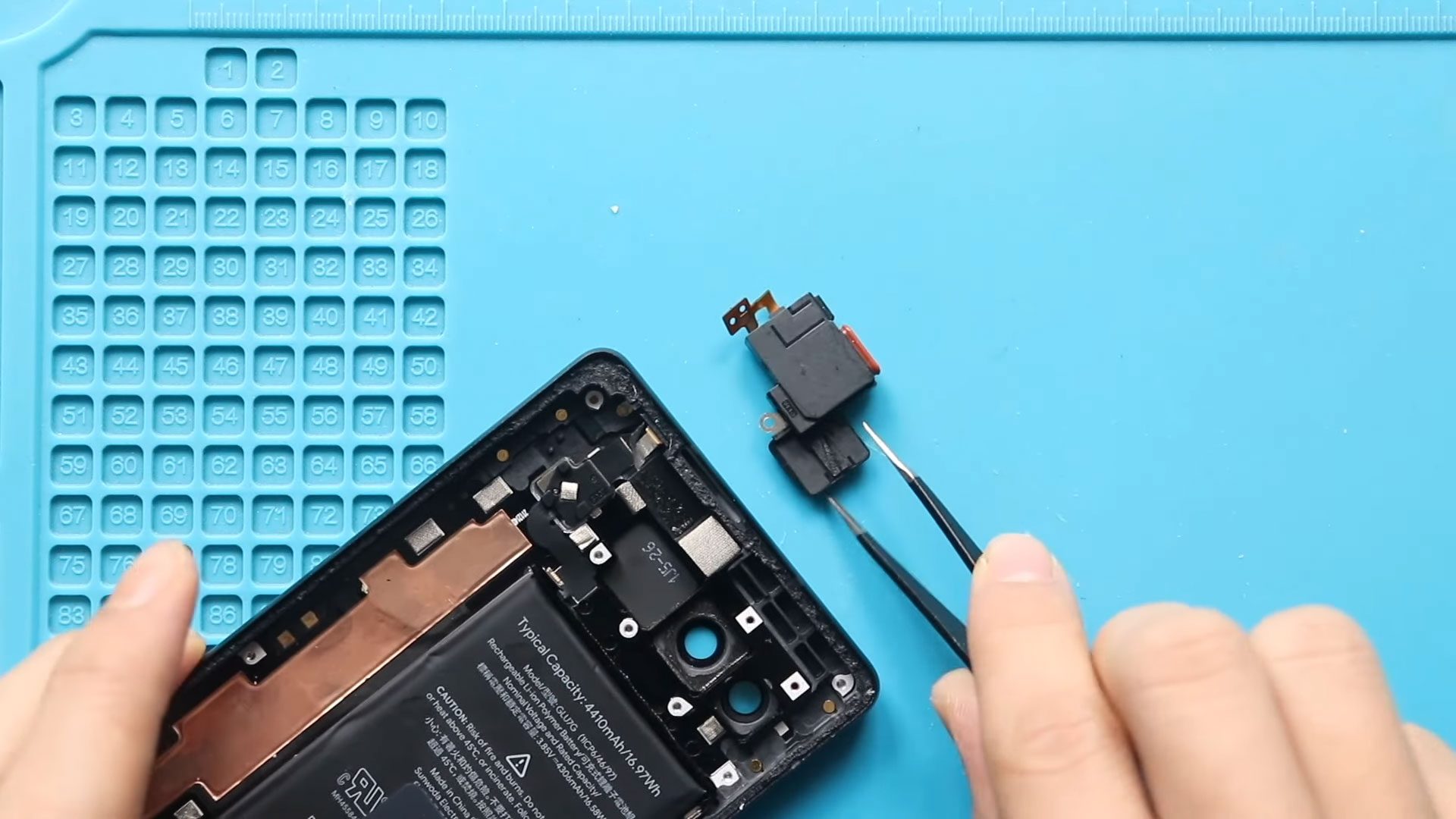
Google Pixel 6a Earpiece Speaker Replacement Guide
Hi everyone, welcome back to DIYGeardo!
Today we will show you how to replace the earpiece speaker on the Google Pixel 6a mobile phone.
The earpiece speaker is responsible for call audio and voice quality. If your Pixel 6a has no sound during calls, muffled sound, or low volume, the earpiece speaker might be faulty or damaged. This guide will walk you through the complete process of replacing the earpiece speaker.
Common Reasons for Earpiece Speaker Failure
You may need to replace the earpiece speaker if you notice:
- No sound during calls
- Muffled or low call volume
- Crackling or buzzing during calls
- Sound only works on speaker mode
- Earpiece not detected in settings
- Water damage or dust accumulation
- Physical damage due to dropping
Repair Difficulty & Time
- Difficulty: ⚠️⚠️⚠️⚠️☆ (Advanced)
- Estimated Time: 50–70 minutes
Before You Begin
Compatibility and Model Numbers
This repair guide based on Google Pixel 6A Mobile Phone.
Model Numbers | GX7AS, GB62Z, G1AZG, GB17L
Tools Required
- Heating pad / heat gun / hairdryer
- Suction cup
- Plastic card pry tools / opening picks / Tweezers
- Phillips PH000/PH00 screwdriver
- Torx T3 Screwdriver
- Adhesive (B7000 or double-sided back cover adhesive)
- Bonding clips or rubber bands (optional but recommended)
Make sure the tablet is turned off and the SIM tray is removed before starting.
How to Find Tools and Parts
- Heating pad – https://amzn.to/3H0tHzJ
- Portable Heat Gun – https://amzn.to/4mszih1
- Clamps https://amzn.to/3GYJT4w
- STREBITO 142 Piece Repair Tool Kit https://amzn.to/3UO1jUx
- Glue | Adhesive https://amzn.to/46exVxe
- Compatible Parts –
- Battery – https://amzn.to/4m9sWDx
- Screen – https://amzn.to/4mDihAY
- Other Parts – https://amzn.to/4mhg7Hq
- Silicone Work Repair Mat https://amzn.to/45Emz5l
Step-by-Step Google Pixel 6a Earpiece Speaker Replacement
Step 1: Power Off the Device
Turn off your Google Pixel 6a completely before starting the repair.
Step 2: Heat the Display
Heat the edges of the screen to soften the adhesive.
- Place the phone screen-side down on a heating pad
- Select the mobile phone heating option
- Heat until the adhesive becomes soft
Alternative: use a heat gun or hair dryer.
Step 3: Open the Screen
- Use a suction cup on the right side of the screen
- Lift the screen slightly
- Insert a plastic card pry tool
- Carefully cut the adhesive around the screen
⚠️ Be careful: the LCD connector cable is located on the left-hand side of the screen.
Step 4: Lift the Screen
Lift the screen gradually from right to left and open it like a book.
Step 5: Remove LCD Connector Bracket
Use tweezers to remove the connector bracket securing the LCD cable.
Step 6: Disconnect the LCD Connector
Disconnect the LCD connector plug from the board.
Now you can remove the screen from the body.
Step 7: Remove Logic Board Bracket
Remove the screws securing the logic board bracket and carefully lift the bracket.
Loosen the graphite tapes if needed.
Step 8: Remove Ringer Cover
Remove the ringer cover to access the internal components and earpiece speaker area.
Step 9: Remove Logic Board
Carefully remove the logic board from the body to access the earpiece speaker module.
Step 10: Remove the Faulty Earpiece Speaker
Disconnect and remove the not working earpiece speaker from its position.
Step 11: Install the New Earpiece Speaker
Place the new earpiece speaker into the correct position and secure it properly.
Step 12: Reinstall Logic Board
Place the logic board back into position and secure it properly.
Step 13: Place the Ringer Cover
Install the ringer cover back and secure it.
Step 14: Reinstall Logic Board Bracket
Place the logic board bracket back and secure it with screws.
Reapply the graphite tapes.
Step 15: Connect LCD for Testing
Connect the LCD screen to the board and power on the device to test.
Check:
- Earpiece sound during calls
- Call quality and volume
- Screen touch response
Step 16: Secure LCD Connector Bracket
Once testing passes, secure the connector bracket back.
Step 17: Install the LCD Screen
Before securing the screen, ensure the frame has enough adhesive.
Use B7000 glue or new double-sided LCD adhesive if needed.
Gently slide the screen into the body from bottom to top and apply light pressure on the edges.
Step 18: Final Clamping
Use bonding clips or rubber bands to fasten the screen to the body.
Leave it for some time until the adhesive sets.
FAQ
Q: Why is my Pixel 6a earpiece speaker not working?
A: It can be caused by a damaged earpiece speaker, water damage, or a loose connector.
Q: Can I replace the earpiece speaker without removing the screen?
A: No. You must remove the screen and logic board to access the earpiece speaker.
Q: Does replacing the earpiece speaker delete data?
A: No, but backing up data is always recommended.
Q: Will the earpiece work after replacement?
A: Yes, if the replacement earpiece is compatible and installed correctly.
Q: Can I use a third-party earpiece speaker?
A: Yes, but ensure it is compatible with Google Pixel 6a for best results.
Troubleshooting (After Repair)
Q: Why does the earpiece still not work after replacement?
A: The earpiece connector might not be properly seated. Reopen the phone and reseat the connector.
Q: Why is the call volume low after replacement?
A: Check the earpiece placement and ensure there is no dust or debris blocking the speaker.
Q: Why do I hear crackling during calls?
A: The earpiece may not be properly seated or may be faulty. Recheck the connector and replace with a better-quality part if needed.
Q: Why does the phone not turn on after repair?
A: Check the battery connector and LCD connector. Make sure both are properly connected.
Q: Why is the screen lifting after reinstalling the LCD?
A: The adhesive may not be strong enough. Apply new adhesive and clamp the screen until it cures.













