
Now Reading: Motorola Moto G Stylus 2020 Fingerprint Sensor Repair Guide
-
01
Motorola Moto G Stylus 2020 Fingerprint Sensor Repair Guide
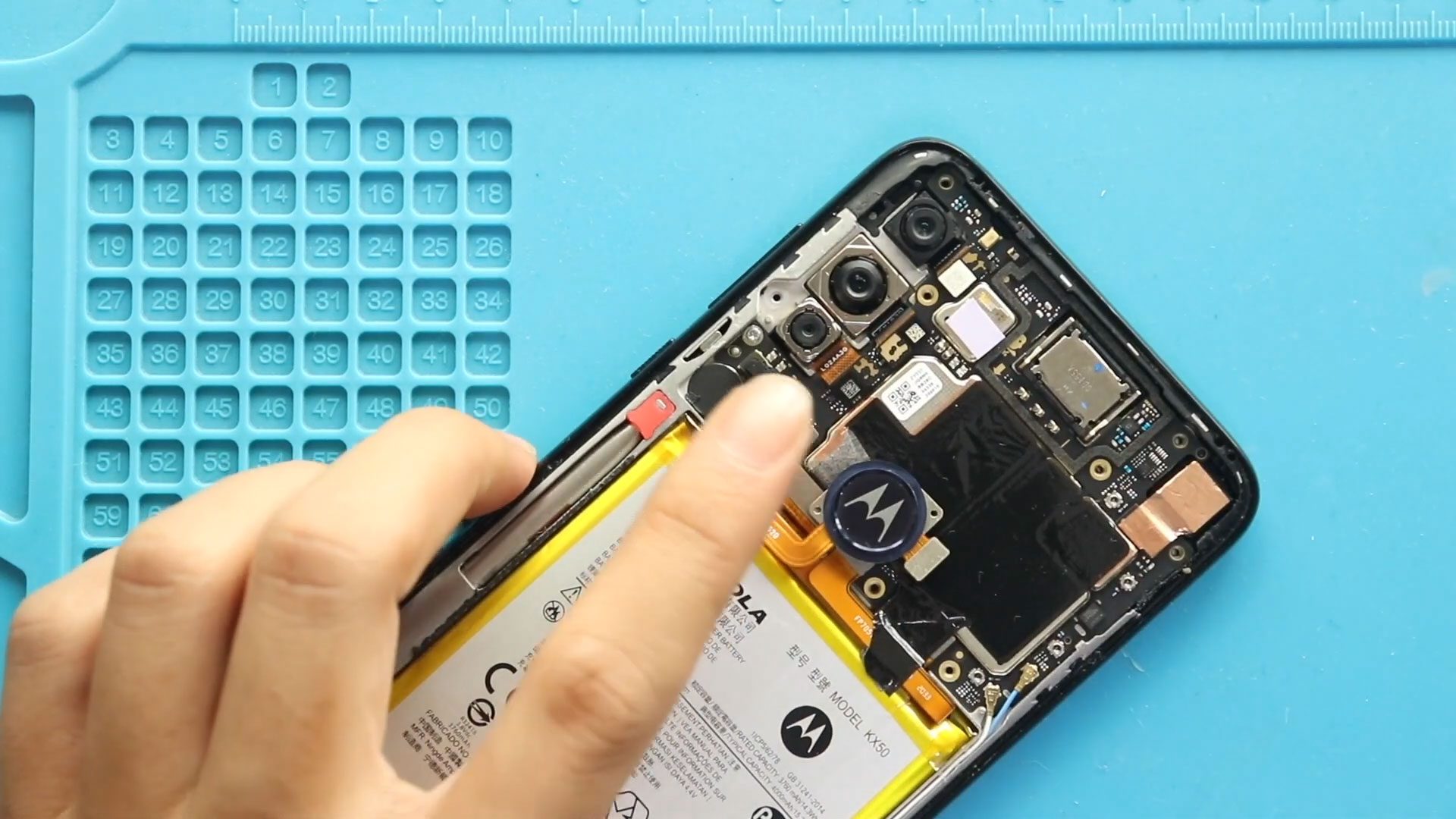
Motorola Moto G Stylus 2020 Fingerprint Sensor Repair Guide
Hi everyone, Welcome back to geardo.
If your Motorola Moto G Stylus (2020) fingerprint sensor is not responding, slow to unlock, or completely unrecognized, it may need replacement. This issue can occur due to wear, internal damage, or connection faults.
In this guide, we will walk you through a step-by-step process to replace the fingerprint sensor on the Motorola Moto G Stylus (2020). This is a relatively easy repair compared to full disassembly procedures and is suitable for beginners.
Make sure you have the correct tools and follow each step carefully.
Repair Overview
- Device Type: Smartphone
- Repair Type: Fingerprint Sensor Replacement
- Repair Difficulty: ⭐⭐☆☆☆
- Estimated Time: 20–30 minutes
Reasons for This Repair
- Fingerprint not detected
- Slow or inconsistent unlocking
- Sensor not responding
- Physical damage to fingerprint area
- Connection issues with the sensor
Check The Latest Motorola Phones are in Clearance “up to 60% off” – https://amzn.to/480ho0w
Before You Begin
Compatibility and Model Numbers
- Motorola Moto G Stylus (2020)
Model Numbers | XT2043, XT2043-4
Tools Required
- Mobile phone heating pad or hairdryer/heat gun
- Plastic pry tool / card pry
- Suction cups
- Phillips #00/#000 screwdrivers
- Torx T3 / T4 / T5 Screwdriver (Depends on the version)
- Flathead Screwdriver
- Tweezers (for connectors)
- B7000 glue or double-sided adhesive (for back cover)
- Rubber bands or bonding clips to secure the back cover
Using proper tools reduces the risk of damaging the phone.
How to Find Tools and Parts
- Heating pad – https://amzn.to/3H0tHzJ
- Portable Heat Gun – https://amzn.to/4mszih1
- Clamps https://amzn.to/3GYJT4w
- STREBITO 142 Piece Repair Tool Kit https://amzn.to/3UO1jUx
- Glue | Adhesive https://amzn.to/46exVxe
- Compatible Parts –
- Battery – https://amzn.to/499v2jk
- Screen – https://amzn.to/47HnpOv
- Other Parts – https://amzn.to/4hO2wG5
- Silicone Work Repair Mat https://amzn.to/45Emz5l
Step-by-Step Replacement Guide
Step 1: Power Off and Remove SIM Tray
Turn off the phone and remove the SIM tray.
Step 2: Apply Heat
Apply gentle heat around the back cover edges to soften adhesive.
Step 3: Remove Back Cover
Create a gap near the edges and carefully pry around the phone to release the clips.
Step 4: Remove Logic Board Frame
Unscrew and remove the logic board frame.
Step 5: Remove Faulty Fingerprint Sensor
Carefully disconnect and remove the faulty fingerprint sensor from the back cover.
Step 6: Install New Fingerprint Sensor
Place the new fingerprint sensor into position and secure it properly.
Step 7: Reinstall Logic Board Frame
Place the logic board frame back and secure it with screws.
Step 8: Reattach Back Cover
Snap the back cover into place and press along the edges to secure all clips.
Step 9: Final Closure
Ensure the back cover is properly sealed and aligned.
Frequently Asked Questions (FAQ)
How do I know if the fingerprint sensor is faulty?
If the sensor does not respond or fails to recognize fingerprints consistently, it may need replacement.
Is this repair easy?
Yes, it is one of the easier smartphone repairs and beginner-friendly.
Do I need to recalibrate the fingerprint sensor?
You may need to re-register your fingerprints after replacement.
Can I reuse the old adhesive?
It is better to use new adhesive for proper fitting.
Will this fix all fingerprint issues?
Yes, if the issue is hardware-related.
Troubleshooting
Fingerprint sensor not working after replacement
Check if the connector is properly attached.
Sensor not detecting fingerprints
Re-register fingerprints in settings.
Back cover not closing properly
Ensure adhesive placement is correct and no cables are obstructing.
Phone not responding after repair
Check internal connections and reassemble carefully.
Final Notes
This repair is quick and effective for restoring biometric functionality. Take your time and handle components carefully to avoid damage.
Replacing the fingerprint sensor can significantly improve device usability and security.
If you have any questions, feel free to leave a comment or reach out.
Related Guides


-
 01Samsung Galaxy A16 5G Battery Replacement | Full DIY Repair Guide
 -
02Samsung Galaxy A16 5G Screen Replacement | Step-by-Step Guide
-
03Google Pixel 6 Power Button Replacement Guide | Volume Button Flex Repair Guide- DIY Repair
-
04Samsung Galaxy A16 5G Back Cover & Camera Lens Frame Replacement Guide | DIY Repair
-
05Why a Heating Pad Is Essential for Mobile Phone Repairs (And How to Use it)
-
06How to Use a Heat Gun or Hair Dryer for Phone/Tablet Repairs
-
07Essential Repair Tools for Phone, Tablet & Laptop Repairs


