
Now Reading: Motorola Moto G9 Play 2020 Power Volume Flex Replacement Guide
-
01
Motorola Moto G9 Play 2020 Power Volume Flex Replacement Guide
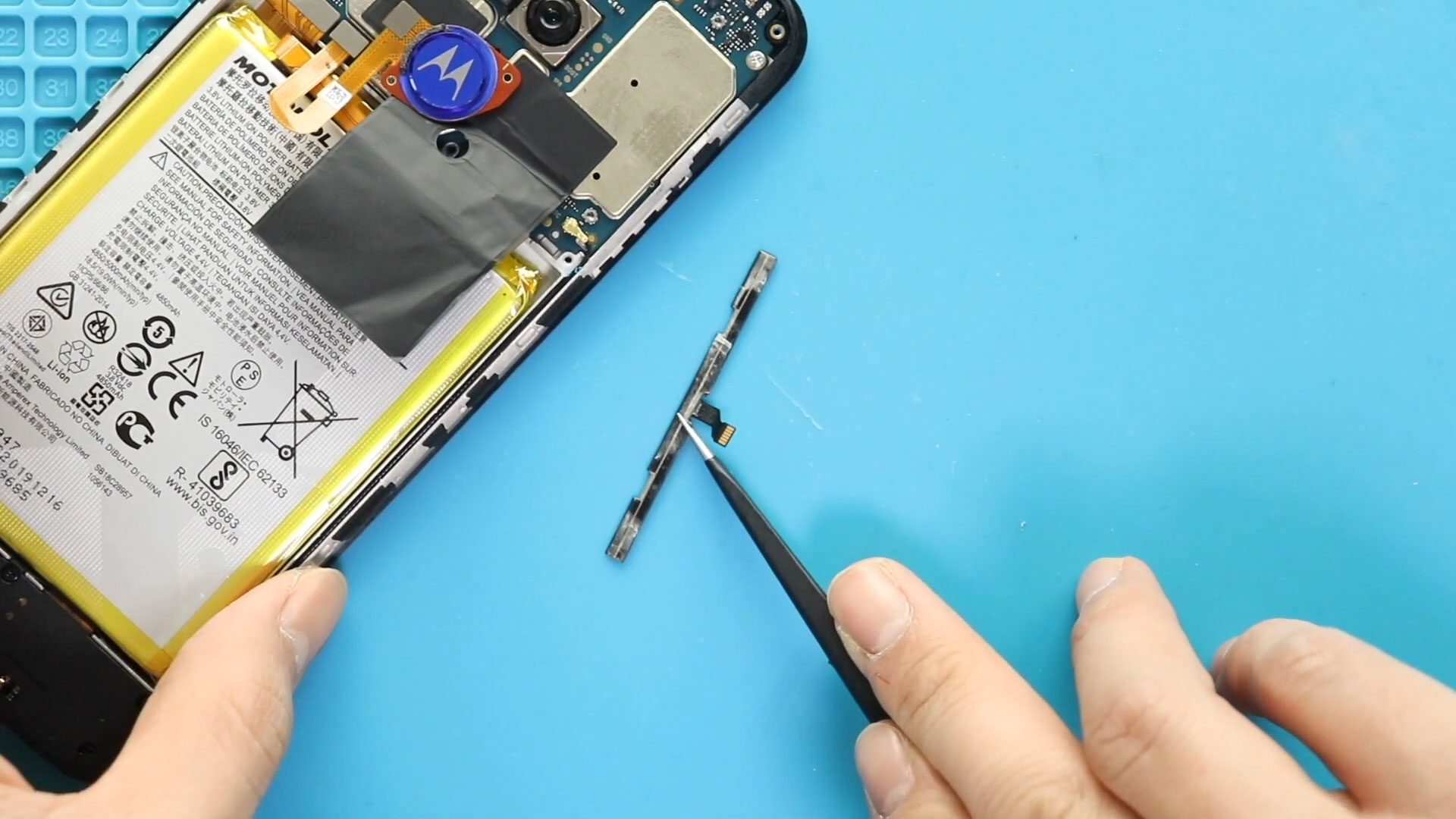
Motorola Moto G9 Play 2020 Power Volume Flex Replacement Guide
Hi everyone, Welcome back to geardo.
If your Motorola Moto G9 Play power button or volume buttons are not responding, stuck, or working intermittently, the issue is likely caused by a damaged button flex cable. This is a common problem that occurs due to wear and tear or internal damage.
In this guide, we will walk you through a complete step-by-step process to replace the power and volume button flex cable on the Motorola Moto G9 Play (2020). This is a moderate-level repair that can restore full button functionality.
Make sure you have the right tools and follow each step carefully.
Repair Overview
- Device Type: Smartphone
- Repair Type: Power & Volume Button Flex Replacement
- Repair Difficulty: ⭐⭐⭐⭐☆
- Estimated Time: 30–45 minutes
Reasons for This Repair
- Power button not responding
- Volume buttons not working
- Buttons require extra pressure
- Buttons stuck or jammed
- Intermittent button response
Check The Latest Motorola Phones are in Clearance “up to 60% off” – https://amzn.to/480ho0w
Before You Begin
Compatibility and Model Numbers
- Motorola Moto G9 Play (2020)
This repair guide based on Motorola Moto G9 Play
Model Numbers | XT2083, XT2083-1, XT2083-3
Tools Required
- Mobile phone heating pad or hairdryer/heat gun
- Plastic pry tool / card pry
- Suction cups
- Phillips #00/#000 screwdrivers
- Torx T3 / T4 / T5 Screwdriver (Depends on the version)
- Flathead Screwdriver
- Tweezers (for connectors)
- B7000 glue or double-sided adhesive (for back cover)
- Rubber bands or bonding clips to secure the back cover
Using proper tools reduces the risk of damaging the phone.
How to Find Tools and Parts
- Heating pad – https://amzn.to/3H0tHzJ
- Portable Heat Gun – https://amzn.to/4mszih1
- Clamps https://amzn.to/3GYJT4w
- STREBITO 142 Piece Repair Tool Kit https://amzn.to/3UO1jUx
- Glue | Adhesive https://amzn.to/46exVxe
- Compatible Parts –
- Battery – https://amzn.to/480hSnm
- Screen – https://amzn.to/4co8ueB
- Other Parts – https://amzn.to/4stYExB
- Silicone Work Repair Mat https://amzn.to/45Emz5l
Step-by-Step Replacement Guide
Step 1: Power Off and Remove SIM Tray
Turn off the phone completely and remove the SIM tray.
Step 2: Apply Heat
Apply gentle heat around the back cover, especially near the fingerprint sensor and camera area.
Step 3: Remove Back Cover
Create a gap near the SIM slot or charging port using a pry tool. Insert a plastic card and carefully move around the edges to release the clips.
Step 4: Disconnect Fingerprint Sensor
While lifting the back cover, carefully detach the fingerprint sensor connector.
Step 5: Remove Fingerprint Sensor
Apply slight heat and gently lift the fingerprint button from the cover.
Step 6: Remove Midframe
Unscrew the screws securing the board frame and remove it.
Step 7: Remove Faulty Button Flex
Locate the power and volume button flex cable. Carefully disconnect it and peel it away from the frame.
Step 8: Install New Button Flex
Place the new power and volume flex cable into position and align it correctly along the frame.
Step 9: Secure Button Flex
Press gently to secure the adhesive and ensure proper alignment of the buttons.
Step 10: Reinstall Midframe
Place the board frame back and secure it with screws.
Step 11: Reinstall Fingerprint Sensor
Place the fingerprint button back in position and secure it properly.
Step 12: Reconnect Fingerprint Sensor
Reconnect the fingerprint sensor connector.
Step 13: Close Back Cover
Snap the back cover into place and press along the edges to secure all clips.
Step 14: Insert SIM Tray
Insert the SIM tray back into the phone.
Frequently Asked Questions (FAQ)
How do I know if the button flex is faulty?
If your buttons are unresponsive or work intermittently, the flex cable is likely damaged.
Is this repair difficult?
It is moderately difficult but manageable with patience and proper tools.
Do I need to replace all buttons together?
Yes, the power and volume buttons usually come as a single flex cable.
Can I fix the buttons without replacing the flex?
In most cases, replacement is the best and most reliable solution.
Do I need adhesive for the flex cable?
Yes, adhesive helps keep the cable securely in place.
Troubleshooting
Power button still not working
Check if the flex cable is properly aligned and connected.
Volume buttons not responding
Ensure the flex cable is seated correctly along the frame.
Fingerprint sensor not working
Verify that the connector is properly attached.
Back cover not closing properly
Check if internal components are correctly positioned.
Buttons feel stiff or misaligned
Make sure the flex cable is properly aligned with the external buttons.
Final Notes
This repair is a great way to restore full control of your device without replacing the entire phone. Take your time, follow each step carefully, and avoid applying excessive force.
If you have any questions, feel free to leave a comment or reach out.
Related Guides


-
 01Samsung Galaxy A16 5G Battery Replacement | Full DIY Repair Guide
 -
02Samsung Galaxy A16 5G Screen Replacement | Step-by-Step Guide
-
03Google Pixel 6 Power Button Replacement Guide | Volume Button Flex Repair Guide- DIY Repair
-
04Samsung Galaxy A16 5G Back Cover & Camera Lens Frame Replacement Guide | DIY Repair
-
05Why a Heating Pad Is Essential for Mobile Phone Repairs (And How to Use it)
-
06How to Use a Heat Gun or Hair Dryer for Phone/Tablet Repairs
-
07Essential Repair Tools for Phone, Tablet & Laptop Repairs


