
Now Reading: POCO X3 GT Screen Replacement Guide
-
01
POCO X3 GT Screen Replacement Guide
POCO X3 GT Screen Replacement Guide
A cracked screen, touch problems, display flickering, or black screen issues can make your smartphone difficult or impossible to use. Fortunately, replacing the LCD screen can fully restore usability and extend the life of your device.
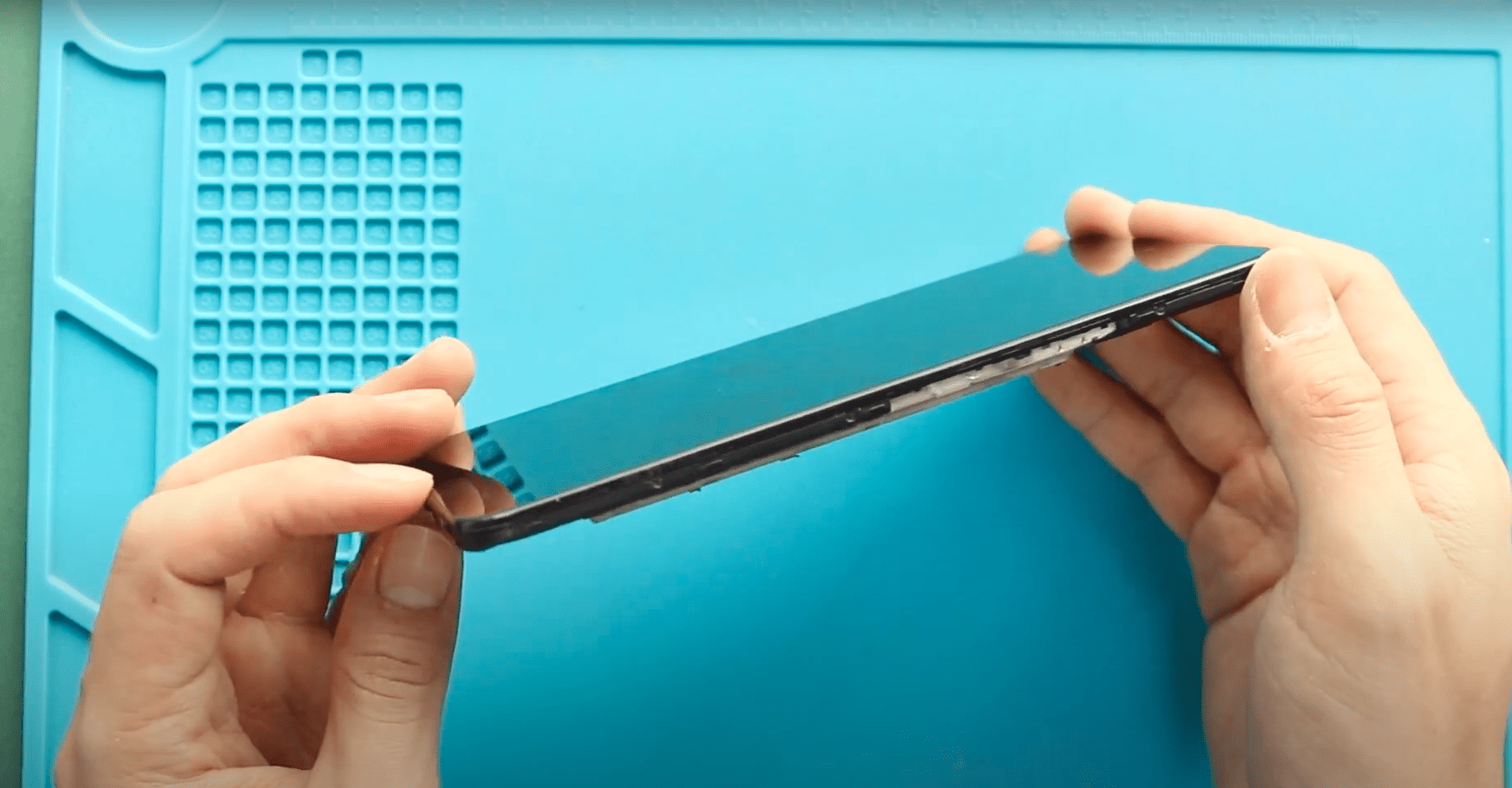
In this detailed DIY repair guide from Geardo, you will learn how to safely replace the LCD screen on the POCO X3 GT, also known as the Redmi Note 10 Pro 5G. This repair involves a full internal teardown because most replacement screens are installed together with the frame.
Manufactured under the smartphone ecosystem of Xiaomi and sold globally through the POCO lineup, this device requires careful handling of antennas, flex cables, and internal modules during disassembly.
This guide explains each step clearly and is suitable for beginners with patience and the correct tools.
⭐ Repair Difficulty
★★★★☆ (4 / 5 —Somewhat Difficult)
Estimated Repair Time: 70 — 120 Minutes
Device Type: Smartphone
Repair Type: LCD Screen Replacement (Full Frame Transfer)
Reasons for LCD Screen Replacement
You may need to replace the screen if:
- Screen cracked or shattered
- No display or black screen
- Touch not responding
- Screen flickering or ghost touch
- Dead pixels or color distortion
- Water damage affecting display
Before You Begin
Compatibility and Model Numbers
- POCO X3 GT
- Xiaomi REDMI NOTE 10 Pro 5G (China)
Model Numbers : 21061110AG,
Tools Required
- Mobile phone heating pad or hairdryer/heat gun
- Plastic pry tool / card pry
- Suction cups
- Phillips #00/#000 screwdrivers
- Torx (T2/T3/T4) screwdrivers (Region Based)
- Flathead screwdriver
- Tweezers (for connectors)
- B7000 glue or double-sided adhesive (for back cover)
- Rubber bands or bonding clips to secure the back cover
How to Find Tools and Parts
- Heating pad – https://amzn.to/3H0tHzJ
- Portable Heat Gun – https://amzn.to/4mszih1
- Clamps https://amzn.to/3GYJT4w
- STREBITO 142 Piece Repair Tool Kit https://amzn.to/3UO1jUx
- Glue | Adhesive https://amzn.to/46exVxe
- Compatible Parts –
- Battery – https://amzn.to/4cE2oIH
- Screen – https://amzn.to/3OifDox
- Other Parts – https://amzn.to/40iRHDU
- Silicone Work Repair Mat https://amzn.to/45Emz5l
Choosing the Replacement Screen
There are two types of replacement screens available:
Screen Without Frame
- Requires removing the original display from frame
- High heating risk
- Professional-level repair
Screen With Frame (Recommended)
- Easier installation
- Buttons and housing pre-installed
- Less adhesive work required
You can choose:
- Original
- Refurnished
- Used
- Aftermarket versions.
The price difference is usually small, making the frame version the best option for DIY repair.
Step-by-Step LCD Screen Replacement Guide
Step 1 — Power Off the Device
Turn off the phone completely before starting.
Step 2 — Heat the Back Cover
Heat around rear cover edges until adhesive softens.
Recommended methods:
- Heating pad (recommended)
- Heat gun
- Hair dryer.
Place the back side on a heating pad and allow heating to complete.
Step 3 — Remove Back Cover
Use a suction cup to create an opening.
Insert a plastic pry card.
Slide around edges slowly cutting adhesive.
Remove the rear cover carefully.
Step 4 — Remove Mid-Frame Screws
Remove 16 screws located across the top and bottom sections.
Keep screws organized.
Step 5 — Remove Mid-Frame
Use a pry tool to release plastic clips.
⚠️ Important:
Fingerprint sensor flex cable connects to the frame.
Disconnect:
- Fingerprint flex cable
- Battery connector.
Remove the mid-frame completely.
Step 6 — Remove Battery
Disconnect the secondary battery connector.
Loosen adhesive strips from both sides.
Lift battery slowly using pull tab.
Avoid bending the battery.
Step 7 — Remove Main Flex Cable
Disconnect flex cable plugs from both ends.
Remove the main interconnect flex.
Step 8 — Remove Loudspeaker Module
Lift and remove the speaker buzzer from the bottom section.
Step 9 — Remove Charging Port Flex
Disconnect two antenna connectors.
Remove charging port flex assembly.
Step 10 — Remove Vibrator Motor
Apply gentle heat.
Carefully lift the vibration motor.
Step 11 — Remove Logic Board
Disconnect antenna lines.
Carefully lift and remove the logic board.
Handle gently to avoid connector damage.
Step 12 — Remove Earpiece and Button Unit
Apply gentle heat.
Remove:
- Earpiece module
- Button flex assembly.
Step 13 — Transfer Parts to New Screen Frame
Begin transferring components onto the new frame.
Install:
- Button flex cable
- Logic board
- Antennas
- Vibrator motor.
Ensure proper placement.
Step 14 — Install Charging Port Board
Place charging board.
Reconnect antenna heads securely.
Step 15 — Install Loudspeaker
Place loudspeaker module correctly.
Step 16 — Install Main Flex Cable
Reconnect flex cable from both ends.
Ensure connectors click firmly.
Step 17 — Install Battery
Place battery.
Secure adhesive.
Reconnect secondary connector.
Step 18 — Testing Before Closing
Reconnect:
- Fingerprint connector.
Temporarily place mid-frame.
Power on device and check:
- Display working
- Touch response
- Charging function.
Turn off device after testing.
Step 19 — Secure Mid-Frame
Install mid-frame properly.
Secure using screws.
Ensure all clips lock correctly.
Step 20 — Prepare Back Cover Adhesive
Inspect adhesive.
If necessary:
- Apply B7000 glue, OR
- Install new adhesive gasket.
Step 21 — Close Back Cover
Press evenly around edges.
Use binding clips or rubber bands.
Leave secured for some time for adhesive bonding.
Repair complete.
Frequently Asked Questions (FAQ)
Q1. Which screen version should I buy?
A screen with frame is strongly recommended because installation is easier and safer.
Q2. Why remove almost all components?
The frame replacement requires transferring internal components to the new housing.
Q3. Can beginners do this repair?
Yes, but patience and careful cable handling are required.
Q4. Should I test before sealing the phone?
Always test the display and touch before closing the back cover.
Q5. Can heating damage components?
Yes if excessive heat is used. Always apply moderate heat.
Troubleshooting (After The Repair)
Q1. Display not turning on?
Check display and battery connectors again.
Q2. Touch not responding?
Reconnect main flex cable properly.
Q3. No signal after repair?
Inspect antenna connectors.
Q4. Fingerprint sensor not working?
Reconnect fingerprint flex cable securely.
Q5. Back cover lifting?
Apply fresh adhesive or B7000 glue evenly.
Related Guides


-
 01Samsung Galaxy A16 5G Battery Replacement | Full DIY Repair Guide
 -
02Samsung Galaxy A16 5G Screen Replacement | Step-by-Step Guide
-
03Google Pixel 6 Power Button Replacement Guide | Volume Button Flex Repair Guide- DIY Repair
-
04Samsung Galaxy A16 5G Back Cover & Camera Lens Frame Replacement Guide | DIY Repair
-
05Why a Heating Pad Is Essential for Mobile Phone Repairs (And How to Use it)
-
06How to Use a Heat Gun or Hair Dryer for Phone/Tablet Repairs
-
07Essential Repair Tools for Phone, Tablet & Laptop Repairs


