
Now Reading: Samsung Galaxy A30 Power Volume Flex Replacement Guide | DIY Repair
-
01
Samsung Galaxy A30 Power Volume Flex Replacement Guide | DIY Repair
Samsung Galaxy A30 Power Volume Flex Replacement Guide | DIY Repair
Hi everyone, welcome back to Geardo. Today we will show you how to replace the power and volume button flex cable on the Samsung Galaxy A30 mobile phone.
If your power button is not responding, volume buttons are stuck, or you are facing inconsistent button functionality, replacing the power & volume flex cable is the best solution. This guide is written as a beginner-friendly step-by-step repair tutorial to help you complete the repair safely.
Repair Difficulty
★ ★ ☆ ☆ ☆ (Easy)
Estimated Repair Time: 20–30 minutes
Type of Device: Smartphone
Type of Repair: Power & Volume Flex Cable Replacement
Reasons for Power & Volume Flex Replacement
You may need to replace the button flex on your Samsung Galaxy A30 if:
- Power button not working
- Volume buttons unresponsive or stuck
- Buttons require extra pressure to work
- Random button presses
- Physical damage due to drops or wear
Before You Begin
Compatibility and Model Numbers
- Samsung Galaxy A30
This repair guide based on Samsung Galaxy A30 Model.
SM-A305F, SM-A305FN, SM-A305G, SM-A305GN, SM-A305YN, SM-A3050, SM-A305N, SM-A305GT
Tools Required
- Mobile phone heating pad or hairdryer/heat gun
- Plastic pry tool / card pry
- Suction cups
- Phillips #00/#000 screwdrivers
- Tweezers (for connectors)
- B7000 glue or double-sided adhesive (for back cover)
- Rubber bands or bonding clips to secure the back cover
Using proper tools reduces the risk of damaging the phone.
How to Find Tools and Parts
- Heating pad – https://amzn.to/3H0tHzJ
- Portable Heat Gun – https://amzn.to/4mszih1
- Clamps https://amzn.to/3GYJT4w
- STREBITO 142 Piece Repair Tool Kit https://amzn.to/3UO1jUx
- Glue | Adhesive https://amzn.to/46exVxe
- Compatible Parts –
- Battery – https://amzn.to/4njJQiY
- Screen – https://amzn.to/4m86PMR
- Other Parts – https://amzn.to/483P1iC
- Silicone Work Repair Mat https://amzn.to/45Emz5l
Step-by-Step Power & Volume Flex Replacement Guide
Step 1: Power Off the Device
Turn off the Samsung Galaxy A30 before starting the repair.
Step 2: Heat the Back Cover
Gently heat around the edges of the back cover to soften the adhesive.
- Use a heating pad, heat gun, or hairdryer
- Heat evenly around the edges
Step 3: Remove the Back Cover
- Use a suction cup to create an opening
- Insert a plastic pry tool
- Slide around the edges to cut the adhesive
⚠️ Be careful — the fingerprint sensor is attached to the back cover.
Step 4: Disconnect Fingerprint Sensor
- Gently lift the back cover
- Disconnect the fingerprint flex cable
- Remove the back cover completely
Step 5: Remove SIM Tray & Midframe
- Remove the SIM tray
- Unscrew all midframe screws
- Use a pry tool to separate the midframe
- Release all clips carefully
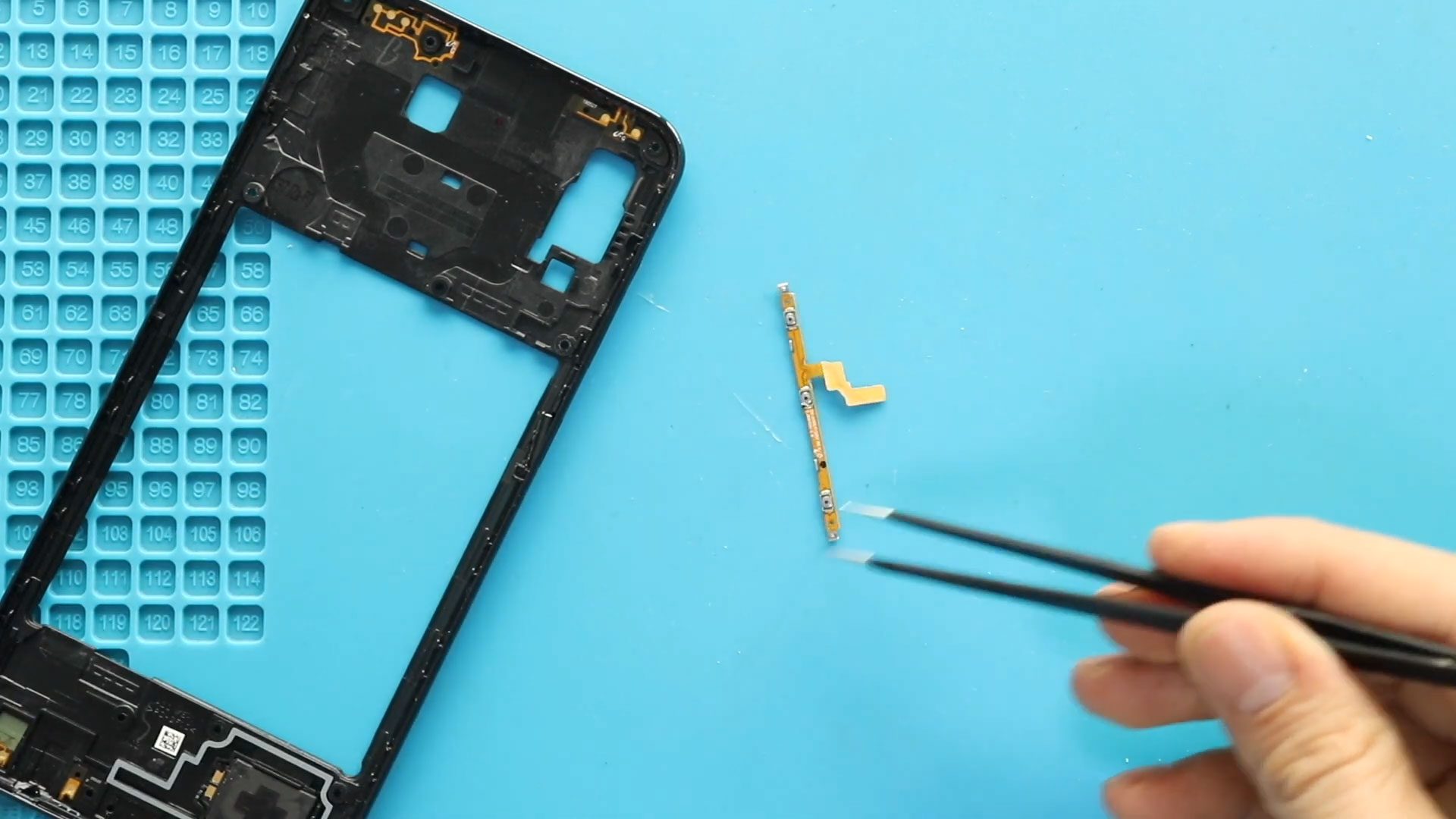
Step 6: Remove the Faulty Power & Volume Flex
Locate the power & volume button flex cable on the side frame.
- Carefully peel off the faulty flex cable
- If adhesive is strong, apply slight heat
- Remove it completely from the frame
Step 7: Install the New Power & Volume Flex
- Align the new flex cable properly
- Stick it firmly in position
- Ensure buttons align correctly with external keys
Step 8: Reinstall the Midframe
- Place the midframe back onto the device
- Ensure all clips snap into place
- Secure all screws properly
Step 9: Reconnect Fingerprint Sensor
Reconnect the fingerprint flex cable and position it correctly.
Step 10: Reattach Back Cover
- Apply adhesive if needed (B7000 glue or double-sided tape)
- Press the back cover firmly into place
Use rubber bands or clips to secure while the adhesive sets.
Frequently Asked Questions (FAQ)
1. How do I know if my power button flex is faulty?
If the power or volume buttons do not respond or work intermittently, the flex cable is likely damaged.
2. Can I replace the flex cable myself?
Yes, this is an easy repair and suitable for beginners.
3. Do I need to remove the battery?
No, but it is recommended to disconnect it if accessible for safety.
4. Why are my buttons still not working after replacement?
Check alignment and ensure the flex cable is properly seated.
5. What adhesive is used for the back cover?
Use B7000 glue or double-sided adhesive tape.
Troubleshooting After Repair
Buttons not responding
Check if the flex cable is properly aligned and connected.
Buttons feel stuck
Ensure correct placement and that external buttons are not misaligned.
Fingerprint sensor not working
Reconnect the fingerprint cable properly.
Back cover not sealing
Apply fresh adhesive and secure with rubber bands.
Related Guides













