Now Reading: Google Pixel 6 Recovery Mode, Network Reset & Safe Mode
-
01
Google Pixel 6 Recovery Mode, Network Reset & Safe Mode
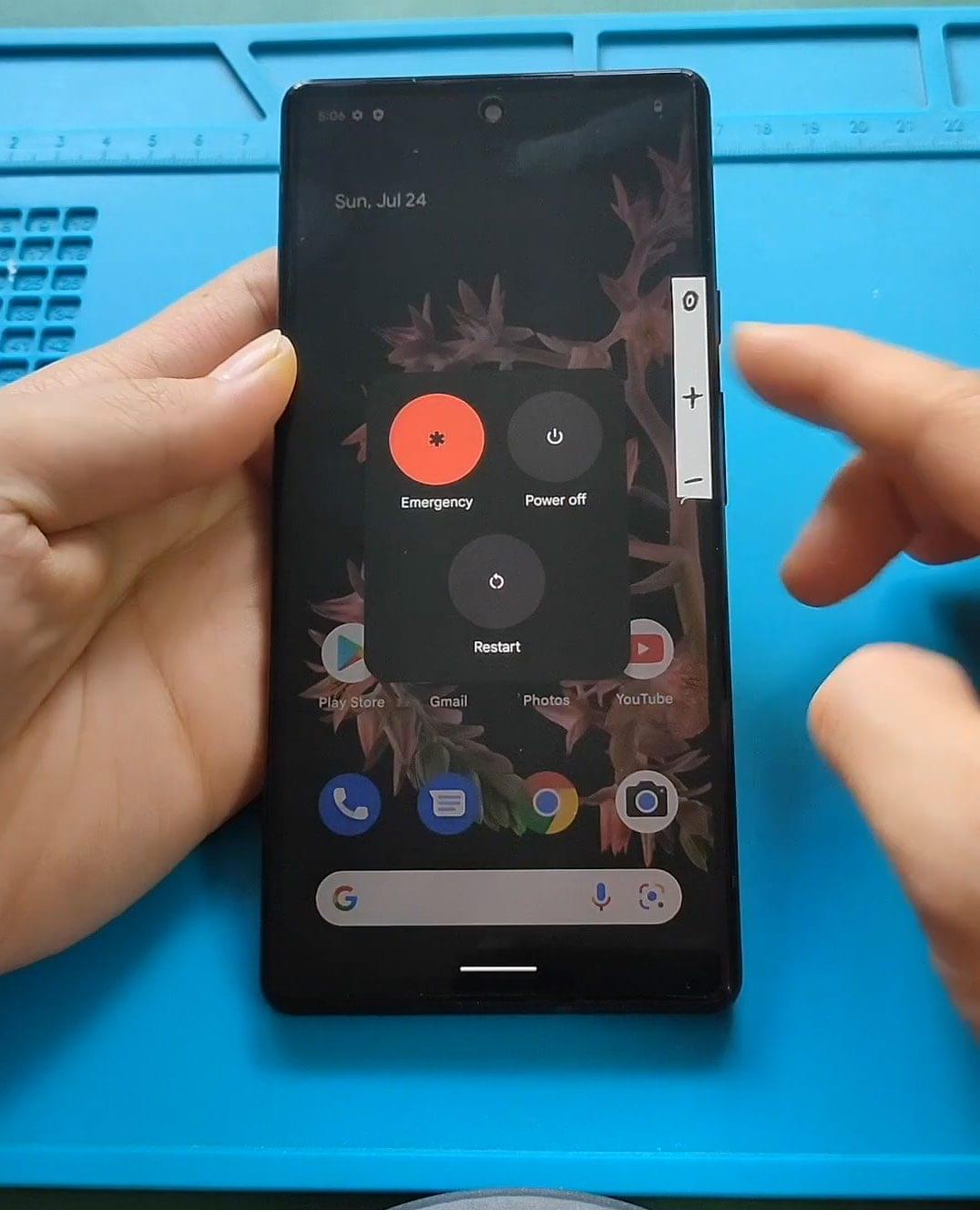

The Google Pixel 6 is a powerful smartphone that offers various features to enhance the user experience. However, like any electronic device, you may encounter issues that require troubleshooting. In this blog post, we will explore three essential functions: Recovery Mode, Network Reset, and Safe Mode. Each of these features serves a specific purpose and can be very helpful when dealing with problems on your device.
Recovery Mode
Recovery Mode is a special boot option that allows users to perform various system-level tasks on their Google Pixel 6. This mode is particularly useful for troubleshooting issues that may prevent the phone from starting up properly or functioning as expected. Here’s how to enter and use Recovery Mode on your Pixel 6:
How to Enter Recovery Mode
- Turn Off the Device: Start by completely turning off your Google Pixel 6.
- Press the Right Buttons: Hold down the Power and Volume Down buttons simultaneously until the bootloader screen appears. This screen will display several options.
- Select Recovery Mode: Use the Volume buttons to navigate to the “Recovery Mode” option. Once highlighted, press the Power button to select it.
- No Command Screen: After selecting Recovery Mode, you may see a screen that says “No command.” To proceed, hold the Power button and press the Volume Up button once. This action will take you to the Android Recovery menu.
Functions of Recovery Mode
In Recovery Mode, you can perform several actions:
- Wipe Data/Factory Reset: This option deletes all data on your device and restores it to factory settings. It is useful if your phone is malfunctioning and you want to start fresh.
- Wipe Cache Partition: This option clears temporary files that may be causing issues without deleting personal data.
- Reboot System Now: This option simply restarts your device and is useful if you want to exit Recovery Mode.
Why Use Recovery Mode?
Recovery Mode is essential for troubleshooting various issues, such as:
- The device is stuck on the boot screen.
- Apps are crashing frequently.
- The device is running slow or freezing.
Using Recovery Mode can help resolve these problems without needing professional repair services.
Network Reset
Network Reset is another crucial feature available on the Google Pixel 6. This function is especially helpful when you experience connectivity problems with Wi-Fi, Bluetooth, or mobile data. Performing a network reset can resolve issues related to network settings that may have become corrupted or misconfigured.
How to Perform a Network Reset
- Open Settings: Start by opening the Settings app on your Google Pixel 6.
- Navigate to System: Scroll down and select System.
- Reset Options: Tap on Reset options.
- Reset Wi-Fi, Mobile & Bluetooth: Select the option that says Reset Wi-Fi, mobile & Bluetooth.
- Confirm the Reset: You will be prompted to confirm the action. Once confirmed, your device will reset all network settings.
What Happens After a Network Reset?
After performing a network reset, the following changes will occur:
- All saved Wi-Fi networks and passwords will be deleted.
- Paired Bluetooth devices will be removed.
- Any mobile data settings will revert to their default state.
This reset can help fix various connectivity issues, such as problems connecting to Wi-Fi networks or issues with Bluetooth devices.
Safe Mode
Safe Mode is a useful feature that allows users to start their Google Pixel 6 with only the essential system applications running. This mode is particularly helpful for identifying whether a third-party app is causing problems on your device.
How to Enter Safe Mode
- Power Off the Device: Start by turning off your Google Pixel 6.
- Power On: Press and hold the Power button until the Google logo appears.
- Enter Safe Mode: Once the logo appears, press and hold the Volume Down button until the device finishes booting. You will see “Safe mode” in the bottom corner of the screen.
What Can You Do in Safe Mode?
In Safe Mode, only pre-installed apps are allowed to run. This limitation helps you determine if a third-party app is causing issues. If your device works correctly in Safe Mode, it’s likely that one of the installed apps is the culprit.
Exiting Safe Mode
To exit Safe Mode, simply restart your device. This action will return the phone to normal operating mode, allowing all apps to run again.
Conclusion
Understanding how to use Recovery Mode, perform a Network Reset, and enter Safe Mode on your Google Pixel 6 can significantly enhance your troubleshooting skills. These features are designed to help you manage and resolve issues that may arise, ensuring that your device continues to function smoothly. Whether you’re dealing with a stubborn app, connectivity problems, or a device that won’t start, these tools provide a way to regain control and get your Pixel 6 back on track.
Curious about how to troubleshoot your Google Pixel 6? Click the link to watch my detailed video where I explain Recovery Mode, Network Reset, and Safe Mode step-by-step!