
Now Reading: Samsung Galaxy A70 Power Volume Button Flex Replacement Guide | Galaxy A70s
-
01
Samsung Galaxy A70 Power Volume Button Flex Replacement Guide | Galaxy A70s
Samsung Galaxy A70 Power Volume Button Flex Replacement Guide | Galaxy A70s
If the power button or volume buttons stop responding on your Samsung Galaxy A70 or Samsung Galaxy A70s, the most common cause is a damaged power volume flex cable. This internal cable controls the physical button functions that allow you to power on the device, adjust sound levels, and access recovery or screenshot features.
Button failures can happen due to moisture exposure, accidental drops, worn-out flex cables, or internal corrosion. Fortunately, replacing the power and volume flex assembly is a manageable DIY repair when performed carefully using the correct tools.
This detailed guide explains how to safely open the device, remove the faulty flex cable, and install a new replacement while protecting sensitive components.
Repair Overview
Device Type: Smartphone
Repair Type: Power Button & Volume Button Flex Cable Replacement
Repair Difficulty : ⭐⭐⭐☆☆ — Moderate
Estimated Repair Time: 30 — 40 Minutes
Reasons for Samsung Galaxy A70 / A70s Power Volume Flex Replacement
You may need this repair if:
- Power button not responding
- Volume buttons stuck or not working
- Unable to turn device on or off using button
- Screenshot shortcut not working
- Buttons feel loose or sunken
- Water or moisture damage affecting button response
Before You Begin
Compatibility and Model Numbers
- Samsung Galaxy A70
- Samsung Galaxy A70S
This repair guide based on Samsung Galaxy A70 Model.
Model Numbers | SM-A705F, SM-A705FN, SM-A705GM, SM-A705MN, SM-A7050, SM-A705W, SM-A705YN, SM-A705X, SM-A705U, SM-A707F, SM-A707FN, SM-A707GM, SM-A707MN, SM-A7070, SM-A707W
Tools Required
- Mobile phone heating pad or hairdryer/heat gun
- Plastic pry tool / card pry
- Suction cups
- Phillips #00/#000 screwdrivers
- Tweezers (for connectors)
- B7000 glue or double-sided adhesive (for back cover)
- Rubber bands or bonding clips to secure the back cover
Using proper tools reduces the risk of damaging the phone.
How to Find Tools and Parts
- Heating pad – https://amzn.to/3H0tHzJ
- Portable Heat Gun – https://amzn.to/4mszih1
- Clamps https://amzn.to/3GYJT4w
- STREBITO 142 Piece Repair Tool Kit https://amzn.to/3UO1jUx
- Glue | Adhesive https://amzn.to/46exVxe
- Compatible Parts –
- Battery – https://amzn.to/4ogQEhS
- Screen – https://amzn.to/43nafEZ
- Other Parts – https://amzn.to/4oqla9h
- Silicone Work Repair Mat https://amzn.to/45Emz5l
Step-by-Step Samsung Galaxy A70 / A70s Power Volume Flex Replacement
Step 1 — Power Off the Phone
Switch off the device completely before starting the repair to prevent short circuits.
Remove the SIM tray if necessary.
Step 2 — Heat the Back Cover
Apply gentle heat around the rear cover edges to soften adhesive glue.
Recommended heating methods:
- Heating pad (preferred)
- Heat gun
- Hair dryer
Allow sufficient heating time to loosen adhesive safely.
Step 3 — Remove the Back Cover
Use a suction cup to create a small gap between the frame and rear cover.
Insert a plastic pry card carefully around the edges to cut adhesive.
Lift the back cover slowly to avoid cracking it.
Step 4 — Remove the Midframe
Remove all screws securing the midframe assembly.
Using a plastic pry tool:
- Work gently around the edges.
- Release plastic clips carefully.
Lift and remove the midframe.
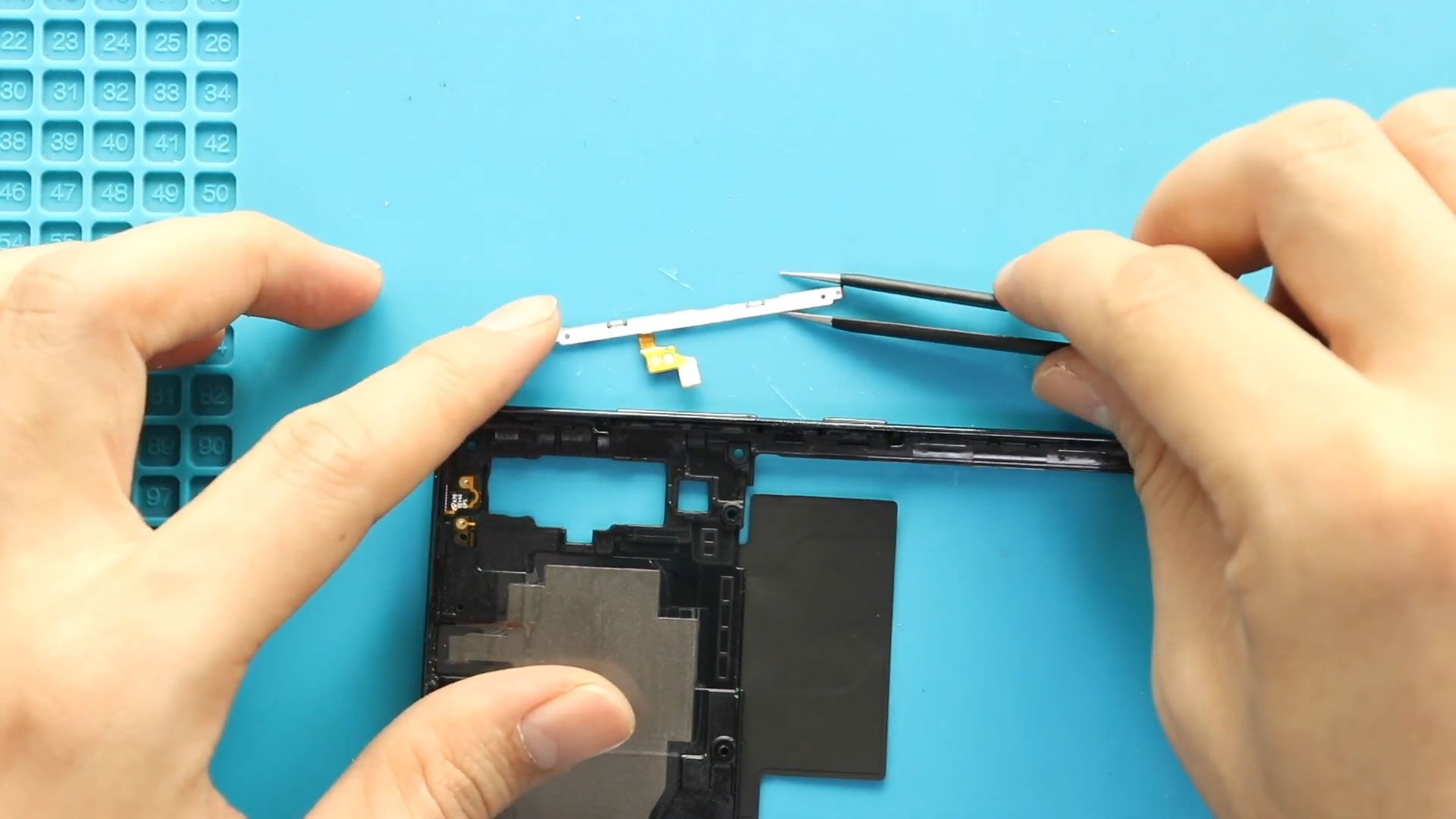
Step 5 — Remove the Faulty Power Volume Flex Cable
Locate the power and volume button flex cable along the side frame.
Carefully disconnect the connector from the board.
Slowly peel the flex cable away from the frame adhesive.
Remove the damaged flex assembly completely.
Step 6 — Install the New Power Volume Flex Cable
Align the replacement flex cable properly with the button positions.
Press gently to secure adhesive contact with the frame.
Reconnect the flex connector securely.
Ensure buttons align correctly with external button caps.
Step 7 — Reinstall the Midframe
Place the midframe back into position.
Ensure clips fasten properly before tightening screws.
Secure all screws evenly.
Step 8 — Seal and Install Back Cover
Before reinstalling the rear cover:
Check adhesive condition.
If adhesive is weak:
- Apply B7000 glue, or
- Install new double-sided adhesive tape.
Align the back cover carefully.
Use bonding clips or rubber bands to hold pressure while adhesive cures.
Leave secured for some time.
Frequently Asked Questions (FAQ)
Q1. Is this repair compatible with Galaxy A70s?
Yes. The repair procedure is compatible with both Galaxy A70 and Galaxy A70s models.
Q2. Why are my buttons working sometimes but not always?
This usually indicates flex cable wear or internal damage.
Q3. Do I need heating tools?
Yes. Heating prevents back cover damage during removal.
Q4. Will this repair erase my data?
No. Flex cable replacement does not affect storage data.
Q5. Should I test before sealing the back cover?
Yes. Always test power and volume button functionality before final assembly.
Troubleshooting After Power Volume Flex Replacement
Q1. Power button still not responding?
Reconnect the flex connector and ensure it is fully seated.
Q2. Volume buttons feel stuck?
Check alignment between external button caps and flex cable switches.
Q3. Phone not turning on?
Reconnect battery connector and verify motherboard connections.
Q4. Buttons working randomly?
Ensure adhesive holds the flex cable firmly against the frame.
Q5. Back cover lifting after repair?
Clean adhesive residue and apply fresh adhesive evenly.
Related Guides













