Now Reading: Samsung Galaxy S20 5G Battery Replacement
-
01
Samsung Galaxy S20 5G Battery Replacement
Samsung Galaxy S20 5G Battery Replacement
Hi everyone, welcome back to DIYGeardo.
In today’s repair guide, we will show you how to replace the battery on the Samsung Galaxy S20 5G mobile phone. If your Galaxy S20 5G is draining battery quickly, shutting down unexpectedly, or not holding a charge, replacing the battery is one of the most effective solutions.
This Repaid Guide Also Compatible With Galaxy S20 4g version too.
The Samsung Galaxy S20 5G comes with a sealed glass back and strong adhesive, which means this repair requires proper heating, patience, and the right tools. While this is not a beginner-level repair, it can be completed safely by following the steps carefully.
Before starting, make sure you have all required tools ready and work on a clean, static-free surface. Take your time during the opening process to avoid damaging the glass back or internal flex cables.
Compatibility and Model Numbers
This repair guide based on Samsung Galaxy S20 5G device, but it also compatible with Galaxy S20 4g models too.
Compatible Mode Numbers l SM-G980, SM-G980F, SM-G980F/DS, SM-G981, SM-G981F, SM-G981F/DS, SM-G981B/DS, SM-G981U, SM-G981U1, SM-G981N, SM-G981B, SM-G9810, SM-G981W, SC-51A, SCG01
Repair Time & Difficulty
- Estimated Repair Time: 45–60 minutes
- Repair Difficulty: Medium
Tools to open Galaxy S20 Series
- Mobile phone heating pad or hairdryer/heat gun
- Plastic pry tool / card pry
- Suction cups
- Phillips #00 / #000 screwdriver
- Tweezers (for connectors)
- B7000 glue or double-sided adhesive (for back cover)
- Rubber bands or bonding clips to secure the back cover
How to Find Tools and Parts
- Heating pad – https://amzn.to/3H0tHzJ
- Portable Heat Gun – https://amzn.to/4mszih1
- Clamps https://amzn.to/3GYJT4w
- STREBITO 142 Piece Repair Tool Kit https://amzn.to/3UO1jUx
- Glue | Adhesive https://amzn.to/46exVxe
- Silicone Work Repair Mat https://amzn.to/45Emz5l
- Compatible Parts
- Battery https://amzn.to/46cHUmK
- Screen https://amzn.to/461912Y
- Other Parts https://amzn.to/4pOwJIM
How to Select the Best Tools for the Repair
✅ Protect Your Galaxy S20 Series Phone (4G & 5G)
- Protector For The Screen https://amzn.to/3JPERYP
- Best Cases For Your Phone https://amzn.to/45FaQUh
Step-by-Step Battery Replacement Instructions
Step 1: Power Off & SIM Tray Removal
First, power off the phone completely to avoid short circuits.
Remove the SIM tray and keep it aside. This step is important to prevent damage to the SIM slot during back cover removal.
Step 2: Back Cover Removal
To remove the back cover, gently heat around the edges until the adhesive softens.
For this repair, we are using a heating pad.
Place the back cover side of the phone on the heating pad, select the mobile phone heating option, and allow the cycle to complete.
Alternatively, you can use a heat gun or hairdryer, but avoid overheating one area for too long.
Once heated, use a suction cup to create a small gap between the frame and the back cover.
Insert a plastic card or pry tool into the gap and carefully cut the adhesive around the edges.
Take your time during this step, as the glass back is fragile.
Now, remove the back cover.
Step 3: Wireless Charging Pad Removal
Undo the five Phillips screws securing the wireless charging pad.
Disconnect the connector carefully and remove the wireless charging pad assembly from the phone.
Step 4: Disconnect the Battery
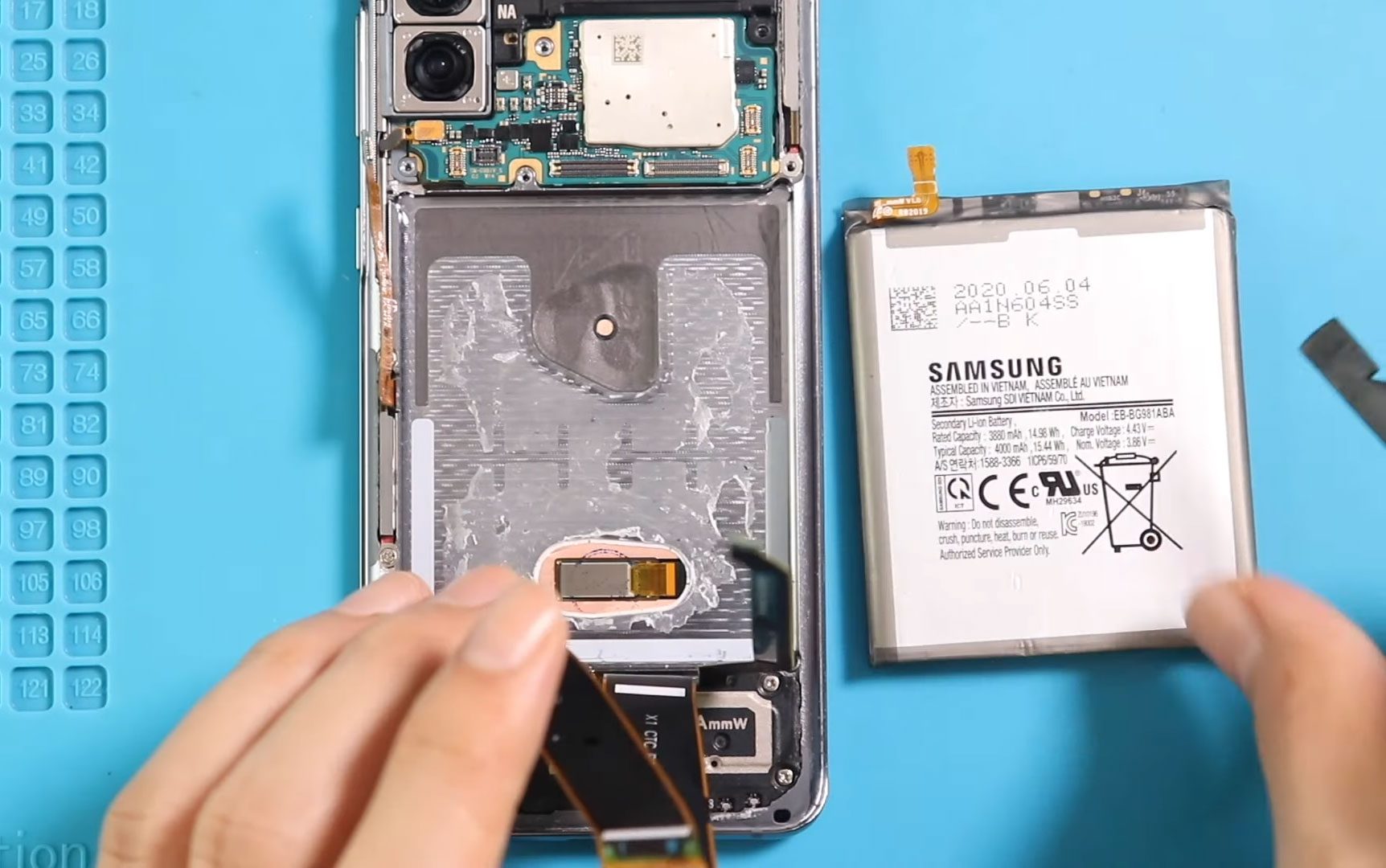
Locate the battery connector on the logic board.
Using a plastic pry tool, gently disconnect the battery connector to fully cut power from the device.
Step 5: Remove the Battery
The battery is secured with strong adhesive, so heating is required.
Apply gentle heat to the battery area to soften the glue.
For this step, we are using a heat gun.
Once the adhesive is soft, slide a plastic card underneath the battery and carefully cut through the adhesive.
When enough space is created, use a pry tool to lift and remove the battery from the body.
Avoid bending or puncturing the battery during removal.
If Your Galaxy S20 Ultra 5G Battery is Draining fast,here is the Solution
Step 6: Install the New Battery
Place the new battery into the phone and align it properly.
If required, apply fresh adhesive to ensure the battery stays securely in place.
Reconnect the battery connector to the logic board and make sure it is firmly seated.
Step 7: Reassembly
Reconnect the four top connector plugs to the logic board.
Reinstall the wireless charging pad, secure the connector, and tighten the five screws.
Double-check all connections before proceeding.
Reinsert the SIM tray.
Step 8: Back Cover Installation
Before installing the back cover, ensure there is enough adhesive on the glass panel.
If needed, apply B7000 glue or a new double-sided back cover adhesive.
Carefully place the back cover onto the body.
Use screen binding clips to hold it firmly in place.
If clips are not available, use rubber bands and leave them for some time to allow the adhesive to cure properly.
FAQs
1. Does the Galaxy S20 5G battery need calibration after replacement?
Yes. Fully charge the phone to 100%, then discharge it below 10%, and recharge again to help the system recalibrate the battery.
2. What battery model is used in the Galaxy S20 5G?
The Galaxy S20 5G typically uses the EB-BG981ABA or EB-BG981ABY battery, depending on the region.
3. Is adhesive required when installing the new battery?
Yes. Adhesive prevents movement and protects internal components from vibration damage.
4. Can I reuse the original back cover adhesive?
It is not recommended. Fresh adhesive provides better sealing and structural strength.
5. Will replacing the battery affect water resistance?
Yes. Opening the device may reduce water resistance, even if new adhesive is applied.
Troubleshooting – After The Repair
1. Phone does not power on after battery replacement
Check the battery connector and ensure all flex cables are fully seated.
2. Battery drains faster than expected
Battery calibration may be required, or the replacement battery could be faulty.
3. Wireless charging not working
Ensure the wireless charging pad connector is properly connected and screws are tightened.
4. Back cover not sticking properly
Apply more adhesive and increase curing time using clips or rubber bands.
Related Repair Guides