
Now Reading: Samsung Galaxy S20 Ultra 5G Wireless Charging Pad Replacement Guide
-
01
Samsung Galaxy S20 Ultra 5G Wireless Charging Pad Replacement Guide

Samsung Galaxy S20 Ultra 5G Wireless Charging Pad Replacement Guide
If your Samsung Galaxy S20 Ultra 5G is having issues with wireless charging, such as failing to charge, charging intermittently, or overheating while on a wireless pad, it may be time to replace the internal wireless charging pad.
The wireless pad is responsible for converting the charging coil’s energy into power for the battery. A damaged or faulty pad can not only prevent wireless charging but in some cases affect NFC functionality or draw excess current from the battery.
This guide walks you through the step-by-step process of replacing the wireless pad safely, without damaging other internal components like the battery, logic board, or rear camera assembly.
We will show you how to remove the back cover, disconnect and replace the faulty wireless pad, reinstall all components, and properly seal the device so it functions like new. Following this method ensures your S20 Ultra will regain reliable wireless charging without risking further damage.
Compatibility and Model Numbers
This repair guide based on Samsung Galaxy S20 Ultra 5G mobile phone, but it is also compatible with Galaxy S20 Ultra 4g version too.
Compatible Mode Numbers l SM-G988, SM-G988U, SM-G988U1, SM-G9880, SM-G988B/DS, SM-G988N, SM-G988B, SM-G988W SM-G988B/DS
Tools You Need
- Heating pad / heat gun / hairdryer
- Suction cup
- Plastic card pry tools / opening picks
- Phillips PH000 screwdriver
- Philips PH00 screwdriver – For smaller internal screws (optional)
- Adhesive (B7000 or double-sided back cover adhesive)
- Bonding clips or rubber bands (optional but recommended)
How to Find Tools and Parts
- Heating pad – https://amzn.to/3H0tHzJ
- Portable Heat Gun – https://amzn.to/4mszih1
- Clamps https://amzn.to/3GYJT4w
- STREBITO 142 Piece Repair Tool Kit https://amzn.to/3UO1jUx
- Glue | Adhesive https://amzn.to/46exVxe
- Compatible Parts https://amzn.to/47VYx7t
- Silicone Work Repair Mat https://amzn.to/45Emz5l
Proper Way to Use a Heating Pad
Step 1: Power Off and Remove SIM Tray
Turn off your Galaxy S20 Ultra completely. Eject and remove the SIM tray to prevent damage during the repair process.
Step 2: Heat and Remove the Back Cover
The back cover is secured with factory adhesive that needs to be softened before removal.
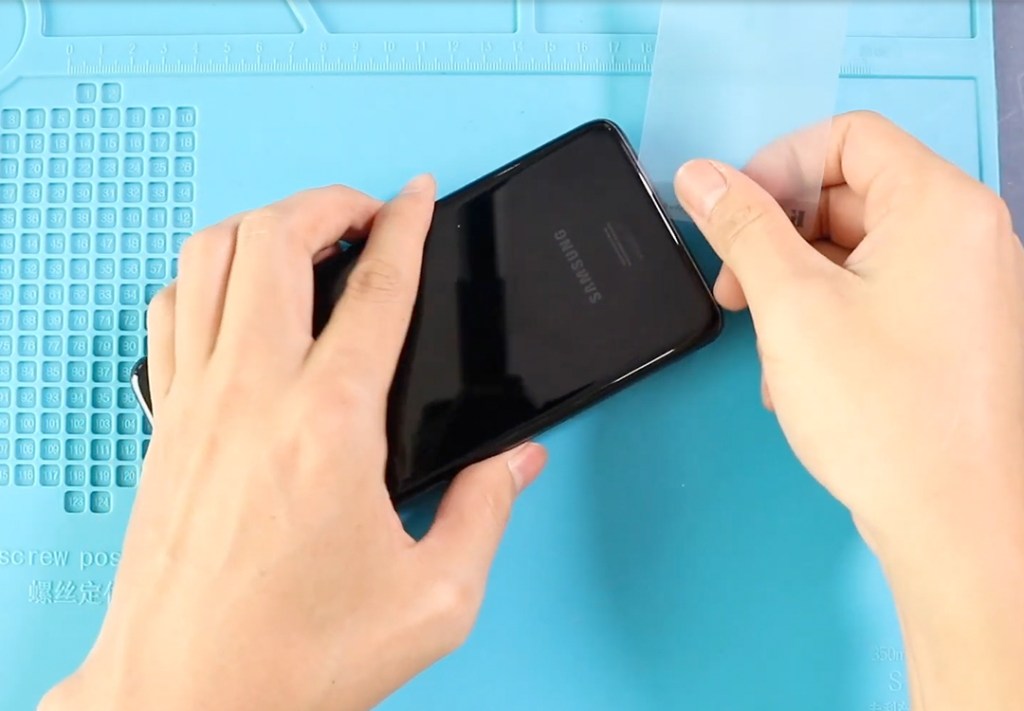
Place the back cover side on a heating pad and select the mobile heating option, or alternatively, use a heat gun or hairdryer. Apply gentle heat around the edges until the adhesive softens.
Next, attach a suction cup near the bottom and gently lift to create a small opening. Slide a plastic pry tool or card around the edges to cut through the adhesive. Once loosened, lift and remove the back cover carefully.
Step 3: Remove the Not-Working Wireless Pad
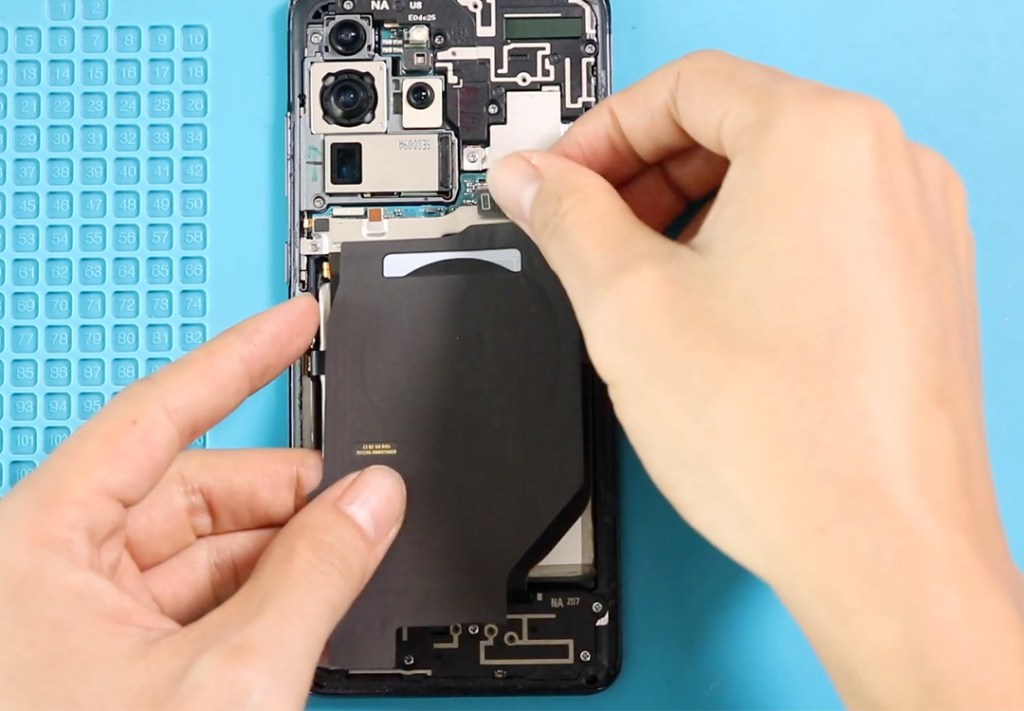
Locate the wireless charging pad inside the device. Unscrew the screws holding the pad in place and disconnect its flex cable. Carefully lift out the old wireless pad.
While removing the wireless charging pad, you can also replace the Camera motor and Main Flex.
Step 4: Install the New Wireless Pad
Place the new wireless charging pad into position. Reconnect the flex cable and secure the pad with its screws. Ensure it sits firmly and the connectors are properly aligned.
Step 5: Reinstall the Back Cover
Before resealing the device, check the adhesive on the back cover. If it is weak or damaged, apply B7000 glue or a new double-sided adhesive.
Position the back cover carefully and press it into place. To ensure a strong seal, use screen binding clips or rubber bands and leave them for some time so the adhesive sets properly.
Step 6: Power On and Test
Once the back cover is secured, power on the phone and test wireless charging functionality to ensure the new pad works correctly.
Frequently Asked Questions
1: How do I know if my wireless charging pad is faulty?
A1: Common signs include the phone not charging wirelessly, charging intermittently, overheating during wireless charging, or the device not being recognized on wireless chargers.
Q2: Can I replace only the wireless pad without removing the logic board?
On the Galaxy S20 Ultra, the wireless pad can usually be replaced without removing the full logic board, but careful handling is required to avoid damaging connectors.
Q3: Will replacing the wireless pad affect other functions?
If installed correctly, it should only affect wireless charging. Ensure all connectors are securely reattached to avoid issues with battery or NFC functions.
Q4: Do I need to test the pad before sealing the back cover?
Yes. Always reconnect the battery and test wireless charging before placing the back cover to ensure proper installation.
Q5: Is adhesive replacement necessary when reinstalling the back cover?
A5: Yes. Old adhesive often loses strength. Using B7000 glue or a new double-sided back cover adhesive ensures a secure seal.
Q6: Can a faulty wireless pad cause battery drain?
In some cases, a malfunctioning wireless pad may draw current unnecessarily, causing faster battery drain even when the phone is idle.
Visit our site to view other repair guides for the Galaxy S20 Ultra 5G.


-
 01Samsung Galaxy A16 5G Battery Replacement | Full DIY Repair Guide
 -
02Samsung Galaxy A16 5G Screen Replacement | Step-by-Step Guide
-
03Google Pixel 6 Power Button Replacement Guide | Volume Button Flex Repair Guide- DIY Repair
-
04Samsung Galaxy A16 5G Back Cover & Camera Lens Frame Replacement Guide | DIY Repair
-
05Why a Heating Pad Is Essential for Mobile Phone Repairs (And How to Use it)
-
06How to Use a Heat Gun or Hair Dryer for Phone/Tablet Repairs
-
07Essential Repair Tools for Phone, Tablet & Laptop Repairs


