
Now Reading: Top Useful Google Pixel 6a Tips
-
01
Top Useful Google Pixel 6a Tips
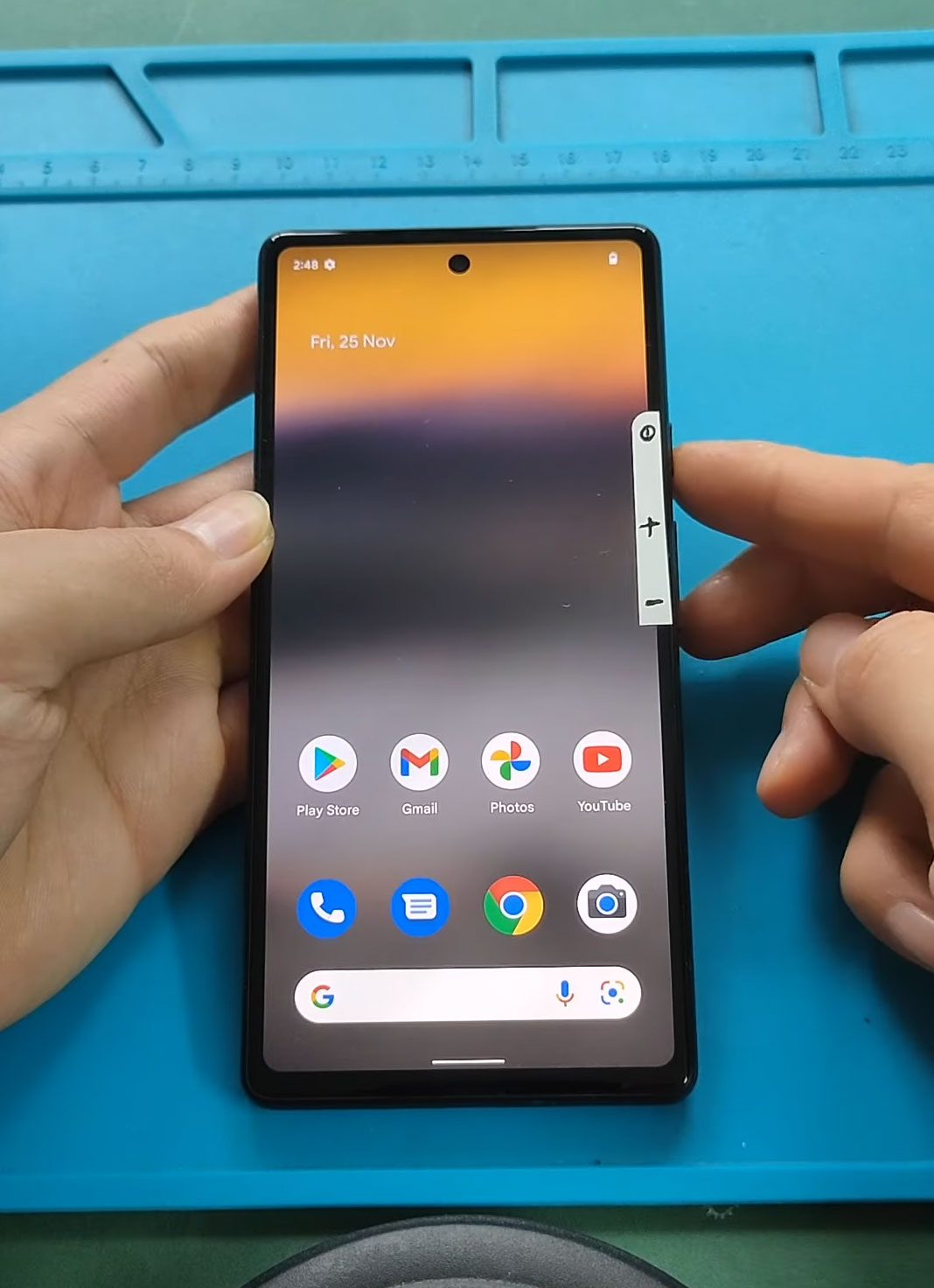
Top Useful Google Pixel 6a Tips
1. Activate Quick Tap
Quick Tap is a handy feature that allows you to perform actions by double-tapping the back of your phone. You can set it up to take screenshots, launch apps, or even activate Google Assistant. To enable Quick Tap:
- Go to Settings.
- Select System.
- Tap on Gestures.
- Choose Quick Tap and select your desired action.
2. Enable Live Caption
Live Caption automatically captions media playing on your device, making it easier to watch videos or listen to podcasts without sound. To enable it:
- Open Settings.
- Go to Sound.
- Turn on Live Caption.
3. Customize Your Quick Settings
Make your Quick Settings menu more efficient by rearranging the tiles. Tap the pencil icon in the Quick Settings menu to drag and drop options, adding the features you use most often to the front.
4. Use Material You for Personalization
Material You allows you to customize the look of your Pixel 6a based on your wallpaper. Long-press on your wallpaper to access Wallpaper & style and choose color-coordinated app icons and widgets.
5. Take Screenshots with Quick Tap
You can take screenshots easily by double-tapping the back of your phone. To activate this:
- Go to Settings > System > Gestures > Quick Tap.
- Ensure that the screenshot action is selected.
6. Display Battery Percentage
To keep track of your battery life more effectively, enable the battery percentage display:
- Open Settings.
- Search for Battery.
- Toggle on Battery percentage to show it in the notification bar.
7. Use Adaptive Charging
Enable Adaptive Charging to help extend your battery’s lifespan. This feature learns your charging habits and optimizes charging to reach 100% just before you wake up. You can find this option in Settings under Battery.
8. Shake to Switch Cameras
For quick access to your camera, you can shake your phone to switch between the front and back cameras. This feature is especially useful for capturing spontaneous moments.
9. Test Out Google Assistant Routines
Set up Google Assistant Routines to automate tasks. For example, you can create a morning routine that turns on your lights, reads the weather, and plays your favorite news brief.
10. Explore Hidden Features
Keep an eye out for hidden features in your Pixel 6a. Many tips and tricks are available that can enhance your experience, such as gesture controls and shortcuts for common tasks.
These tips will help you maximize the potential of your Google Pixel 6a, making your daily tasks easier and more efficient. If you have any questions or need further assistance, feel free to ask!


-
 01Samsung Galaxy A16 5G Battery Replacement | Full DIY Repair Guide
 -
02Samsung Galaxy A16 5G Screen Replacement | Step-by-Step Guide
-
03Google Pixel 6 Power Button Replacement Guide | Volume Button Flex Repair Guide- DIY Repair
-
04Samsung Galaxy A16 5G Back Cover & Camera Lens Frame Replacement Guide | DIY Repair
-
05Why a Heating Pad Is Essential for Mobile Phone Repairs (And How to Use it)
-
06How to Use a Heat Gun or Hair Dryer for Phone/Tablet Repairs
-
07Essential Repair Tools for Phone, Tablet & Laptop Repairs


