
Now Reading: Google Pixel 6 Microphone Replacement Guide
-
01
Google Pixel 6 Microphone Replacement Guide
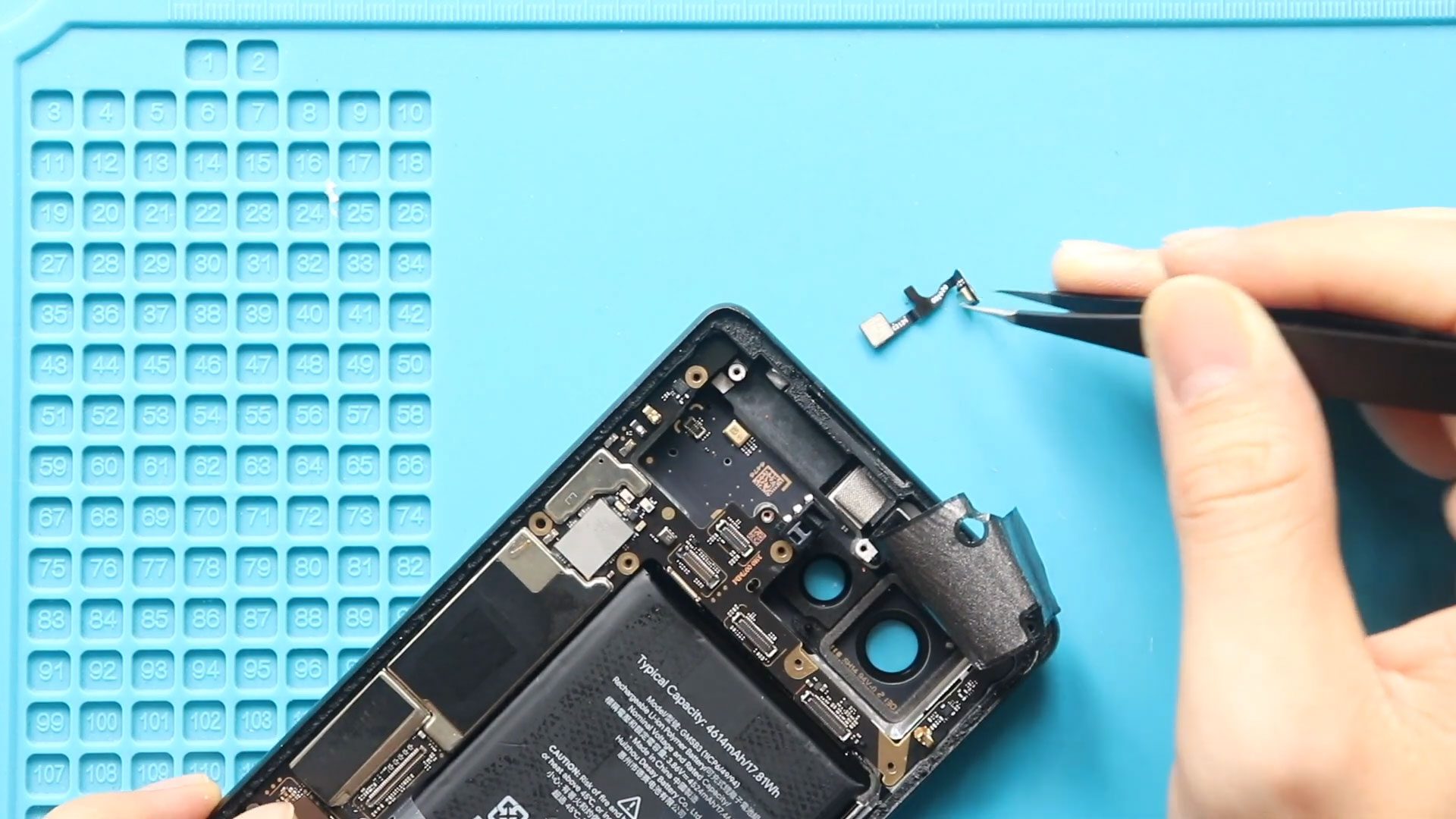
Google Pixel 6 Microphone Replacement Guide
If people can’t hear you clearly during calls, voice recordings sound muffled, or Google Assistant fails to recognize your voice, your Google Pixel 6 microphone may be faulty. The microphone flex cable is responsible for capturing audio during calls, videos, and voice commands, and damage or wear can cause serious communication issues.
In this DIY guide, we’ll walk you through how to replace the Google Pixel 6 microphone flex safely and correctly. This repair requires careful disassembly of internal components such as the cameras and earpiece, but no soldering is needed.
Reasons to Replace the Google Pixel 6 Microphone
- Other callers can’t hear your voice
- Audio recordings are distorted or muffled
- Microphone not detected by apps
- Voice commands not working
- Microphone failure after water damage or drops
Before You Begin
Compatibility and Model Numbers
This repair guide based on Google Pixel 6 Mobile Phone.
Model Numbers | GB7N6, G9S9B16, G9S9B, GR1YH
Tools Required
- Heating pad / heat gun / hairdryer
- Suction cup
- Plastic card pry tools / opening picks / Tweezers
- Phillips PH000/PH00 screwdriver
- Torx T3 Screwdriver
- Adhesive (B7000 or double-sided back cover adhesive)
- Bonding clips or rubber bands (optional but recommended)
Make sure the device is turned off and the SIM tray is removed before starting.
How to Find Tools and Parts
- Heating pad – https://amzn.to/3H0tHzJ
- Portable Heat Gun – https://amzn.to/4mszih1
- Clamps https://amzn.to/3GYJT4w
- STREBITO 142 Piece Repair Tool Kit https://amzn.to/3UO1jUx
- Glue | Adhesive https://amzn.to/46exVxe
- Compatible Parts –
- Battery – https://amzn.to/4oCudEY
- Screen – https://amzn.to/4orJkRn
- Other Parts – https://amzn.to/45eHHPC
- Silicone Work Repair Mat https://amzn.to/45Emz5l
Protect Your Google Pixel 6
- Protector For The Screen https://amzn.to/4oxn48E
- Best Cases For Your Pixel 6 https://amzn.to/4fwwSMl
Step-by-Step Google Pixel 6 Microphone Replacement
Step 1: Open the Google Pixel 6
- Gently heat the front screen edges using a heating pad, heat gun, or hairdryer.
- Use a suction cup to lift the screen slightly from the right-hand side.
- Insert a plastic pry tool and carefully cut through the adhesive.
- Open the display from right to left like a book, watching the flex cable on the left side.
Step 2: Remove the LCD Screen
- Remove the LCD connector bracket using tweezers.
- Disconnect the LCD connector from the logic board.
- Fully remove the display and place it aside safely.
Step 3: Remove LCD Connector Bracket and Logic Board Bracket
- Unscrew and remove the LCD connector bracket if not already done.
- Remove the screws securing the logic board bracket.
- Gently lift the bracket, loosening any graphite tape as needed.
Step 4: Disconnect the Battery
- Disconnect the battery connector to avoid short circuits during the repair.
Step 5: Remove Front and Rear Cameras
- Disconnect and remove the front camera module.
- Disconnect and remove the rear camera modules carefully and set them aside.
Step 6: Remove the Earpiece
- Lift and remove the earpiece speaker from its position.
Step 7: Remove the Faulty Microphone Flex
- Locate the microphone flex cable near the bottom section of the device.
- Carefully disconnect and remove the faulty Pixel 6 microphone flex.
Step 8: Install the New Microphone Flex
- Place the new microphone flex into position.
- Ensure it is properly aligned and securely connected.
Step 9: Reinstall the Earpiece and Cameras
- Reinstall the earpiece speaker.
- Place and reconnect the rear camera modules.
- Reinstall and reconnect the front camera module.
Step 10: Reassemble the Device
- Reinstall the logic board bracket and secure it with screws.
- Reconnect the LCD connector and secure the connector bracket.
- Power on the device and test the microphone before final sealing.
Step 11: Close the Device
- Apply new adhesive or B7000 glue if necessary.
- Slide the display into place from bottom to top.
- Apply gentle pressure around the edges.
- Use bonding clips or rubber bands until the adhesive fully sets.
Frequently Asked Questions (FAQ)
Q: Is Google Pixel 6 microphone replacement difficult?
A: It’s a medium-level repair that requires careful handling of internal components.
Q: Do I need to solder the microphone?
A: No, the Pixel 6 microphone is part of a flex cable and is plug-and-play.
Q: Can water damage cause microphone failure?
A: Yes, moisture exposure is one of the most common causes of microphone issues.
Q: Should I replace the microphone flex with an original part?
A: Original or high-quality aftermarket parts provide the best audio quality.
Troubleshooting (After The Repair)
Q: Microphone still not working after replacement
A: Ensure the microphone flex connector is fully seated and not damaged.
Q: Voice sounds muffled during calls
A: Check that the microphone port is not blocked by adhesive or dust.
Q: Google Assistant can’t hear me
A: Restart the phone and test the microphone using voice recorder apps.
Q: Phone does not power on after reassembly
A: Recheck the battery connector and logic board bracket alignment.
View More Repair Guides


-
 01Samsung Galaxy A16 5G Battery Replacement | Full DIY Repair Guide
 -
02Samsung Galaxy A16 5G Screen Replacement | Step-by-Step Guide
-
03Google Pixel 6 Power Button Replacement Guide | Volume Button Flex Repair Guide- DIY Repair
-
04Samsung Galaxy A16 5G Back Cover & Camera Lens Frame Replacement Guide | DIY Repair
-
05Why a Heating Pad Is Essential for Mobile Phone Repairs (And How to Use it)
-
06How to Use a Heat Gun or Hair Dryer for Phone/Tablet Repairs
-
07Essential Repair Tools for Phone, Tablet & Laptop Repairs


